When staff added a player to an event, training or tournament, the slot stayed unconfirmed until the player opened the invite and paid. Admins can now confirm it straight away by charging the player's wallet.
What's new
Use wallet for payment: a new toggle in the Add Player pop-up, off by default. When it is on, the selected registration fee is taken from the player's wallet and they are added as Paid.
Negative balance: if the wallet is short, the admin sees the player's current balance and what it will be after the charge. Confirming charges the full amount and leaves the wallet negative.
Settling up: the player clears the balance by topping up their wallet. Their slot stays confirmed in the meantime.
Maximum Negative Balance: this club policy caps how far a wallet can go negative. Past the limit, the player cannot book or register for anything at the club until they top up.
Admin channel: players added this way show in the Registered list with the Admin channel, so it is clear who staff registered.
How to access: Open an event, training or tournament, go to the Players tab and click Add player. Choose the registration fee, turn on Use wallet for payment and add the player.
Admins can now reserve a court, date and time for a specific trainer. During that time the court is only available for that trainer's private lessons, so clubs can plan coaching capacity in advance.
What's new
Trainer-specific reservations: pick the court, date, time and trainer. The court is held for that trainer's private lessons only.
Blocked for everything else: reserved courts cannot be used for court bookings, open matches or other activities.
What players see: the reserved slot only appears when a player books a private lesson with that trainer.
Reservation records: group several reservations across dates, courts and trainers into one record, with shared club, sport, labels and internal notes.
Reservation Auto Cancellation: set how many hours before the start an unbooked reservation is cancelled, releasing the court back to general availability. Leave it off to keep the reservation blocked regardless of bookings.
How to access: Trainings > Reserve Courts.
Read full guide > https://support.padelos.co/en/articles/17703771-reserve-courts-for-private-lessons
A new Private Lesson Book Ahead Limit policy controls how far into the future players can book private lessons, in line with the book-ahead limits that already exist for court bookings and open matches.
It is set in days, in the Private Lesson section of club policies.
Each sport has its own limit, so Padel, Tennis and Squash can open different windows.
Players only see private lesson slots inside the limit. Later slots are hidden.
For example, with a Padel limit of 5 days, players can see and book Padel lessons up to 5 days ahead. Day 6 onwards is not shown. Lessons can no longer be booked before coach schedules are confirmed.
How to access: Club Policies > Private Lesson.
Clubs can now set the default availability filter for each listing on its own, instead of one shared default across all four.
Separate controls in Club Policies for Events, Trainings, Tournaments and Open Matches.
Each offers the same three options: All, Available and Slots Full.
The default sets what players see when they first open the listing, logged in or not. Players can still change the filter while browsing.
Activities fill up in different ways. A club can show only open Open Matches while still listing full Tournaments, so players see everything that is scheduled.
How to access: Club Policies, then set the default availability filter for each listing.
Clubs can now publish live PadelOS data on their own website using our public APIs.
Show your trainings, open matches, events and tournaments on your site, always up to date, using just your Club ID. Share the guides with whoever looks after your website and they can take it from there.
Read full guide > https://support.padelos.co/en/collections/19748362-apis
Every player now has a public profile showing their rating, competitive matches and tournaments. Other players can open it straight from an open match or a booking, so they can see who they are playing with before joining a game.
What's new
Public profile for every player, with their name, rating and recent competitive activity.
Competitive matches: date, time, match type, level range, location, and the other players with their ratings.
Tournaments: format, dates, level range and location for each competitive tournament played.
Visibility: players can switch their public profile off in the Privacy section of their settings.
Why it matters
Players can check the level and experience of others before joining or accepting a match.
Matchmaking is more transparent, so balanced games are easier to find.
Players get a clear view of their own competitive history and progress.
How to access: tap a player's image in an open match or on the bookings page. For your own, open the menu, go to the profile section and select the public profile.
Admins can now choose whether the Membership Benefits section is shown on the player-side membership detail page. It is set per membership.
What's new
When off: the Benefits section is hidden from the player-side detail page, with no empty space left behind.
When on: the section shows exactly as it does today.
Display only: hiding the section does not change the benefits. Members still receive everything attached to the membership.
Detail page only: the toggle does not affect the club page membership card, checkout or My Memberships.
Defaults: on for new memberships, and on for every existing membership at release, so nothing changes for players unless you turn it off.
Some clubs prefer a simpler membership page, or communicate benefits through their own channels. This gives each club control over what players see, without changing what members get.
Admins can now create and schedule private lessons at times that fall outside a trainer's set availability. Until now, admins were limited to the same windows players see.
What's new
Create outside availability: when creating a private lesson from the scheduler, admins can pick a slot outside the trainer's weekly availability.
Schedule outside availability: from the Private Lessons view, admins can schedule a lesson, including the remaining sessions in a package, outside that availability.
Unavailable trainer indicator: the trainer is marked unavailable and the admin is warned before continuing, so an out-of-hours booking is always a deliberate choice.
Player booking unchanged: players still see and book only the slots inside the trainer's availability.
Trainers often agree to one-off sessions outside their regular hours: an early morning slot, a weekend make-up session, or a lesson arranged directly with a player. Those can now be recorded in PadelOS without editing the trainer's weekly availability and changing it back afterwards.
Clubs can now simplify the player menu by combining related activities onto single pages. Two new settings merge trainings with private lessons, and events with tournaments.
What's new
Show Unified Trainings Page: trainings and private lessons appear together on one Trainings page instead of two.
Show Unified Events Page: events and tournaments appear together on one Events page instead of two.
Both settings are disabled by default, so the player menu stays as it is until a club turns them on.
Why it matters
Fewer menu items make it easier for players to find what they are looking for.
Players looking for coaching, or for competitive play, see all the options together without switching pages.
Clubs that prefer to keep these activities separate can leave the settings off.
How to access: go to Settings > Policies > General and set Show Unified Trainings Page and/or Show Unified Events Page to Enabled.
Clubs can now automatically cancel unfilled open matches, or release their court, at set times before the match starts. The policy is configured separately for Public and Invite matches and is off by default.
Settings per match type
Match time cutoff: a time of day, in the club's local timezone, that splits matches into two groups: those starting before it and those starting at or after it. Each group has its own conditions.
Action: Cancel match releases the court and refunds paid players under the Booking Refund Rule. Unbook court releases the court while the match stays open with its players, with no refund.
Conditions: four per group, one for each number of empty slots (4 down to 1), each set to a number of hours before the match starts. Any condition can be set to N/A to switch it off.
A slot only counts as filled once that player has paid.
Example
Public matches with a cutoff at 15:00. A match starting Saturday at 10:30 is checked on Thursday at 10:30, Friday at 10:30, Friday at 22:30 and Saturday at 04:30. The first check whose condition is true applies the action.
Unfilled matches no longer hold courts until start time. Clubs get courts back early enough to rebook them, and can treat daytime, evening and league matches differently.
How to access: go to Settings > Open Match Policies and turn on the Autocancellation toggle in each match type section you want it applied to.
Read full guide > https://support.padelos.co/en/articles/17345639-open-match-autocancellation
The admin grid views for Open Matches, Trainings, Tournaments and Events now include a Public View column. Each row carries an open-in-new-tab icon that opens the public view of that match or activity in a new tab, keeping the admin grid where it was.
Why it matters
Admins can check how a match or activity looks to players without leaving the admin panel.
Public links are easier to find and to share with players.
How to access: open the grid view for Open Matches, Trainings, Tournaments or Events, find the Public View column, and click the icon on the row you want.
A new club-level policy lets clubs decide how booking cards that are not related to a trainer appear to them in the scheduler. Clubs can show these cards in full or blur them.
What's new
Show Booking Details to Trainers controls trainer access to scheduler booking cards.
Enabled: trainers see unrelated booking cards in the scheduler.
Disabled: unrelated booking cards are blurred for trainers.
The setting applies at club level, so every trainer at the club follows the same rule.
Clubs that treat booking details as private can keep them from trainers, and clubs that prefer full visibility for planning can leave every card visible.
You can now restrict how many times a single player can register for the same membership. It suits memberships meant to be one-time or limited-use, such as a trial membership or a seasonal pass that should not be bought again and again by the same player.
How it works
A new setting, Maximum Purchases Per User, is available in the membership setup.
Set how many times the same player can buy that membership.
Once a limit is set, a player cannot buy the membership more times than that.
Left as No Limit, players can buy it as often as they like, as before.
Example
A club creates a Summer Trial Membership and sets Maximum Purchases Per User to 1. A player buys it once. If they try to buy it again, the purchase is blocked.
Admins can now charge a player's wallet directly when adding them to an activity (event, training or tournament) or a private lesson.
In the admin Add Player pop-up, a new Wallet option sits alongside the existing fee options. Selecting it charges the registration fee to that player’s wallet balance.
How it works
Select Wallet as the payment option in the Add Player pop-up.
With Wallet selected, one player is added at a time.
The registration fee is charged to that player's wallet.
Insufficient balance
If the balance does not cover the fee, a confirmation pop-up warns the admin and shows the resulting negative balance. The admin can confirm and proceed: the full fee is charged and the wallet goes negative if needed. Nothing in this flow blocks a negative balance.
Two new reports are available. They are still in alpha while we fine-tune and test them for accuracy.
When setting up an Event, Training or Tournament Discount, as a membership benefit or a loyalty tier perk, admins can now target activities by Label or Category, as well as by picking individual instances.
What's new
Available in both Membership Benefits and Loyalty Tier Perks.
The discount applies to any event, training or tournament carrying the selected labels or category, with no need to add each instance.
It works alongside the existing options: a blanket discount across every activity of that type, or specific instances one by one.
Clubs running recurring activity types, for example all Beginner trainings or every event tagged Ladies Night, can discount the whole group at once instead of adding every current and future instance by hand.
How to access
Membership: Membership > Membership Benefits > Event/Training/Tournament Discount, then select Labels or Categories.
Loyalty: Loyalty Tiers > Tier Benefits > Event/Training/Tournament Discount, then select Labels or Categories.
Read full guide > https://support.padelos.co/en/articles/10717675-how-to-create-a-membership
Clubs can now offer a self-service registration page for new players, on site or shared remotely.
Every club has a dedicated registration page, reached by adding /register to the end of the club URL, for example https://player.padelos.co/club/216858/register. Put it on a tablet at the entrance for walk-ins, or send the link over email or WhatsApp so players can register themselves.
How it works
The page asks for first name, last name, email, phone number, gender and date of birth.
On submission the account is created instantly, with no admin approval step.
The page is live by default for every club. There is no setting to turn it on or off.
Registration is faster for new players, whether they walk in at the entrance or join ahead of a booking, and staff no longer have to create the account by hand.
Swapping a player in a split booking no longer adds them for free.
Until now, removing a player from a split court booking and adding someone new added that new player as free. Now the replacement gets an email invite to pay their share, and shows as Unpaid until they do.
You can still override it by hand, exactly as before: mark them free or paid at the counter, or charge their wallet.
Parents can now create and manage Child Accounts under their own login, giving each child their own bookings, rating, wallet and profile.
What's new
Add Kids Account in Settings creates a child profile with first and last name, gender, date of birth, home club and rating.
Once a child account exists, the same option opens a switcher listing the parent profile and every linked child, plus the option to add another.
Each child profile has its own wallet, memberships, loyalty tier and booking, registration and rating history, separate from the parent and from any siblings.
Admins can set an age range on trainings, events and similar activities, so kids-only sessions are visible only to child accounts in that range.
Open matches created from a child account are limited to other child accounts, so adults cannot join a match a child created.
Child accounts have no login of their own. They are reached by switching into them from the parent account, and every action taken while a child profile is active belongs to that child.
Beyond giving parents a way to manage their kids, this lets clubs run age-appropriate programming: junior trainings, kids events and child-only open matches, without adults joining by accident or the wrong activities showing up for a child.
How to access: go to Settings > Add Kids Account / Switch Account to create a child profile or move between profiles.
You can now select multiple trainings at once and edit or update them together, instead of one by one.
How to do it
Tick the checkbox next to each training you want to include.
A toolbar appears at the bottom with your selection count.
Click Edit to update the selected trainings together, or use Publish All, Unpublish All or Close All for a quick status change.
Click X to clear the selection.
Admins can now restrict activities and matches to players with a verified rating, giving clubs tighter control over who is eligible.
What's new
Activities and matches can be marked verified-rating-only when they are created.
Players can create verified-rating-only matches from the player side too.
A player inside the rating range but without a verified rating cannot join.
Verified-only activities and matches are labelled on listing cards and in detail views.
A rating range on its own does not confirm that a level is accurate. This gives clubs and players a way to make sure everyone taking part has a genuinely verified rating, which keeps competitive play fair.
How to access: enable Verified Rating Only alongside the rating range when creating an activity or a match. The same option is on the player-side match creation flow.
We've rebuilt how trainings work in PadelOS. Two major upgrades:
1. Build your schedule in batches
Sessions are now added separately from the training itself, and you can add as many batches as you need, each with its own combination of trainer, court, dates, and pattern.
One training can hold Tuesday evenings with one coach on Court 1, plus Saturday mornings with another coach on Court 3
No longer locked into a single uniform recurring series
Training start and end dates adjust automatically to match your first and last session
2. Flexible pricing and payment schedules
You now have far more control over how players pay.
Set a price per session, a price for all sessions, or both
Choose whether players can buy individual sessions or must commit to the full programme
Offer upfront, monthly, or custom billing. Custom lets you define your own windows and prices, e.g. one rate for Jan–Mar and another for Apr–Jun
Read full guide > https://support.padelos.co/en/articles/16061730-creating-and-managing-a-training
Customer profiles now include an Overview tab, giving you a complete snapshot of a player's activity in one place.
At a glance, you can see:
All their upcoming bookings
Upcoming events they're registered for
Upcoming trainings they're enrolled in
Their active memberships
No more clicking through separate sections to piece together what a player has going on. It's all consolidated in one view.
How to access: Go to Customers, select any customer, and open the Overview tab.
Two new tabs have been added to the customer profile: Privacy and Notifications & Push.
Privacy shows what privacy settings a player has configured on their account.
Notifications & Push shows which email and push notification types a player has opted in or out of.
This gives your staff a quick way to troubleshoot. If a customer says they didn't receive a message, you can check their profile to see exactly what they've enabled or disabled, rather than guessing.
How to access: Go to Customers, select any customer, and open the new tabs on their profile.
Note: Due to privacy and GDPR compliance, admins currently cannot change these settings on a player's behalf. The tabs are view-only for now.
Chats in the Communication Hub can now be marked Resolved or Archived, with matching filters on both admin and player sides, making it easy to keep active conversations front and centre while still having quick access to everything else.
Resolve support chats
Admins can mark a Support chat as Resolved with a single click from the chat details panel. If the player sends a new message it reopens automatically, or an admin can reopen it manually at any time.
Archive group chats
Admins can archive any Group chat (Group, Rating Group, Tournament, Event, Training, Private Lesson) to move it out of the default view. Archived chats stay fully accessible under All Chats or the Archived filter, and can be unarchived at any time.
Player-side archiving
Players can archive any Group chat, including Open Match chats, from their own view. This is entirely self-scoped: it doesn't affect the chat's status for admins or other participants.
Smarter filtering
The Support tab's dropdown now offers All Chats, Open, and Resolved. The Groups tab combines Active, Archived, and All Chats with individual module filters (Tournament, Training, Event, etc.), so admins can drill straight into exactly the chats they need. A Club filter is also available on both tabs.
Why it matters
Support and Group chat lists stay clean and focused on what needs attention now, without losing anything. Resolved queries and inactive group chats are just a filter away.
How to access
Go to Messages → Support or Groups tab. Use the status/module dropdown and Club filter to narrow the list, and resolve, reopen, archive, or unarchive chats from the chat details panel.
Read more at the guide > https://support.padelos.co/en/articles/15805380-chat-communication-hub
v3.5.1
Separate Membership Discounts for Court Bookings and Open Matches:
Membership discount rules can now be defined separately for court bookings and open matches.
When setting up a membership rule, admins can choose whether it applies to All, Court Bookings Only, or Open Matches Only, and set a different discount percentage for each.
Gives clubs more flexibility to tailor membership value, for example offering a higher discount on court bookings while keeping a lower (or no) discount on open matches, all within the same membership.
Payment Reminders for Open Matches:
Admins can now send payment reminders to participants of an unpaid open match.
A Send Payment Reminder button has been added to the Open Match details view, letting admins notify participants who haven't yet paid.
Makes it easier for admins to follow up on unpaid open matches and collect outstanding payments, without having to message participants individually.
Create Bookings in the Past:
Admins can now create court bookings with a play date and time in the past.
The booking creation flow no longer restricts admins to future time slots. Bookings can be added for past dates as needed.
Helps admins accurately record bookings that were made outside the system (e.g. over the phone or in person) or backfill missed entries, keeping records complete and accurate.
v3.5.0
Cancel Membership While Verification is Pending:
Players who purchase a membership requiring admin verification can now cancel it before that verification happens, instead of being stuck waiting.
Players can cancel a pending, unverified membership directly from their account, with no admin action required.
Players are no longer locked into a membership while waiting on verification. They can cancel and purchase a different membership right away, reducing frustration and related support requests.
Split Payment Bookings Policy:
A new policy has been added in Settings to control whether split payment is available for court bookings.
Admins can now enable or disable Split Payment Bookings. When enabled, players can equally split the court booking payment among participants.
Bulk Creation for Tournaments:
Bulk creation, already available for other activities, is now available for Tournaments as well.
Admins can create multiple tournaments at once using the Create Bulk Tournament button in the Tournaments section, filling in a single form to apply shared details across all tournaments.
Saves admins time when setting up multiple similar tournaments, removing the need to create each one individually.
Default Rating Policy:
A new policy has been added in Settings allowing admins to set the default rating assigned to new players when they sign up.
This can be set separately for each sport.
Gives clubs control over the baseline rating new players start with, allowing for more accurate matchmaking and rating progression from day one, tailored to each sport's needs.
We've just released two new reports for club admins.
Player Chat Activity
Analytics and insights on all chat activity between players and the club, and between players themselves: open matches, groups, event activity, and more.
https://club.padelos.co/reports/detail/player-chat-activity
PadelGPT Activity
Analytics on customer conversations with PadelGPT.
https://club.padelos.co/reports/detail/padel-gpt-activity
Want to read the actual conversations, not just the analytics? Find them here: https://club.padelos.co/settings/player-chat-activity
The Avoid Slot Wastage policy now supports a configurable active time window. Previously, when enabled, the policy applied across the entire day. Clubs can now restrict it to a specific time range, giving more control over when slot optimisation is enforced.
Avoid Wastage Active Hours
Admins can now define a Start Time and End Time for when the Avoid Slot Wastage policy should be applied.
Within the selected window, the system will continue to prevent bookings that would leave unusable gaps between slots.
Outside the selected window, bookings will not be checked for unbookable gaps, allowing maximum slot availability during those hours.
Why it matters
Some clubs only need to guard against wasted slots during peak hours, while allowing more flexible booking patterns during off-peak times. This update lets clubs fine-tune the policy to match their actual usage patterns, rather than applying a single rule across the whole day.
How to access
Go to Settings → Policies → Avoid Slot Wastage - Active Hours, set the policy to Yes, then configure the Start Time and End Time under Slot Wastage Active Hours.
Send targeted messages to the right players in minutes.
Create a campaign by selecting your club, picking your audience (a segment or a group), choosing your channel, and writing your message. That's it.
Campaigns are delivered through the PadelOS in-app chat and land in a dedicated Promotions thread in the player's Messages section, separate from regular club conversations. The thread is one-way so it stays clean and doesn't mix with support chats.
Email, WhatsApp, and SMS channels are coming soon.
How it works
Select your club
Name your campaign
Pick your audience: a segment or a group
Choose your channel
Write and send
Learn more at https://support.padelos.co/en/articles/15946550-creating-marketing-campaigns
Clubs can now manage their own knowledge base directly from Settings. This includes Terms & Conditions shown to players at booking, an Open Matches explainer, a player-facing FAQ section, and AI Guidelines that help PadelGPT give more accurate, club-specific answers.
Learn more > https://support.padelos.co/en/articles/15928095-guides-documents-managing-your-club-s-knowledge-base
Organise your players into groups you can message and manage together. Every group automatically gets its own chat.
There are two ways to build a group.
Custom Groups
Add and remove players manually. Best for teams, league rosters, VIP members, or any group based on things PadelOS can't calculate automatically.
Rating-Based Groups
Set a rating range, for example 1.0 to 2.0, and PadelOS automatically places players in the right group as their rating changes. No manual work. Players move in and out on their own as they improve or drop.
This replaces the biggest pain point clubs have with WhatsApp, where admins manually manage group membership every time someone's level changes.
Group Chat
Every group, custom or rating-based, gets its own chat the moment it's created. Players see it in their Messages section. Admins see it in the Messages module. For rating-based groups, chat membership updates automatically as players move between groups.
Learn more > https://support.padelos.co/en/articles/16034031-creating-and-managing-groups
Overview
PadelOS now includes an All Activities section, giving club administrators a complete, unified view of every activity taking place at their venue — past, present, and future — in a single table.
What's New
Unified Activity Dashboard
All activity types are now consolidated into one place. Reservations, Open Matches, Private Lessons, Events, Trainings, and Tournaments can all be monitored and managed from a single view, reducing the need to switch between screens during daily operations.
Tab Filtering
Activities can be filtered using five built-in tabs — All, Upcoming, Previous, Paid, Unpaid, and Draft — making it easy to focus on what's relevant at any given moment, whether that's today's schedule, outstanding payments, or activities still in preparation.
Activity Data at a Glance
Each row in the table displays the activity type, a unique ID, title (where applicable), sport, start and end date, start and end time, current registrations against capacity, price, and a colour-coded status. Statuses include Open, Paid, Unpaid, Draft, and Cancelled, allowing staff to assess the state of any activity instantly without opening it.
Search
A search bar allows staff to locate any activity quickly by keyword. The Columns toggle lets admins customise which data fields are visible in the table, and the Export option makes it straightforward to download activity data for reporting or record-keeping.
How to Access
Navigate to All Activities in the left sidebar of your PadelOS dashboard, under the Club Schedule section.
Overview
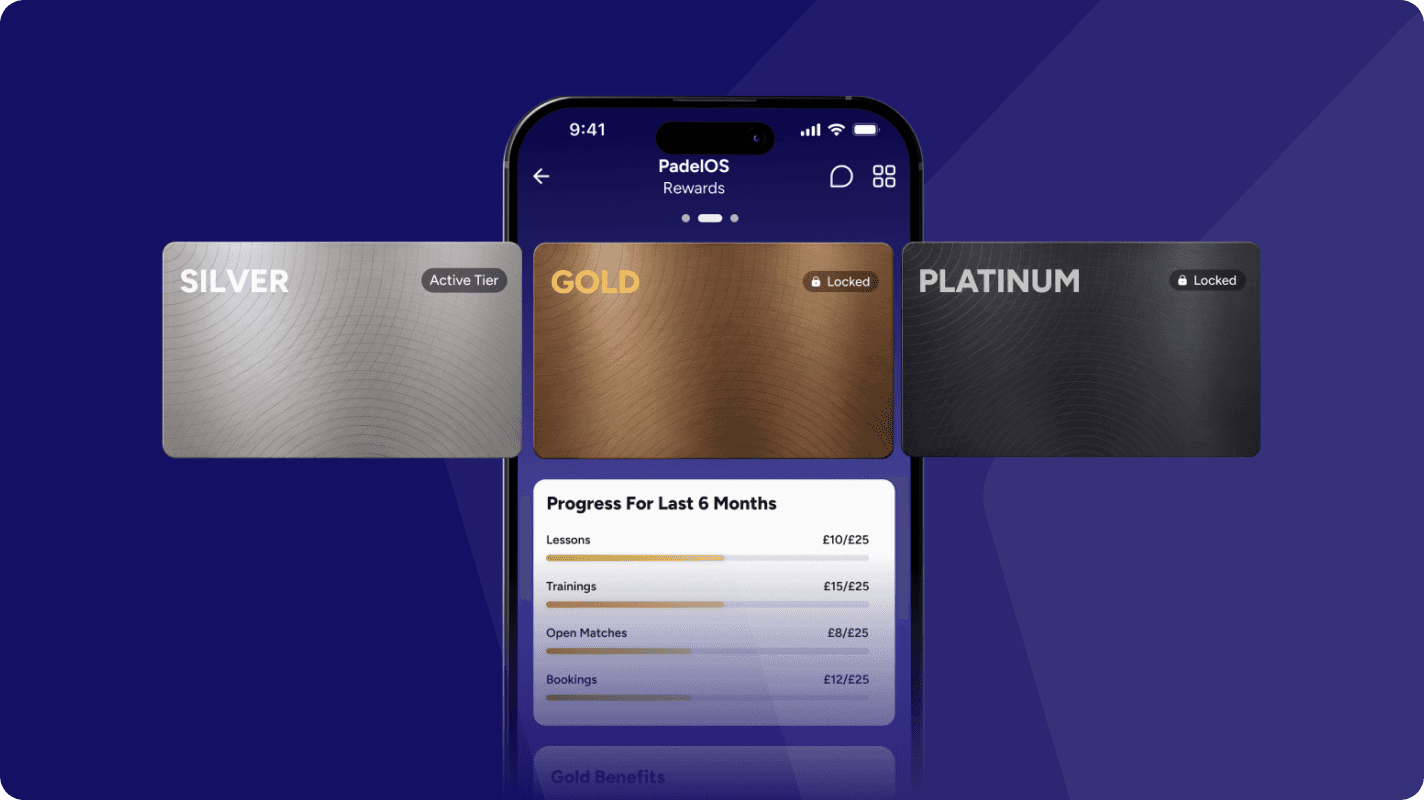
PadelOS now includes a fully configurable loyalty program with three reward tiers — Silver, Gold, and Platinum— designed to reward your most active players and drive long-term retention.
Program Configuration
Define spending thresholds per activity type (e.g. court bookings, lessons, pro shop) or as a combined total across all spending.
Set custom qualifying cycle lengths — monthly, quarterly, annually, or any number of months — to match your venue's needs
Configure separate retention targets: players must maintain their spend level to keep their tier at the end of each cycle

Tier Management
Players are automatically promoted or demoted based on their spending within the active qualifying cycle — no manual intervention needed
Each tier (Silver, Gold, Platinum) supports its own distinct perk configuration
Tier names and card designs are fully customisable — brand them to match your venue's identity or loyalty program theme
Perk Configuration per Tier
Admins can assign and stack the following perks across tiers:
Court booking discounts
Discount on Activities (Events, Trainings, Tournaments) and Lessons
Complimentary court hours
Extended advance booking windows
Priority cancellation timeframes
For Players
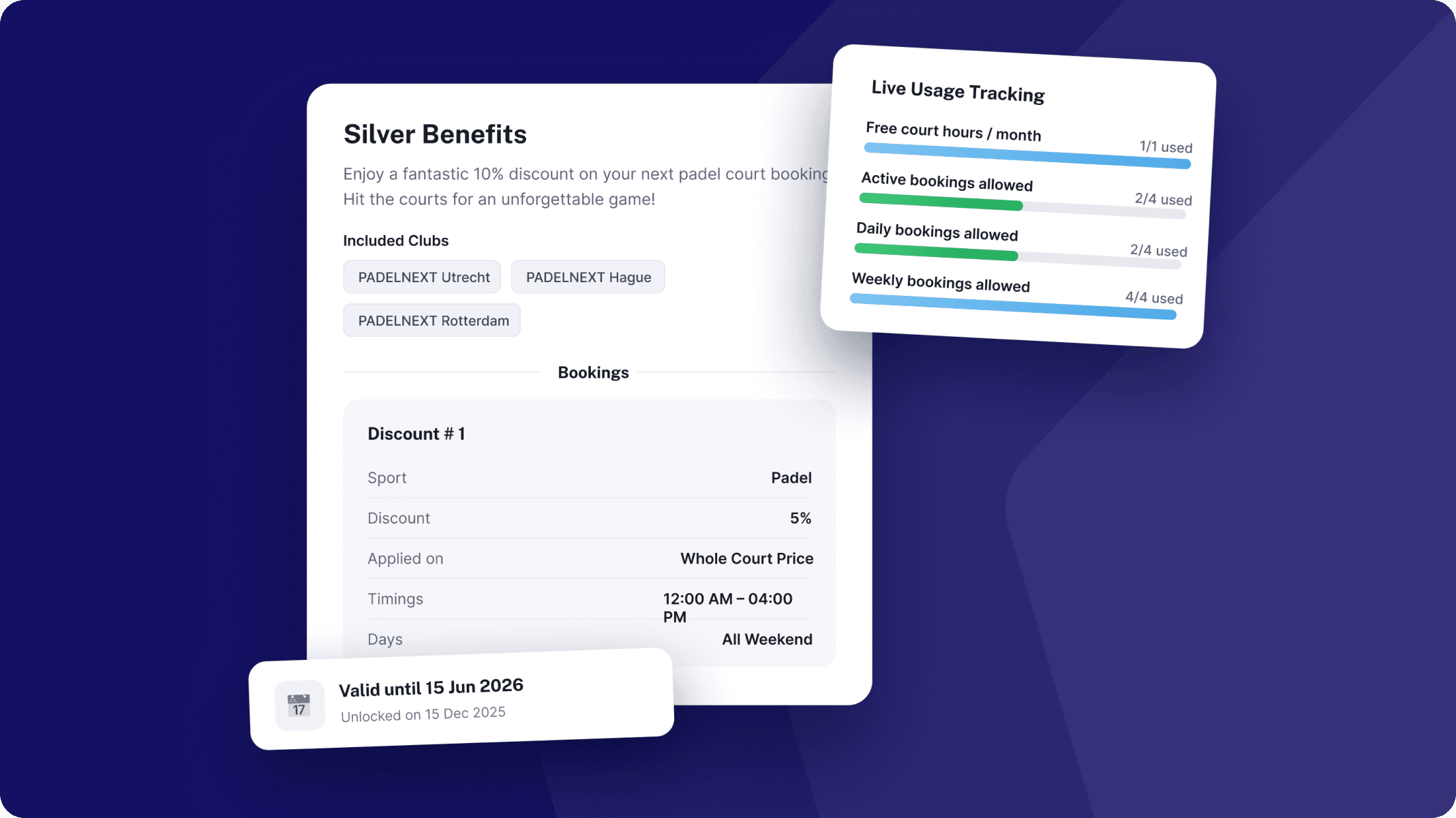
Real-time progress tracking: players can see their current tier, spending to date, and exactly how much more is needed to reach the next tier or retain their current one
Clear perk breakdown: players see every benefit available at their tier and their usage/remaining balance for each perk
Automatic tier updates: no action needed — tier status adjusts at the end of each qualifying cycle based on spending
Learn more > https://support.padelos.co/en/articles/15928163-loyalty-tiers-creating-managing
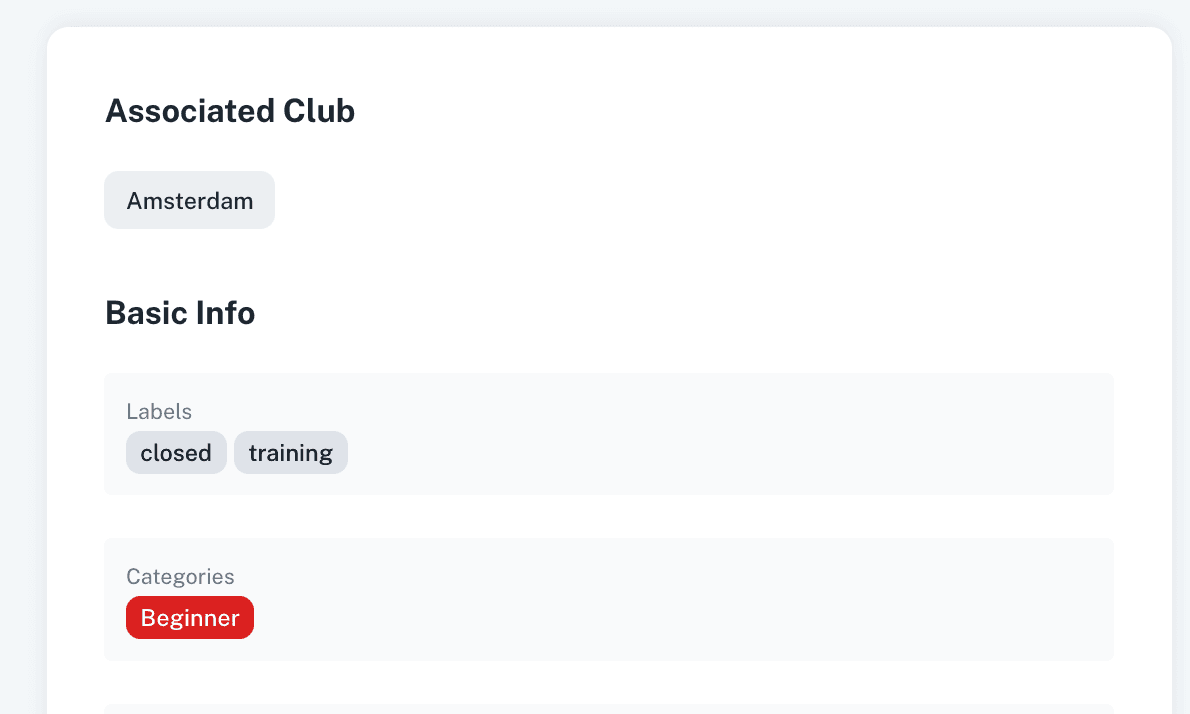
Categories work like labels. They help clubs organize activities and make it easier for customers to find what they are looking for.
You can create and edit categories from Settings. Once created, a category can be assigned to any activity, such as an event, training, or tournament.
For example, a category could be Beginners, Advanced, Intro, or anything else that makes sense for your club.
Once a category is assigned, it will be visible on the activity. This helps customers quickly understand what type of activity it is and whether it is relevant for them.
Customers can also use the Categories filter at the top of the activity pages. This allows them to filter the page and only see activities linked to a specific category.
Categories can also be used in URLs. This is useful for marketing campaigns because you can share a link that opens a page already filtered by a specific category. Just filter them and then copy the url.
For example, you could share a link that shows only activities for beginners, intro sessions, or any other category you want to promote. For example this link will only show Beginners events https://player.padelos.co/company/167/events?category=Beginners
Categories help clubs organize their activities more clearly and help customers find the right activities faster.
Learn more > https://support.padelos.co/en/articles/16592978-labels-vs-categories
v3.3.0
Update membership start and expiry dates:
Admins have the ability to manually set the membership start and end dates for any player.
This allows admins to extend, reduce, or shift the durations of memberships as needed, providing greater flexibility in managing player access periods.
Bulk Edit Activities:
Admins can now select and edit multiple activities, including Events, Trainings, and Tournaments, all at once in bulk. This new feature significantly streamlines the management process by allowing simultaneous updates to several activities, saving time and effort.
Learn more > https://support.padelos.co/en/articles/16000388-trainings-single-session-vs-multi-session-vs-bulk-creation
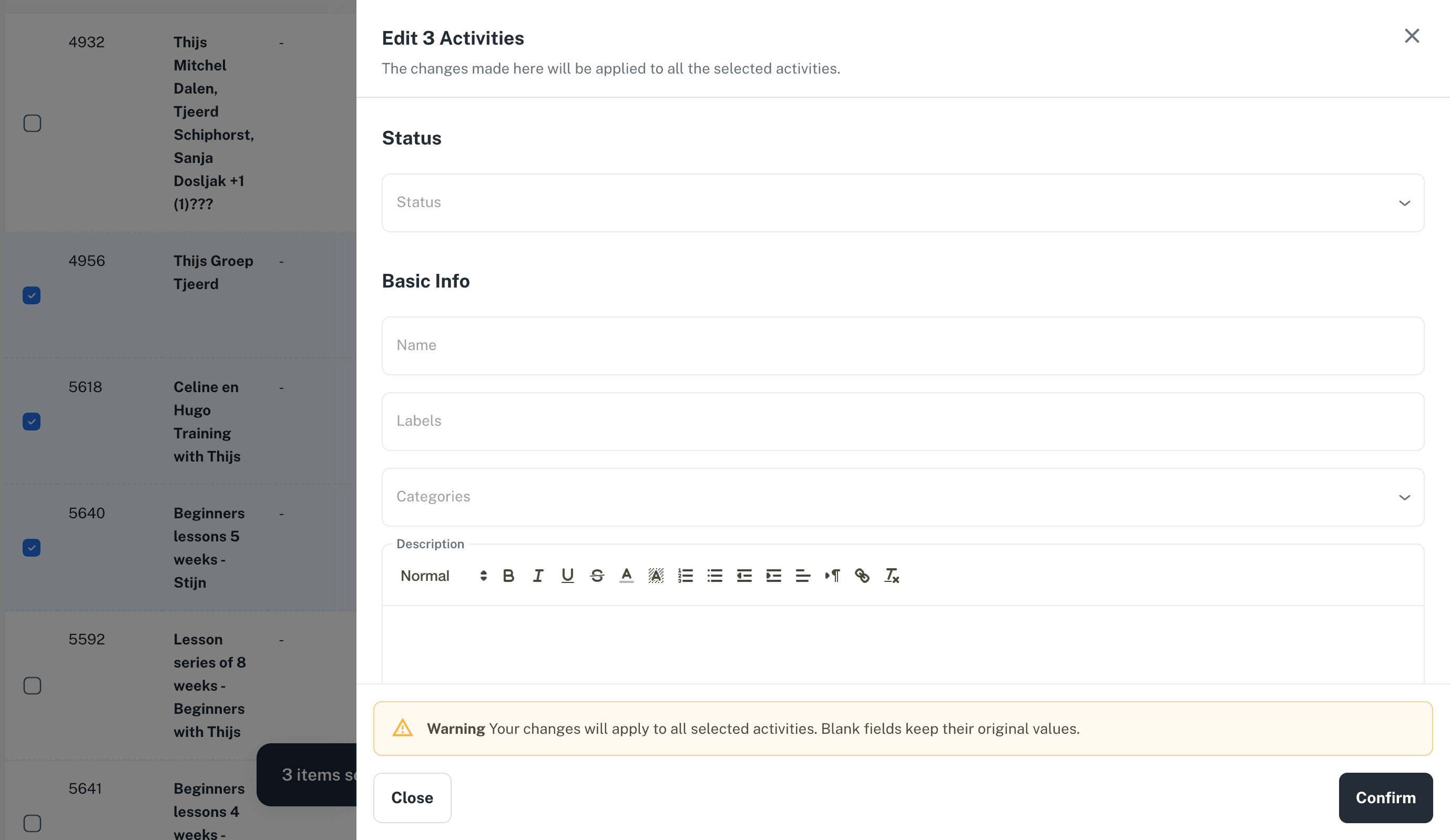
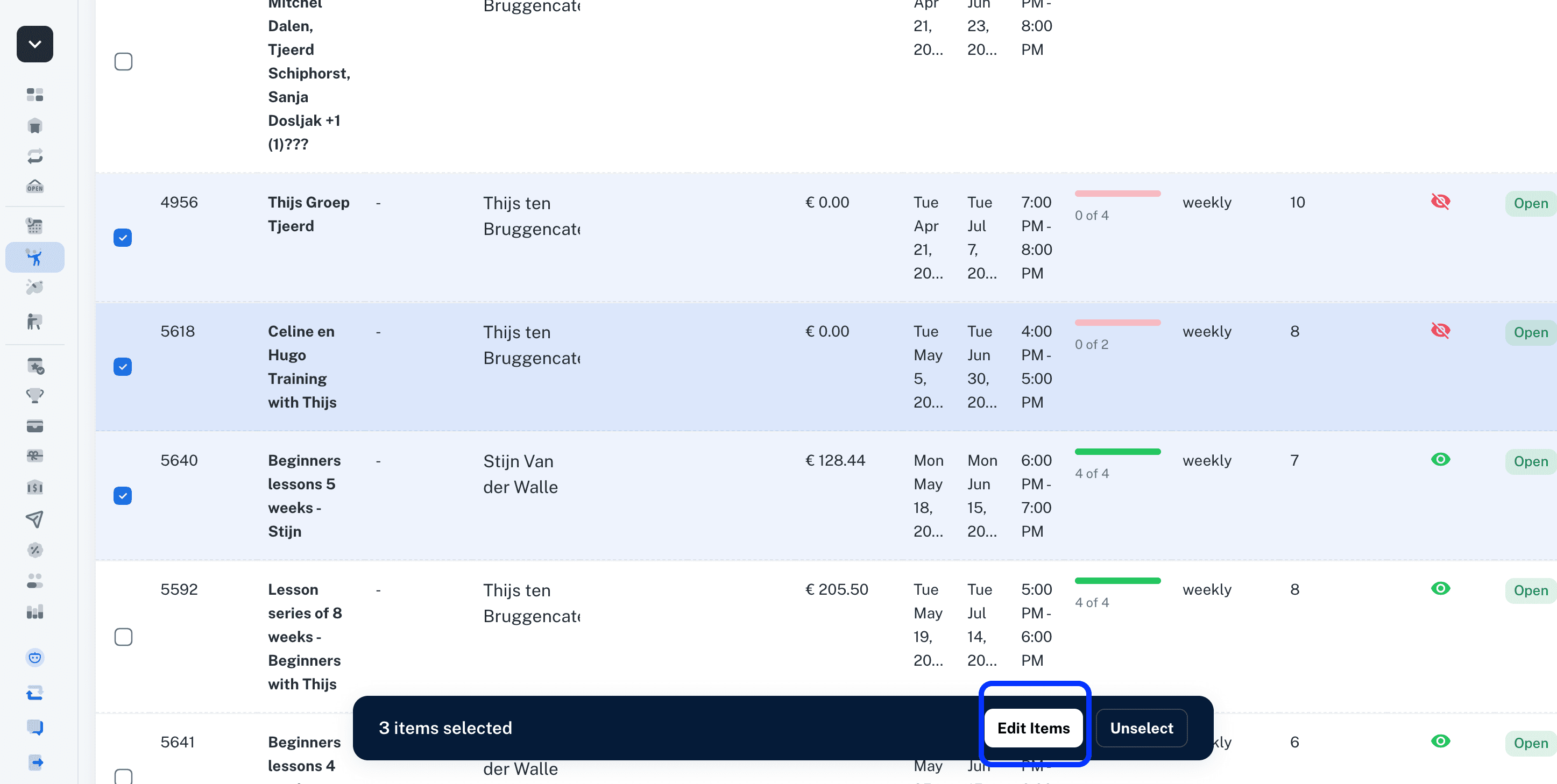
To use this feature, simply navigate to any activity list, such as Fixed Trainings. From there, you can select multiple trainings at once and then click on the Edit Items button. This will open an edit form where you can enter values that will be applied uniformly to all the selected items.
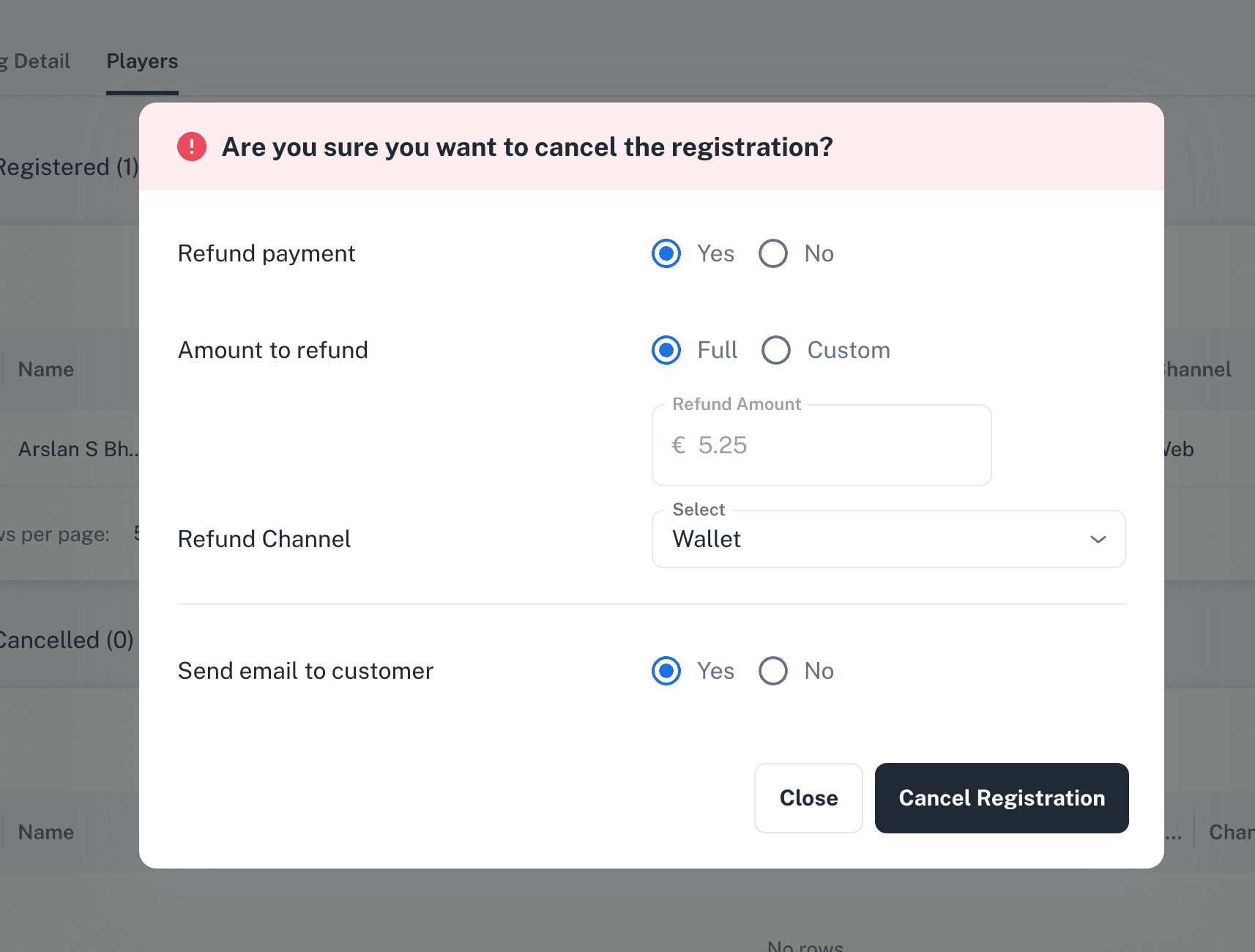
Refund payment controls on cancellations of activities and private lessons:
When cancelling an Event, Training, Tournament, or Private lesson registration, administrators have the option to decide whether to issue a refund to the participant. They can also choose the method of refund payment, selecting either a Wallet refund or a Bank refund.
In addition to the standard refund options, administrators are able to select a custom refund option. This allows them to specify a particular refund amount, providing flexibility to accommodate special cases or partial refunds as needed.
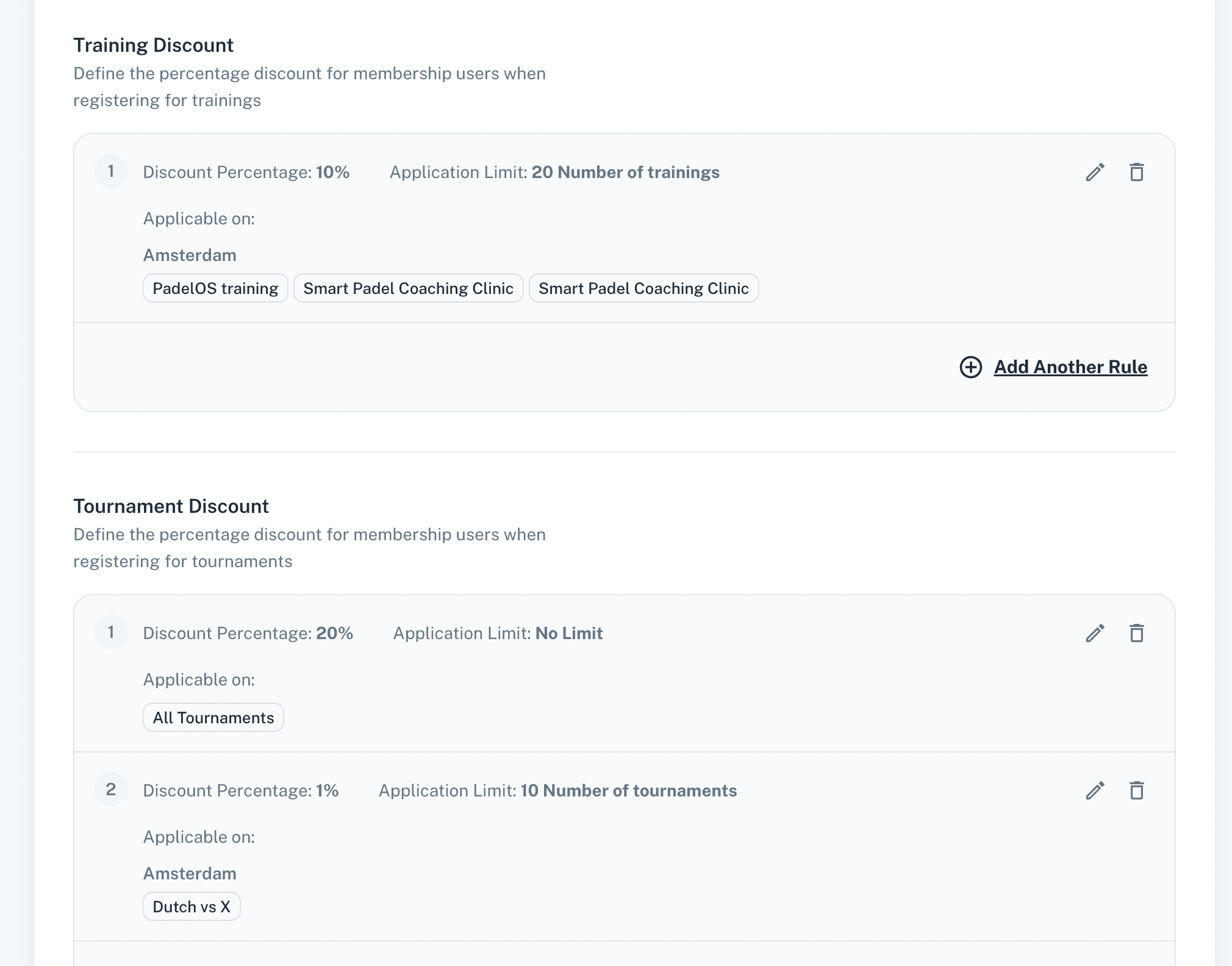
Limits on activities discounts in memberships:
Admins have the capability to limit membership discounts specifically on events, trainings, and tournaments by selecting particular activities to which these discounts will apply.
These discounts can also be restricted based on the number of times they are used, allowing admins to set limits by usage count to control discount application.
Furthermore, administrators have the ability to assign different discount rates to members depending on the specific activities they participate in. This feature enables tailored discount offerings for various events, trainings, or tournaments, allowing for more personalised and flexible pricing structures that better meet the needs of members and encourage participation across different types of activities.
Extend/Renew Membership before Expiry:
Players have the option to extend or purchase a new membership before their current one expires. This proactive approach allows members to maintain continuous access to benefits without interruption.
As a result, players no longer need to wait for their current membership to expire before buying another.
Other Updates:
Players now have the ability to update gender restrictions and the visibility settings of existing open matches. This means they can control who can see and join their matches based on these criteria. Only the booker or the owner of the match is permitted to perform these updates.
Activity listings, which include Events, Trainings, and Tournaments, now display prices that are adjusted according to each player's specific membership discount. This enhancement ensures that players see the most accurate pricing based on their membership status. Additionally, court prices shown in bookings also reflect the player's membership discount, providing consistent and personalised pricing information throughout the booking process.
Minor enhancements and bug fixes improve platform performance, stability, and responsiveness.
v3.2.0
My Bookings view Updated:
The My Bookings view has been redesigned to provide a clearer and more organized overview of a player’s upcoming bookings and activities in chronological order.
Players can now instantly see their next upcoming booking or activity displayed at the top for quicker access and better visibility.
Alerts have also been added to the My Bookings and Trainings pages to notify players about any unscheduled sessions from already purchased private lessons.
Additionally, invite-only match invitation alerts are now displayed to inform players about pending open match invitations on My Bookings view and Home page
Multiclub Trainer Schedule view:
Trainers and admins can now view a trainer’s schedule across all clubs and locations in a single consolidated view.
This allows trainers to easily track their complete daily and weekly schedules for all assigned locations from one place, improving visibility and schedule management.
Registration Start and End Dates for Activities:
Admins can now configure when registrations should open and close for activities such as Events, Trainings, and Tournaments.
This allows clubs to better control registration periods and automate participant access based on the activity start date.
For example, admins can configure registrations to open 20 days before the activity start date and automatically close 5 days before the activity starts.
Open Matches Updates:
Admins can now add players to Open Matches even if the player’s rating does not meet the configured match rating criteria.
Invite-only matches can now also be accessed and joined by other players using the shared match link, making it easier to fill matches quickly.
When creating an Open Match, players are now automatically assigned to their preferred position slot (Left/Right) based on their player profile settings.
A new Open Match court booking grace period policy has also been added, allowing clubs to reserve courts for a specific duration while players join and fill the match slots.
Other Updates:
Admins can now register players into Events, Trainings, and Tournaments even when all participant slots are already full to manage registrations and accommodate exceptional cases or manual adjustments when needed.
Minor enhancements and bug fixes have been implemented to improve overall platform performance, stability, and responsiveness.
v2.9.2
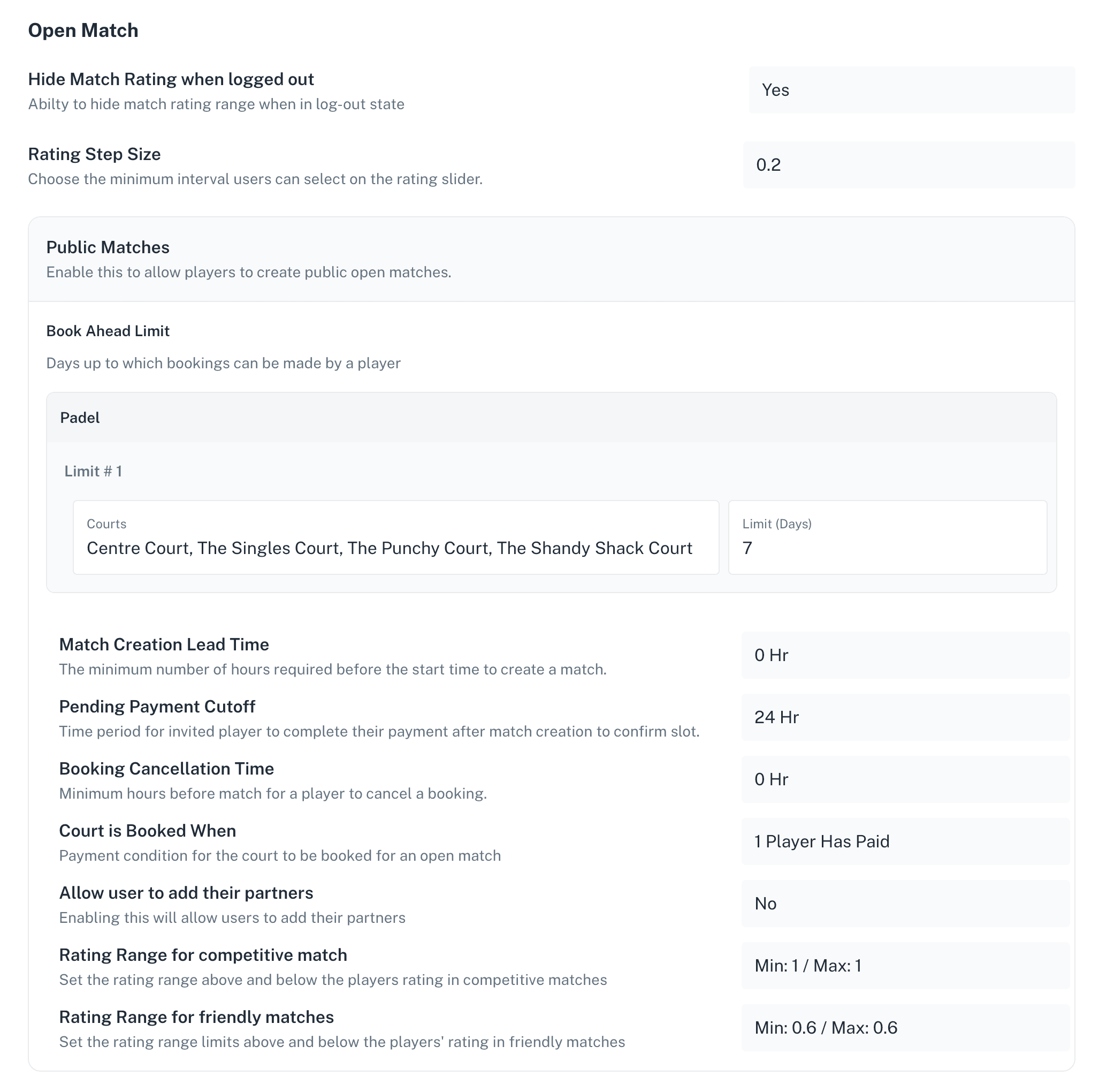
Separate Rating Ranges for Friendly & Competitive Matches
Open Matches now support different rating ranges for Friendly and Competitive matches.
What this means: Clubs can define separate rating boundaries for each match type. Friendly matches can have wider ranges to allow players of different skill levels to play together, while Competitive matches can have tighter ranges to ensure more balanced and fair gameplay.
How it’s used: When creating an Open Match, players first select the match type (Friendly or Competitive). Based on this selection, the system automatically applies the rating range configured by the club. Players can only set the match rating within these predefined limits, ensuring that all matches follow the club’s intended level of play.
Custom Rating Step Size for Open Matches
Open Matches now support configurable rating step sizes on the slider.
What this means: Clubs can define the minimum interval between rating values (e.g. 0.2). This gives more control over how granular match ratings can be, allowing for more precise player level selection.
How it’s used: When creating or adjusting an Open Match, players select a rating using a slider that follows the step size set by the club. Ratings move in fixed increments, ensuring consistency across all matches.
Open Match Court Booking Policy
Separate court booking policies have been introduced for Public and Invite Matches.
What this means: Clubs can now control when a court should be booked for an Open Match based on how many players have joined the match. This can be configured differently for Public and Invite-only matches.
How it’s used: When a player creates or joins an Open Match, the system checks the configured policy to determine whether the court should be booked. For example, clubs can choose to:
Book the court only when a minimum number of players have joined, or
Delay booking until the match is fully filled
This helps prevent unnecessary court blocking and optimizes court availability.
Court Booking Grace Period for Open Matches
A Grace Period has been introduced for court bookings linked to Open Matches.
What this means: When an Open Match is created, the system can temporarily reserve a court even if the match is not yet full. This ensures the court is not immediately released while players are still joining.
How it’s used: Once the Open Match is created, the court is held for a defined grace period set by the club.
During this time, players can join and complete the match.
If the required number of players join within the grace period, the booking is confirmed.
If the match is not filled in time, the court booking is automatically cancelled according to the club’s Open Match Court Booking Policy, making the court available again.
Separate Book Ahead Limits for Public & Invite Matches
Book ahead limits can now be configured separately for Public and Invite Matches.
What this means: Clubs can control how far in advance players can create or join matches, depending on whether the match is open to all players or restricted to invited participants.
How it’s used: Admins define the number of days in advance players can create Public and Invite-only matches. This provides better control over court usage—for example:
Limiting how far ahead Public matches can be created to prevent courts from being blocked too early
Allowing Invite Matches to be scheduled further in advance for better planning among specific groups
Learn more > https://support.padelos.co/en/articles/10717662-open-match-policies-admin-guide
v3.0
Corporate Accounts & Wallets in PadelOS
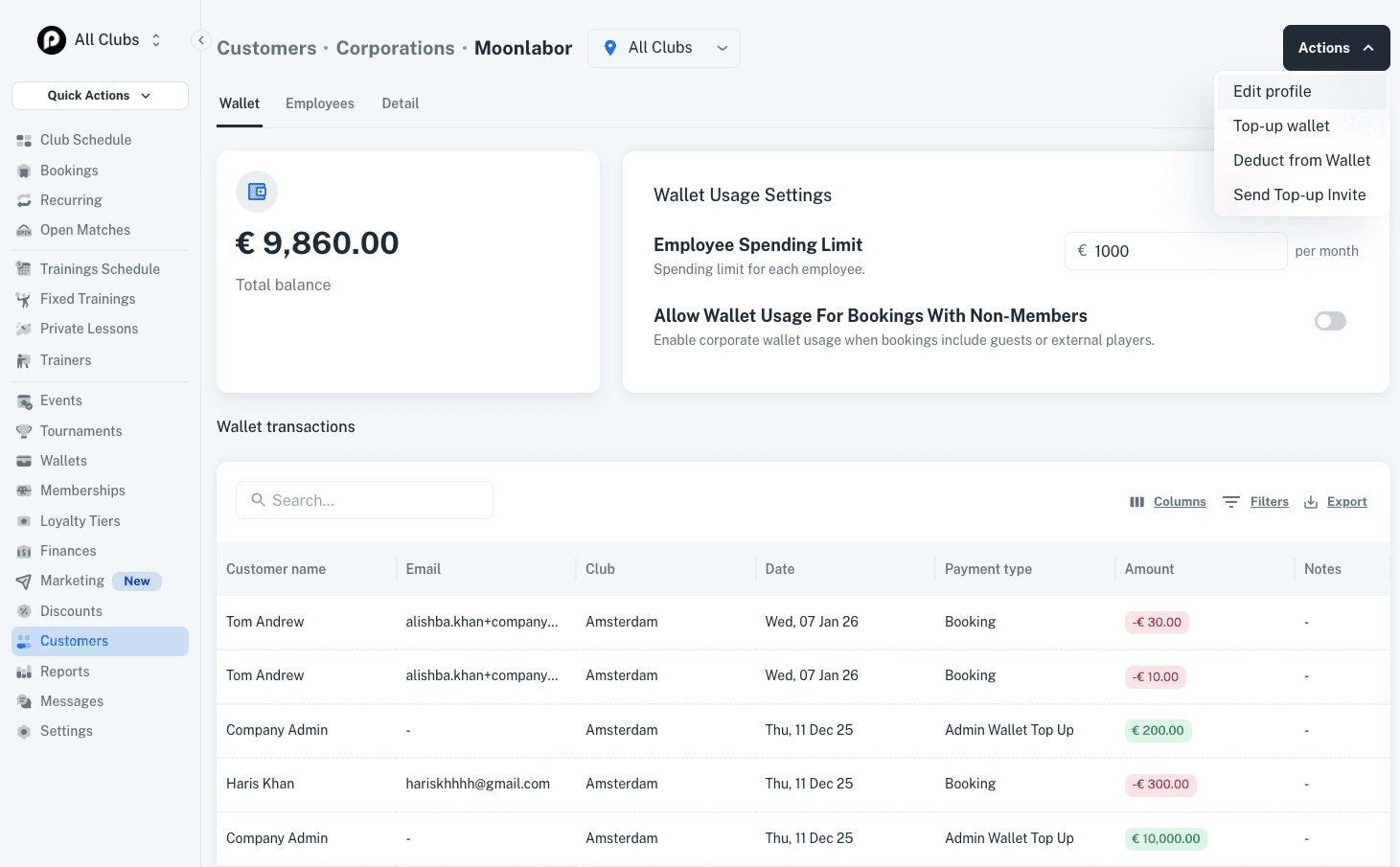
PadelOS allows you to manage corporate clients by creating corporate accounts, adding employees, and controlling how they pay and play using a corporate wallet.
1. Create a Corporate Account
Go to Customers → Corporates and create a new corporate account. Add the company details, upload a logo, and apply basic branding.
Once created, you can add employees:
Add employees individually or in bulk (copy-paste emails)
Assign roles such as employee or manager
2. Enable the Corporate Wallet
After setting up the corporate account, enable the Corporate Wallet.
This allows you to:
Top up a balance for the company
Set a spending limit per employee (for example €100 per month)
The wallet balance is used when employees make bookings.
3. Configure Usage Rules
You can define how the corporate wallet can be used:
Restrict usage to matches with only corporate employees
Or allow employees to play with non-employees
You can also set conditions such as requiring a minimum number of corporate players in a booking.
4. How Corporates Top Up the Wallet
Corporate wallets can be topped up in two ways:
A corporate manager can log in and add funds directly
An admin can generate and share a top-up link from the Actions button on the corporate profile page
This link can be shared with anyone in the company to add funds.
5. How Players Use the Corporate Wallet
When an employee makes a booking and has access to a corporate wallet:
They are asked which wallet to use (personal or corporate)
If they choose corporate, the amount is deducted from the corporate wallet
All usage follows the limits and rules set for that corporate account.
v3.1
We’re introducing Support and Chat, a centralized communication layer across PadelOS. This feature brings all player and admin interactions into a single, structured messaging system, making communication faster, more contextual, and easier to manage.
At its core, Support and Chat connects conversations directly to the activities happening in your club, whether that is a booking, a training session, a tournament, or an open match.
Direct Messaging with Clubs
Players can now contact their club directly through the platform. From the Messages section, players will see the club listed as a contact and can start a conversation instantly. This creates a dedicated thread for support, booking questions, or general communication without needing external tools.
On the admin side, messages are sent by the individual admin who is logged in. This means responses are not anonymous or generic. On the player side, each message shows the name and profile picture of the admin who replied, making the interaction more personal and transparent.
All incoming messages are visible in a centralized inbox for admins, making it easy to track, respond, and manage communication across the club.
PadelGPT Player Assistant
PadelGPT is an in app assistant that helps players get instant answers to their questions. Players can ask about bookings, membership details, club rules, and anything related to their activity on the platform. Instead of reaching out to the club for every small query, they can get immediate responses, reducing support load while improving the player experience.
Open Match Communication
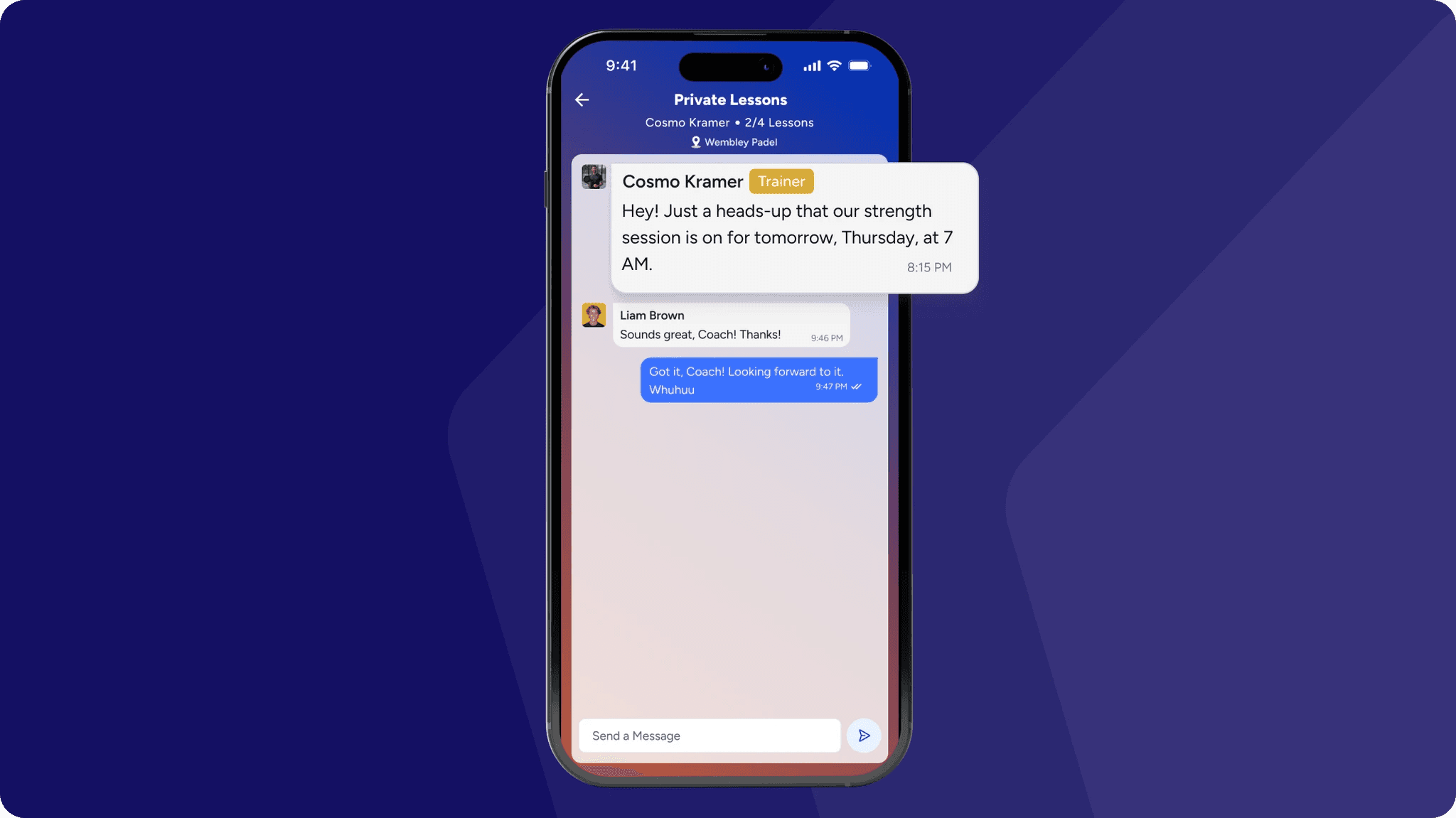
For open matches, players can communicate directly with other participants through a dedicated chat. This allows them to coordinate details, confirm participation, and connect before the game, removing the need for external coordination.
Activity Based Group Chats
Every training, tournament, and event automatically generates its own group chat. The group is created when the activity is created, all participants are added automatically, and the chat remains active for the duration of the activity. Once the activity ends, the group is archived. This keeps communication relevant while maintaining a clean and organized messaging environment.
Admin Messaging Overview
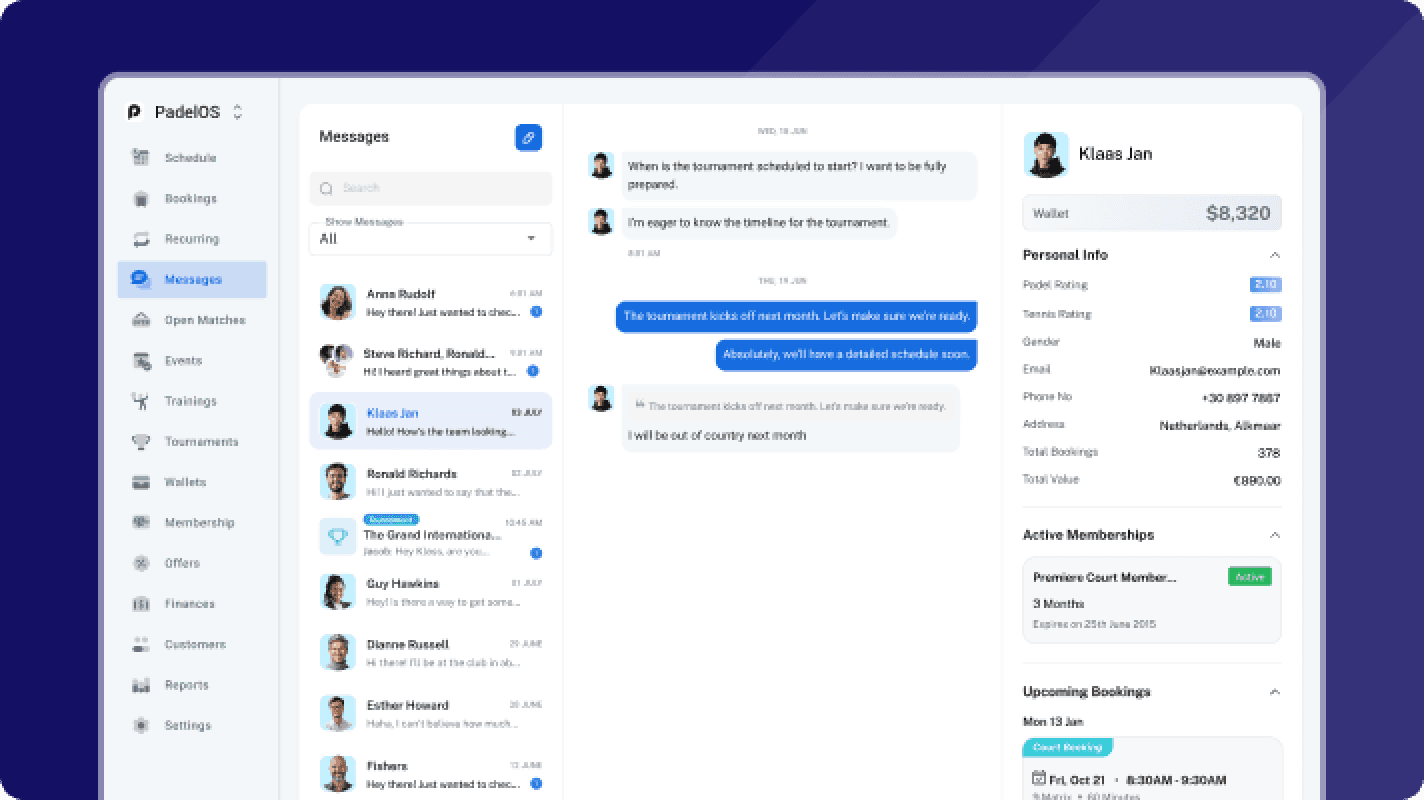
Administrators have access to a unified messaging panel that includes direct messages from players, group chats across trainings, tournaments, and events, and conversations within open matches. This gives full visibility and makes it easier to manage communication without losing context.
Learn more > https://support.padelos.co/en/articles/15805380-chat-communication-hub
v3.0
Private Lesson Trainer Switching Policy:
A policy has been added to allow or block players from selecting different trainers while scheduling sessions of a private lesson.
When trainer switching is disabled, players can only schedule sessions with the trainer for whom the private lesson was purchased.
PadelOS Invoices:
A new PadelOS Club Fee Invoices section has been added in Settings.
Admins can now view and download invoices from this section.
Open Match Scores by Admin:
Admins can now add and update scores for open matches.
Scores can be added from the Open Match detail view.
Open Match Rating Range:
Admins can now update the rating range of an existing open match.
The match booker can also update the rating range of an existing open match.
Guests/Participants in Event and Trainings:
A new setting has been added during the creation of events and trainings to allow or block players from adding additional guests or participants during registration.
When disabled, players cannot add additional participants to the respective event or training.
Wallet as Default Payment Policy:
A policy has been added to set the wallet as the default payment method for players.
When enabled, the player’s wallet will be automatically selected for payments if sufficient balance is available.
Open Match Add Partner Policy:
A policy has been added to allow or block players from adding partners when creating or joining an open match.
When disabled, Players will not be able to add partners in open matches creating or joining an open match.
Home Club in Player Profile:
Players can now set a Home Club in their profile.
The Home Club will be used to enhance the player experience in multi-location facilities, for example by setting default values in location filters.
Membership Discount Limits on Trainings, Events and Tournaments:
Membership discount limits can now be applied to restrict the number of activities eligible for discounted pricing.
Admins can also specify the exact activities (Events, Trainings, and Tournaments) where discounts are applicable.
Friendly Matches Rating Range Boundaries:
Admins can now define boundaries for the rating range of open matches through policies.
Players can only select rating ranges within these defined limits when creating matches.
Other Updates:
Invite-only open matches can now be converted to public matches to help fill slots more quickly.
Open match rating range step size can now be configured in policies to control selectable values.
Players can now choose their preferred position (left or right) when joining an open match.
Mixed doubles format has been added to tournaments with Open Format.
Minor enhancements and bug fixes have been implemented to improve overall platform performance, stability, and responsiveness.
v2.9.1
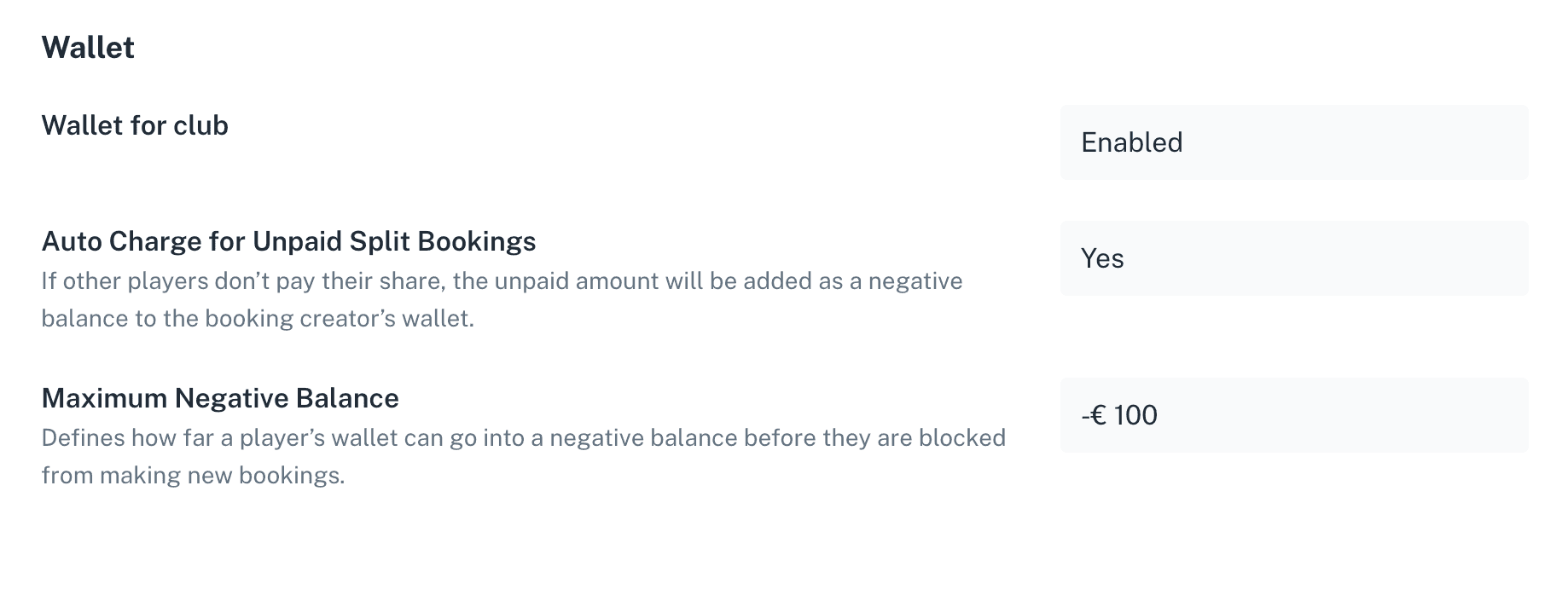
Ensure all split bookings are paid, even if some players don’t complete payment. Unpaid amounts are automatically added as a negative balance to the booking creator’s wallet.
How it works
Please go to Settings > Policies > Wallet section
1) Enable Auto Charge : Set Auto Charge for Unpaid Split Bookings to Yes.
2) Set Maximum Negative Balance: Define how far a wallet can go negative before the player is blocked from making new bookings.
Custom Notes for Confirmation Emails to Players:
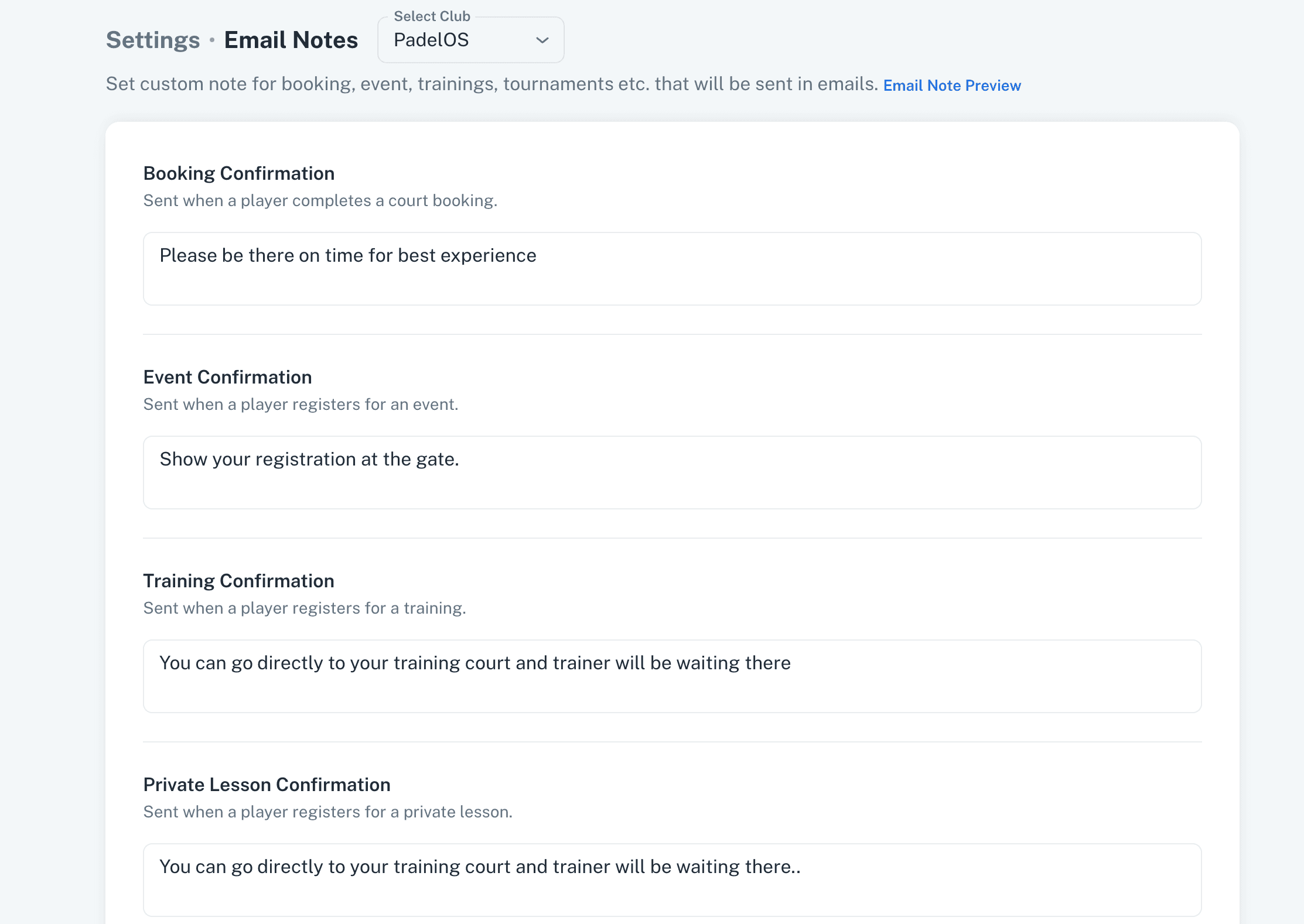
Admins can now add custom notes for each module, which will be included in the booking and registration confirmation emails sent to players for the respective activities. This allows clubs to provide more contextual information, instructions or personalised communication based on the type of activity (e.g., bookings, trainings, tournaments, or private lessons).
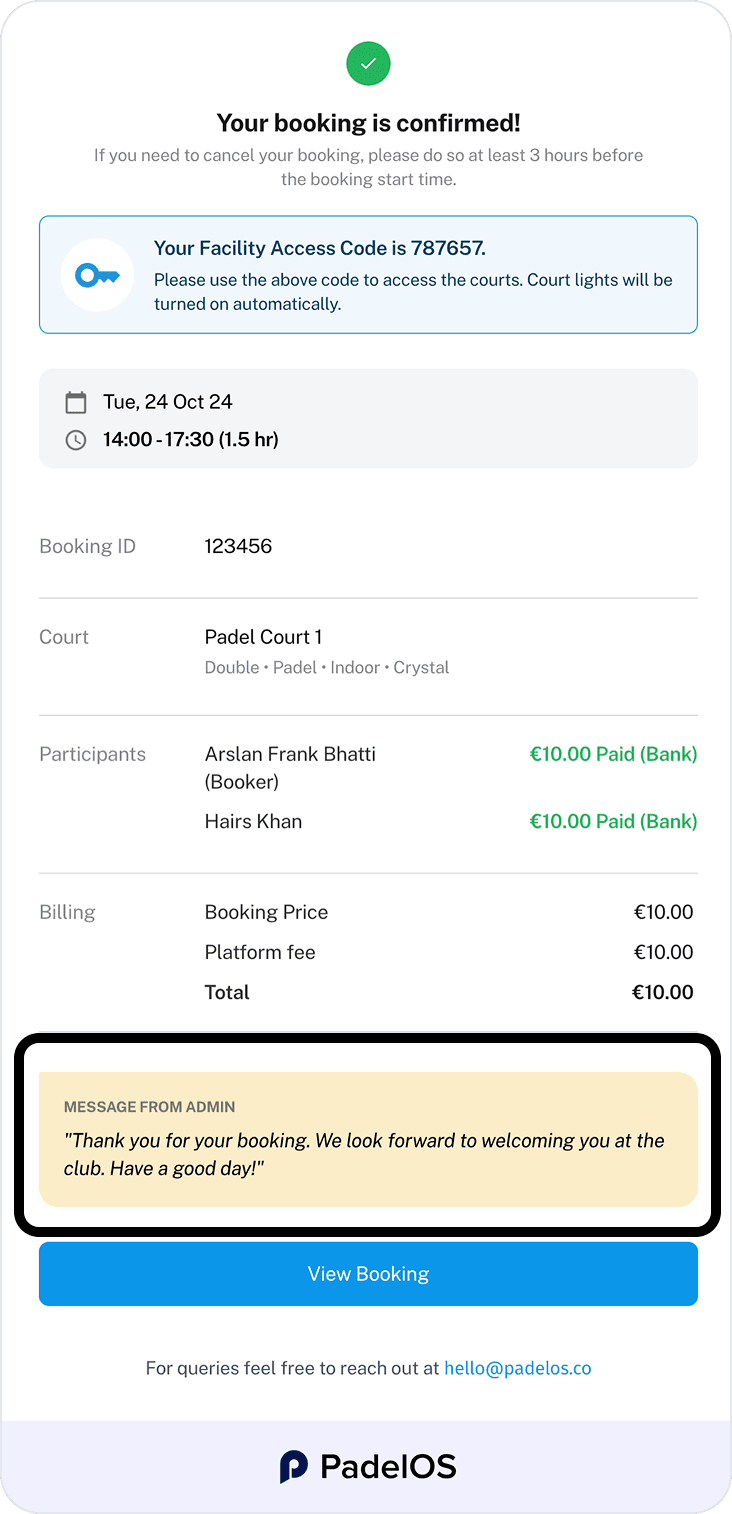
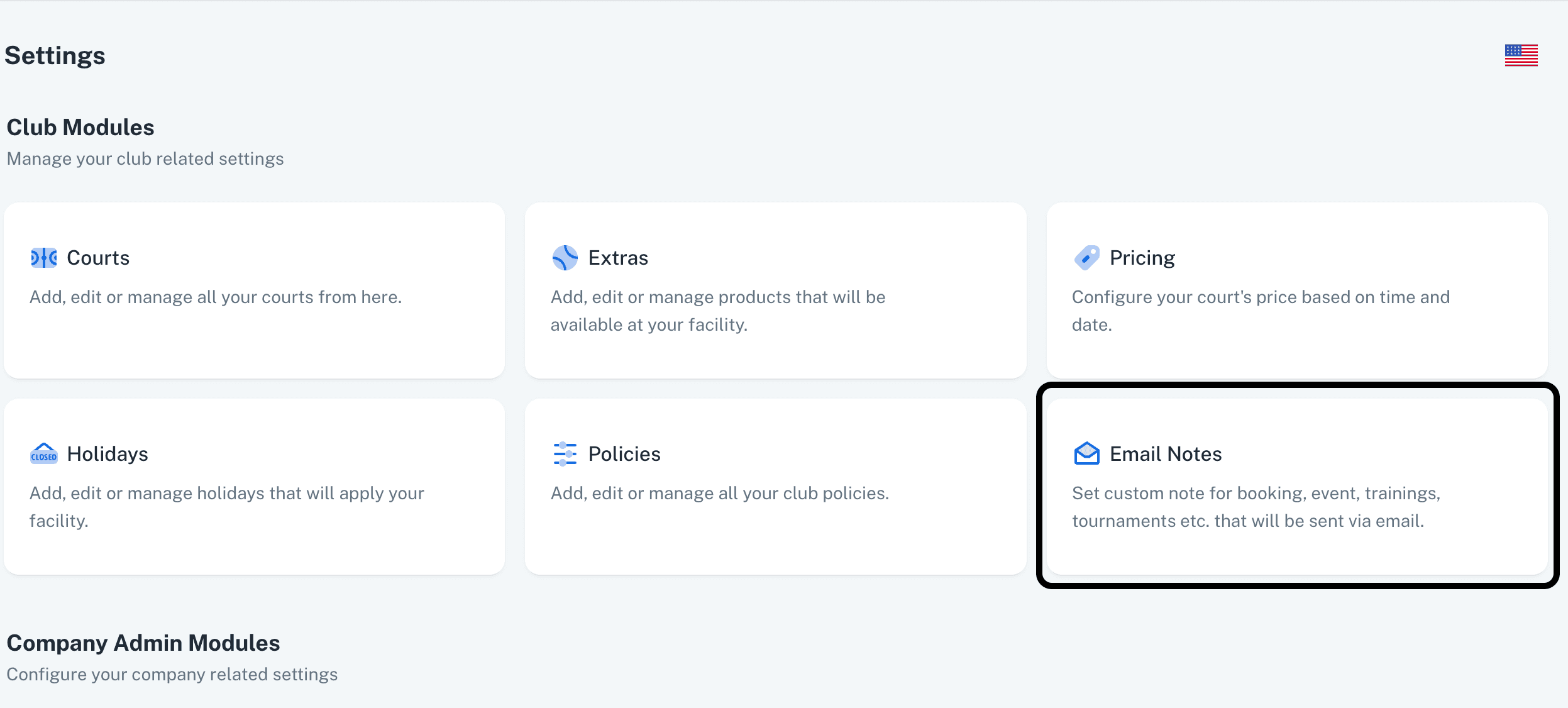
The Email Notes feature can be accessed from the Settings section, where admins can easily Update and manage these notes.
Additionally, admins can define separate custom notes for each location, ensuring that communication remains relevant and tailored to the specific club or venue.
Learn more > https://support.padelos.co/en/articles/16118662-debt-collection-how-it-works
v2.9
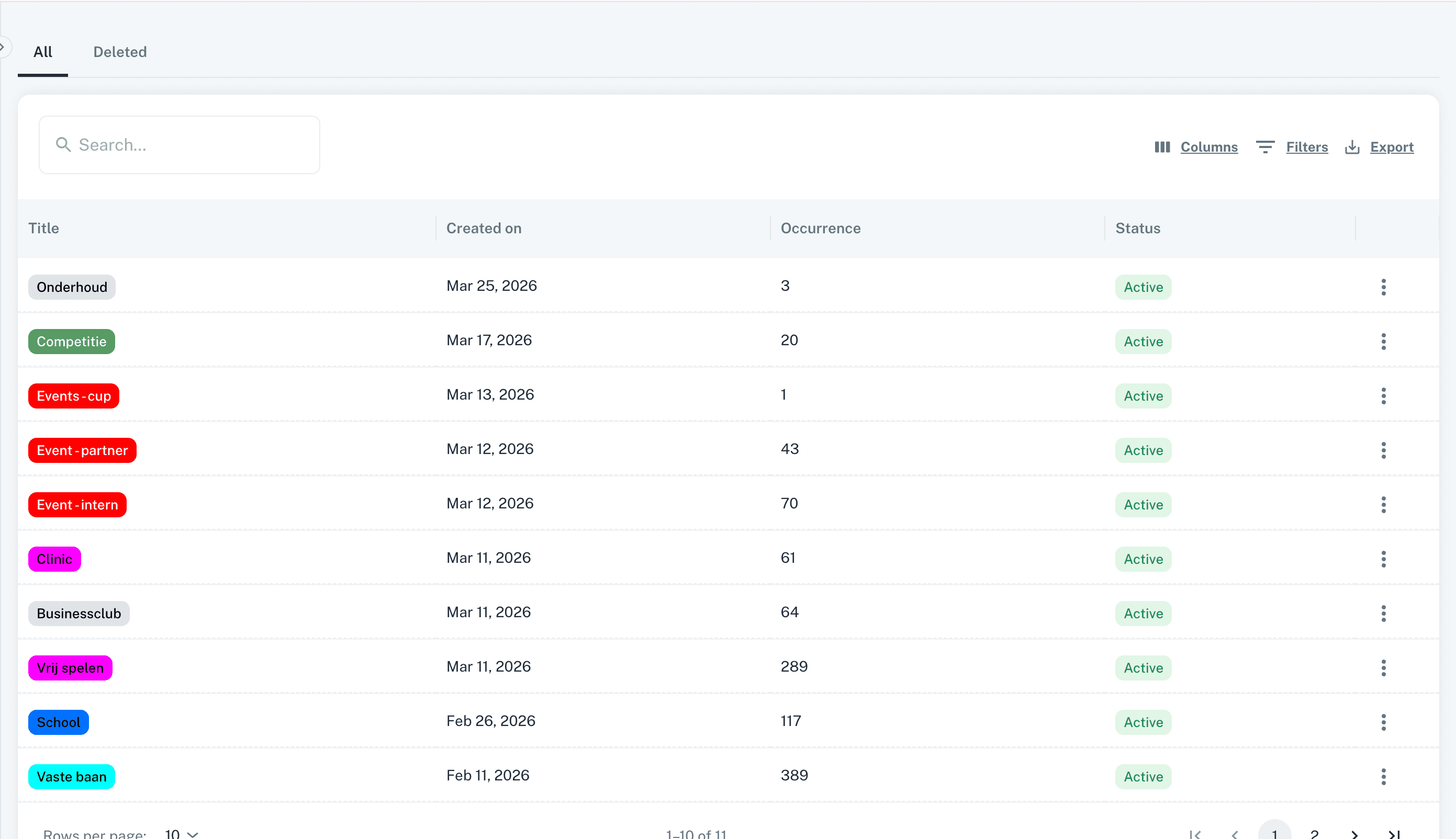
Labels Management:
Labels section added in Settings to manage labels.
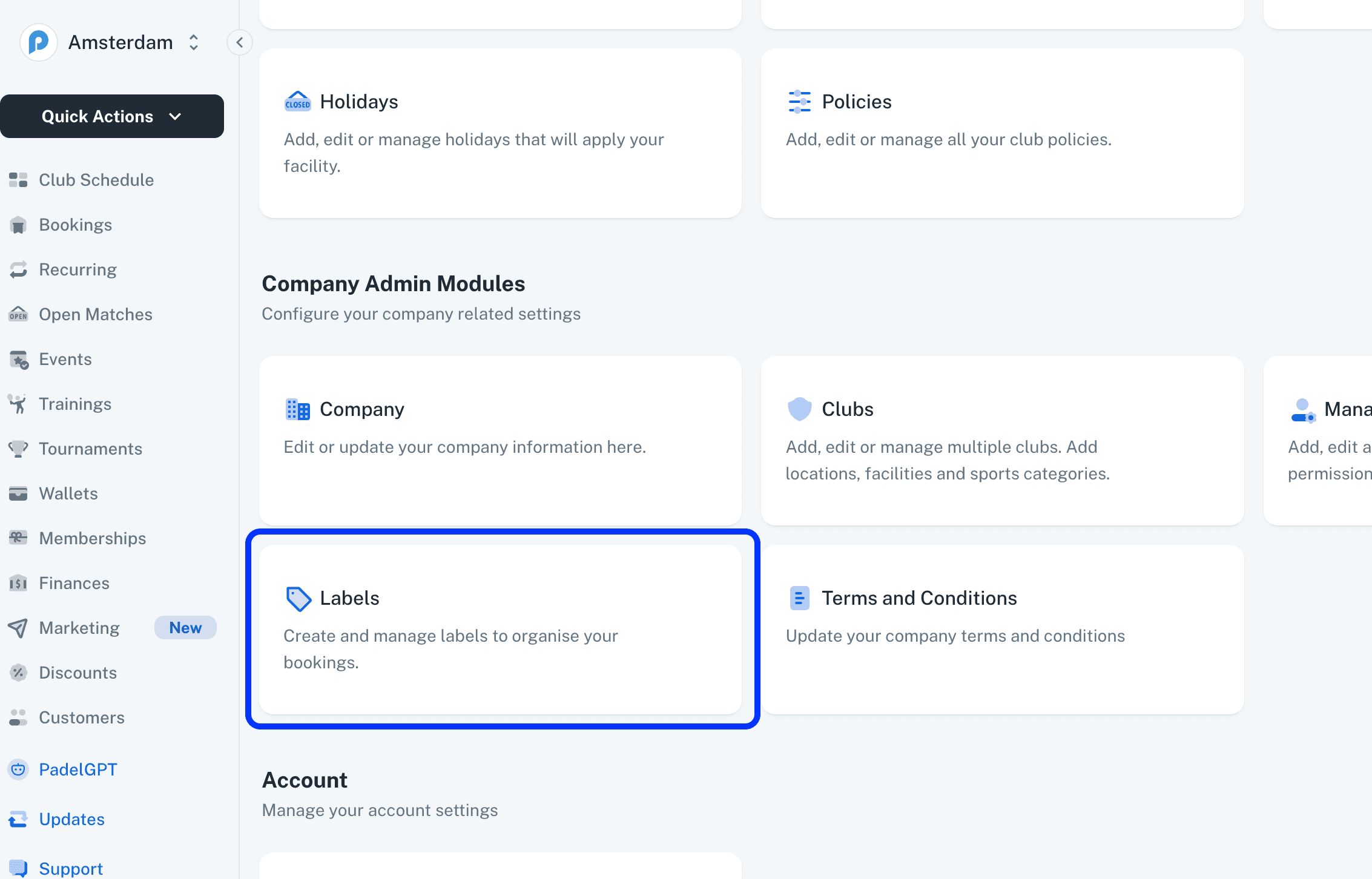
Admins can now view, create, edit, update, and delete labels in this section.
The view also displays the usage count for each label.
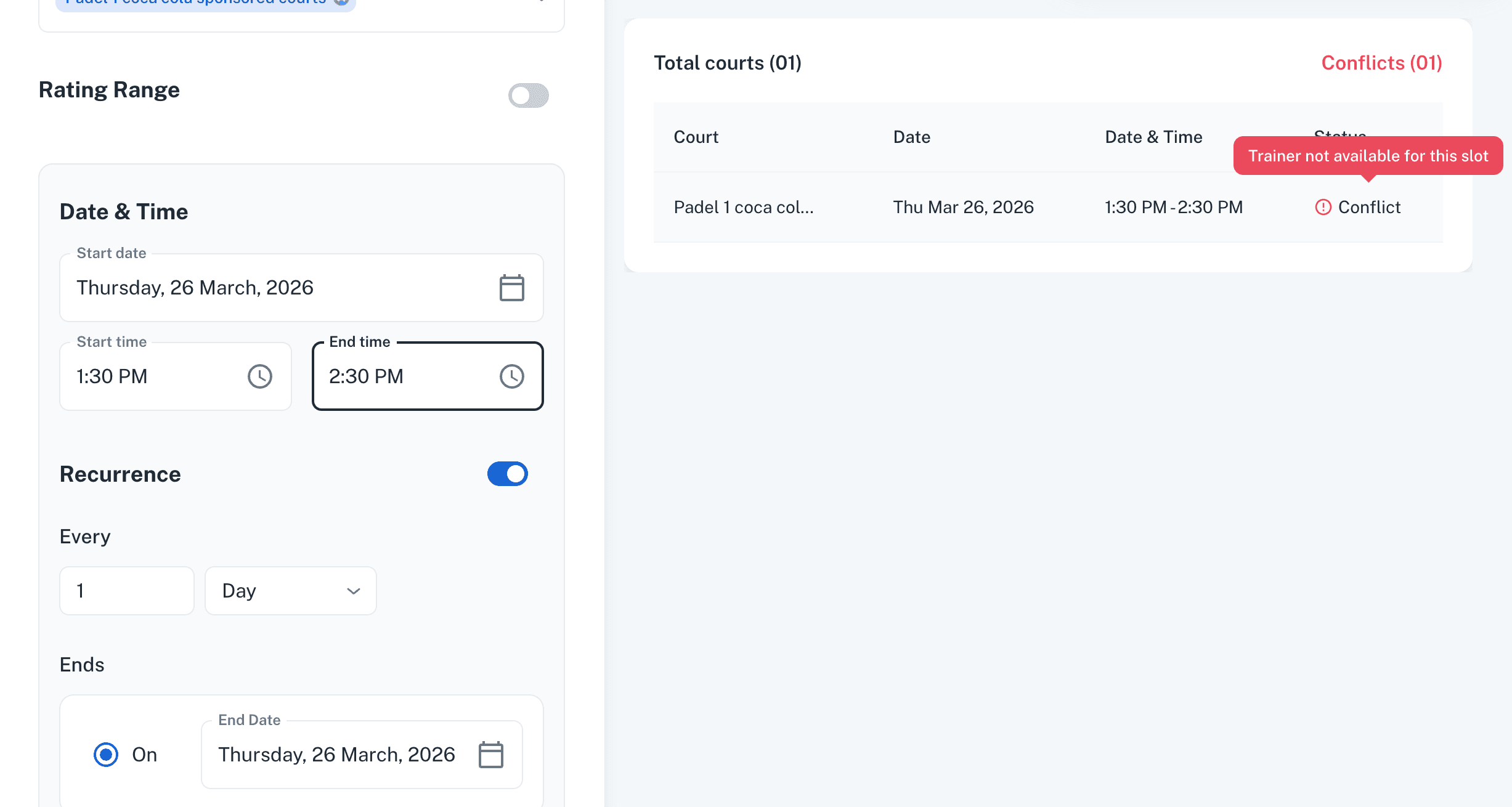
Trainer Availability conflicts in Trainings:
While creating trainings, admins can now instantly see if a trainer is already engaged in another training or a private lesson at the same time.
Scheduling conflicts are clearly highlighted when the trainer is unavailable.
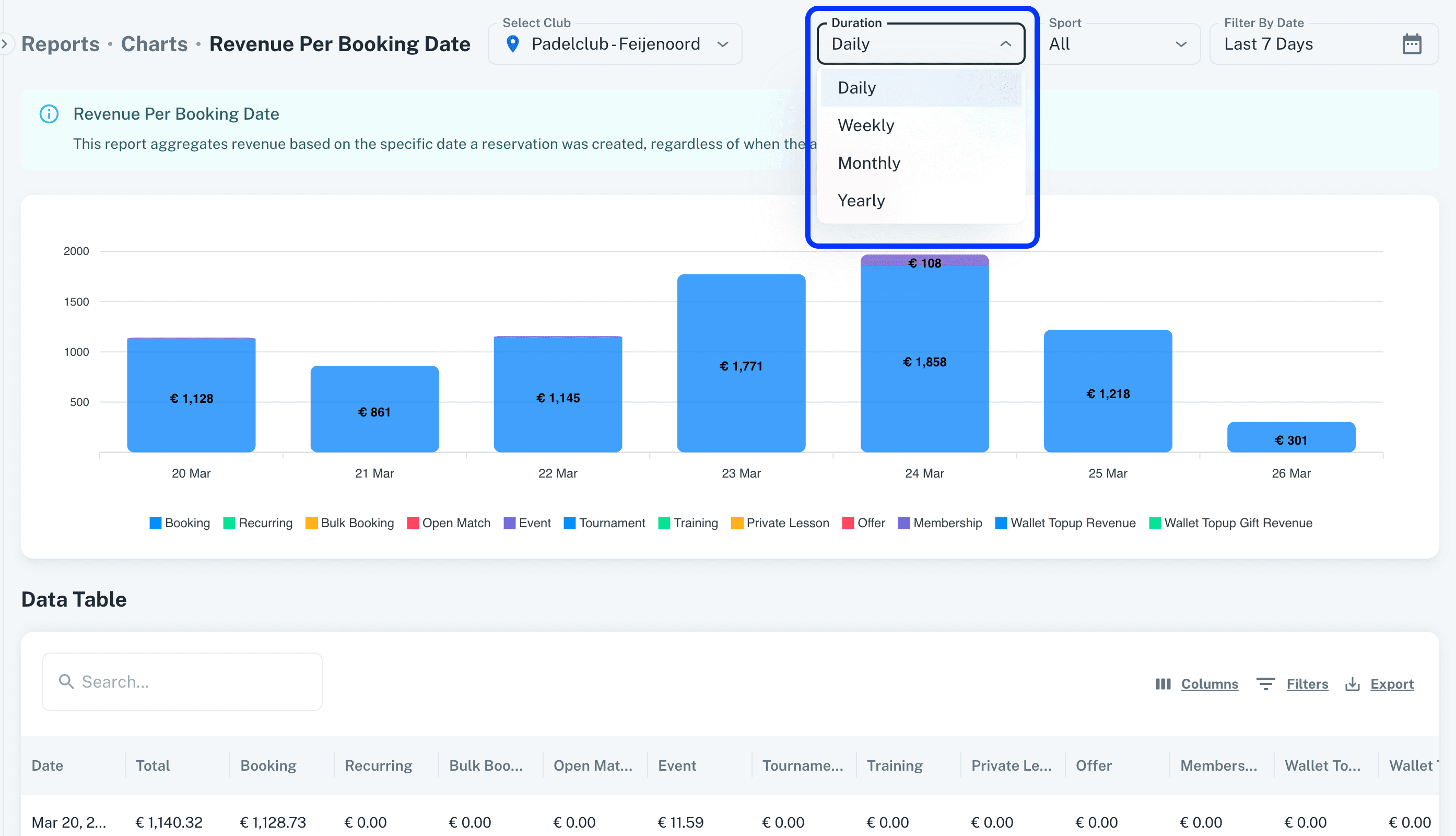
Reports:
Revenue per booking date
Revenue per play date
Trainer performance report
Duration filter added to view data by day, week, month, or year in the following reports.
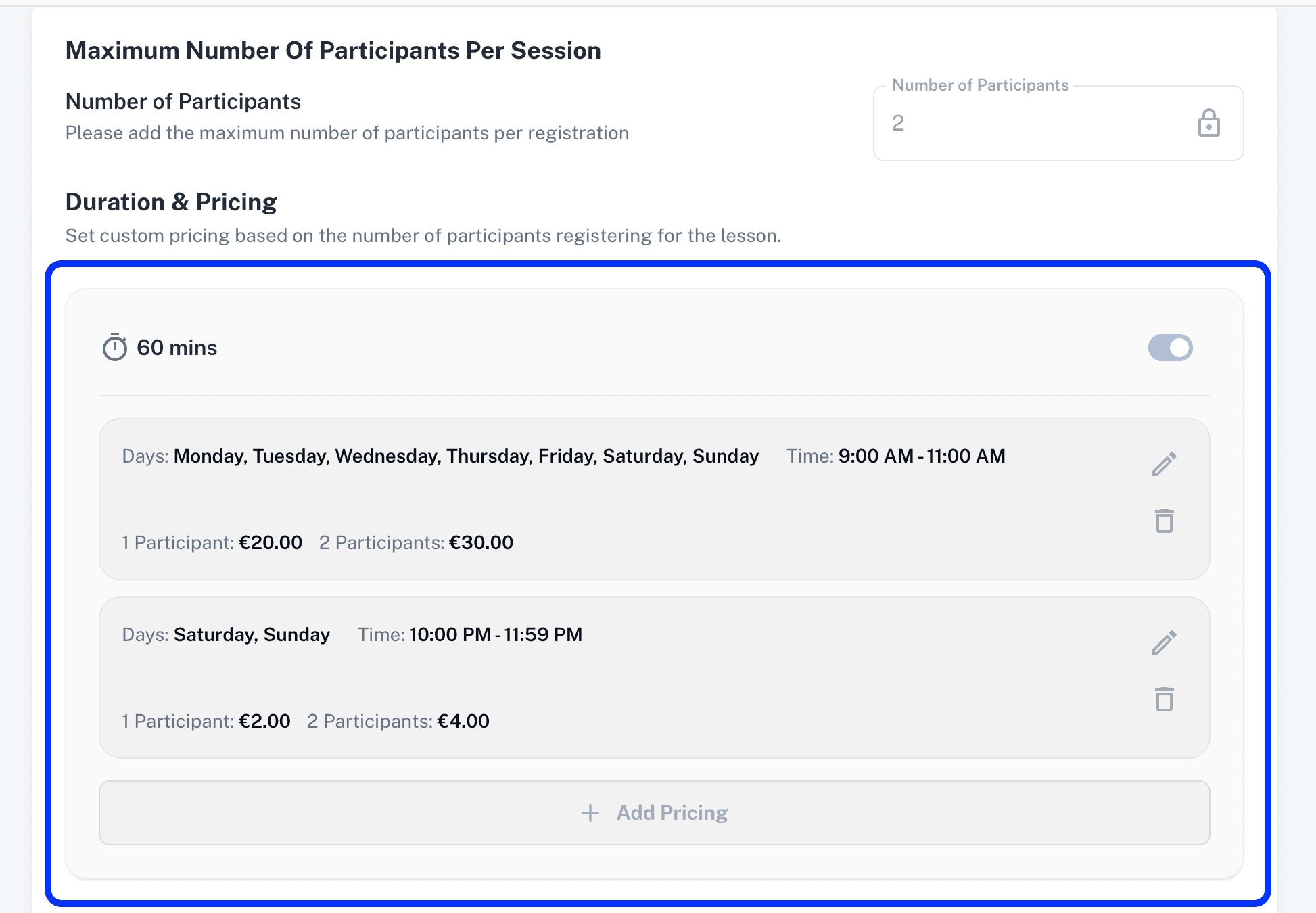
Trainer Pricing for Private Lessons:
Multiple pricing options can now be set for trainers based on different time durations.
This enables admins to define peak and non-peak timings for trainers.
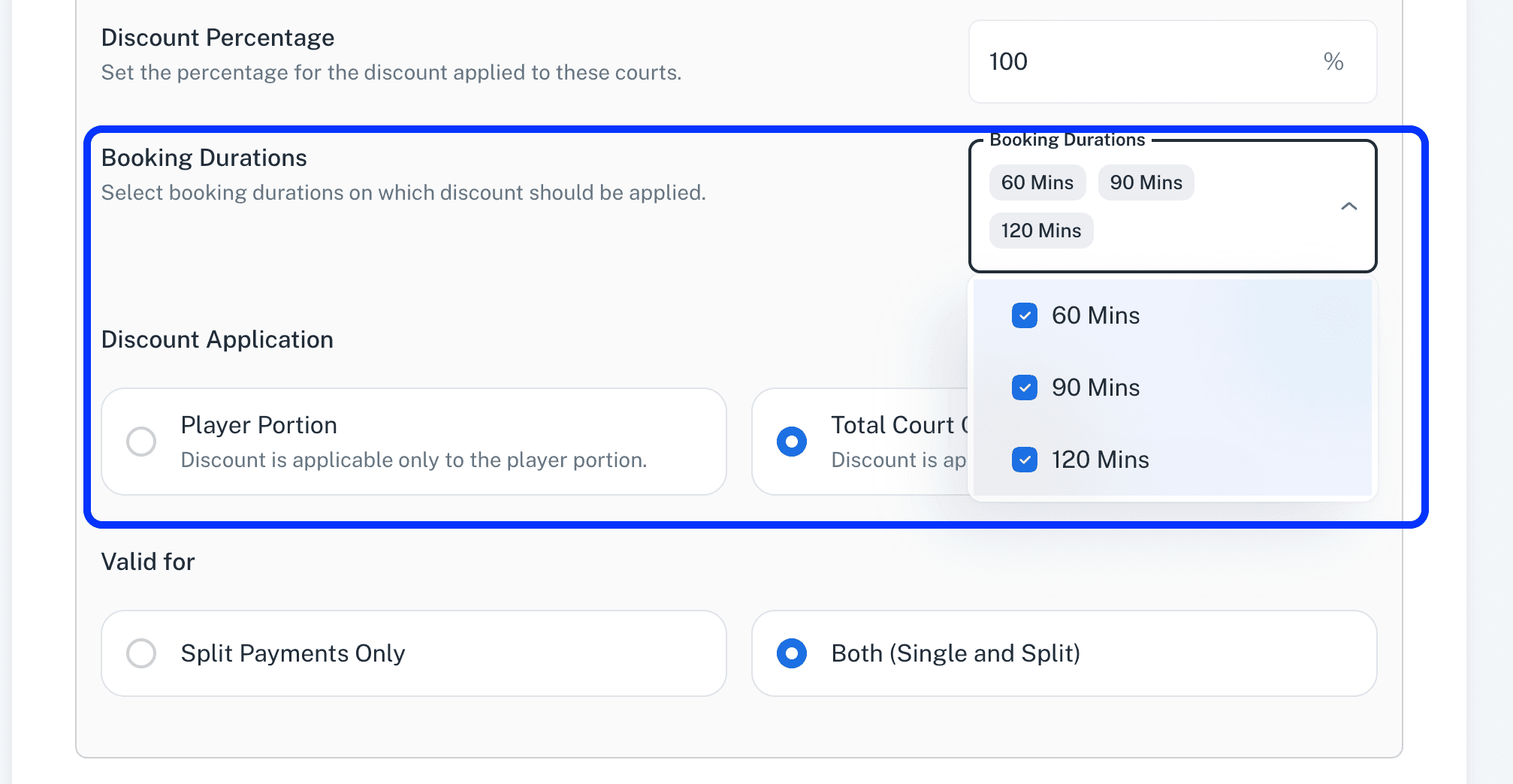
Booking Duration Restriction in Discount:
Admins can now restrict discount application based on booking durations (e.g., 60, 90, or 120 minutes).
This provides greater control over how discount codes are applied by players.
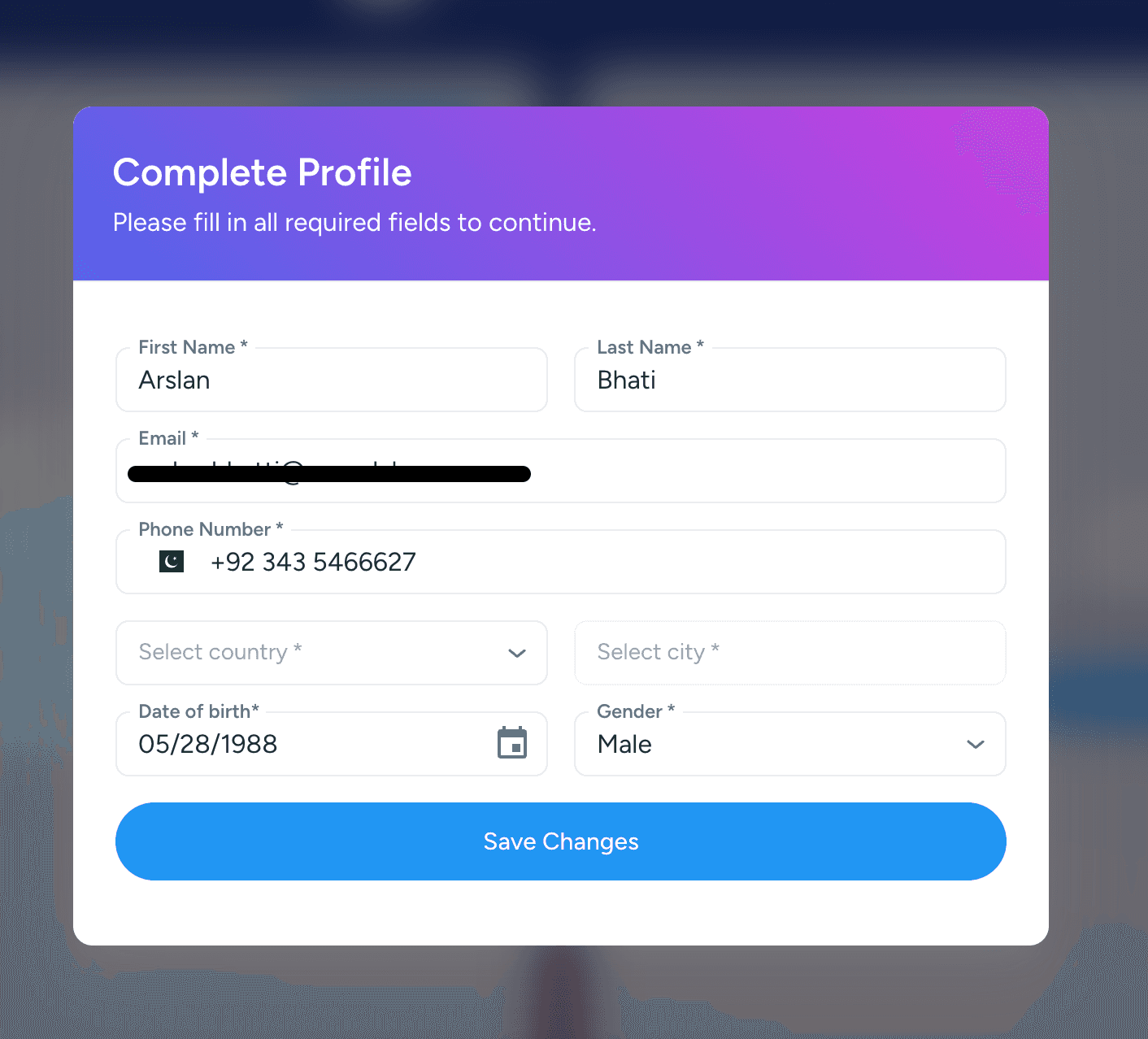
Forced Profile Update:
Players are forced to update their mandatory profile information.
Other Updates:
Minor enhancements and bug fixes have been implemented to improve overall platform performance, stability, and responsiveness.
v2.8
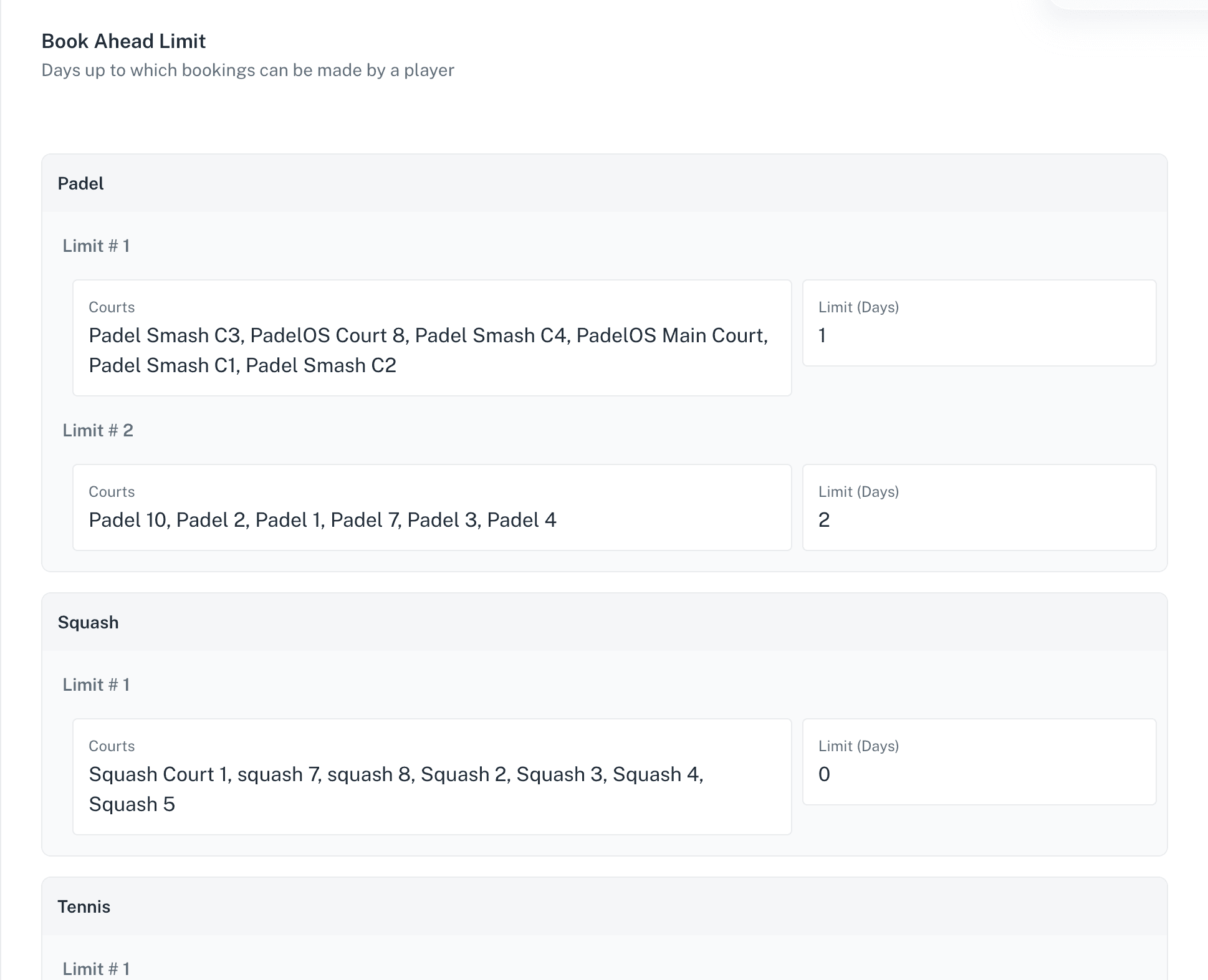
Book Ahead Limit Per Court:
Admins can now configure Book Ahead Limits separately for each court.
This allows clubs to provide different booking windows for members on specific courts.
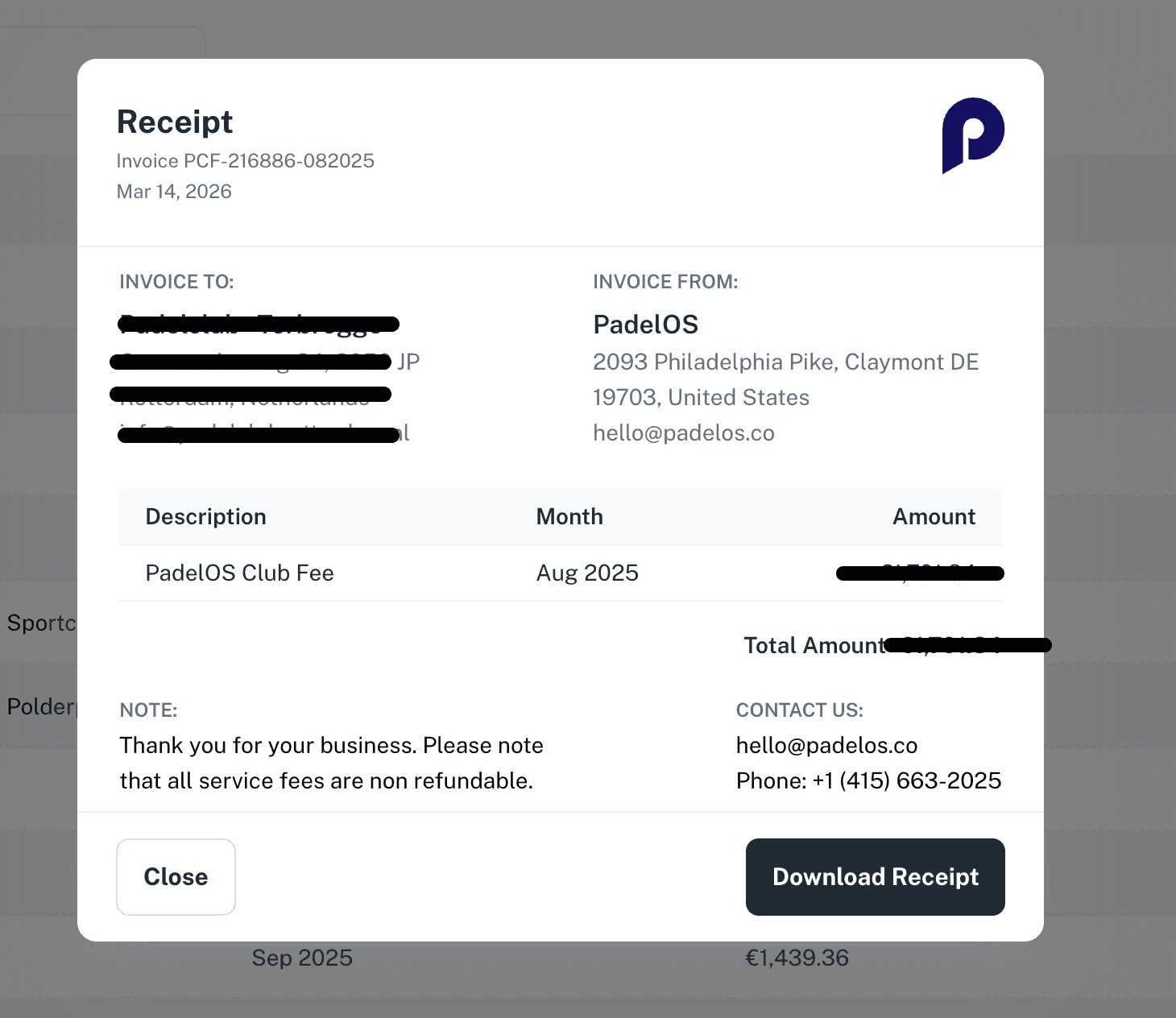
PadelOS Fee Invoices:
Admins can now view and download monthly PadelOS club fee invoices.
These invoices can be accessed from the Reports section.
Playing positions in Open Match:
The Open Match booker can now reposition players between slots to place them on the left or right side of a team.
Players can also be moved from one team to another.
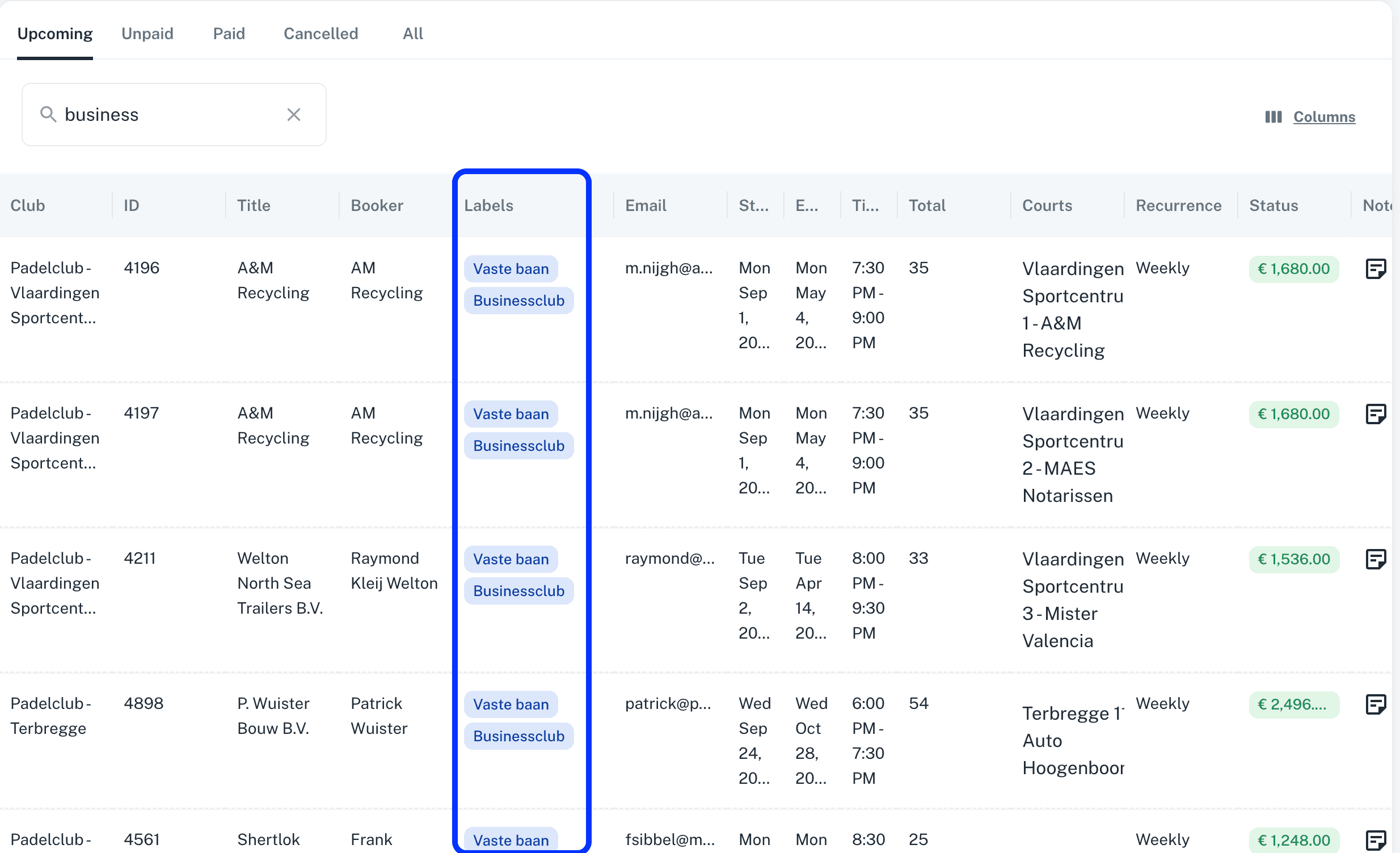
Labels added in Grid views:
Labels are now displayed across all admin grid views.
Admins can use sorting, filters, and search on labels to easily identify and segment data.
Extras Discount in Memberships:
Admins can now define a discount percentage for Extras within Memberships.
The defined discount will be automatically applied to Extras purchased by members in Bookings and Open Matches.
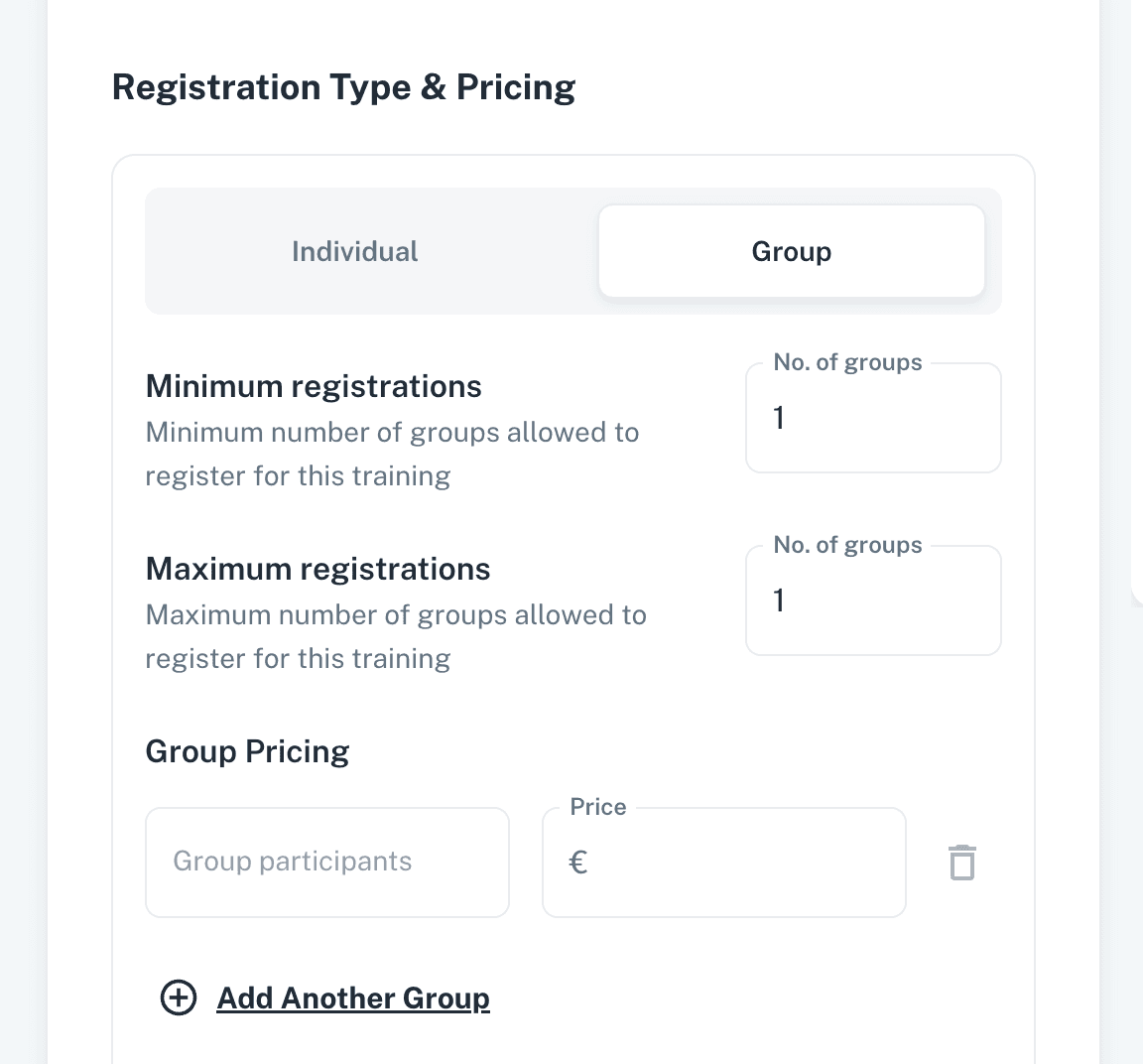
Min/Max number of Registrations in Group Trainings:
Admins can now define the minimum and maximum number of groups allowed in Group Trainings.
This allows multiple groups to register for the same training session.
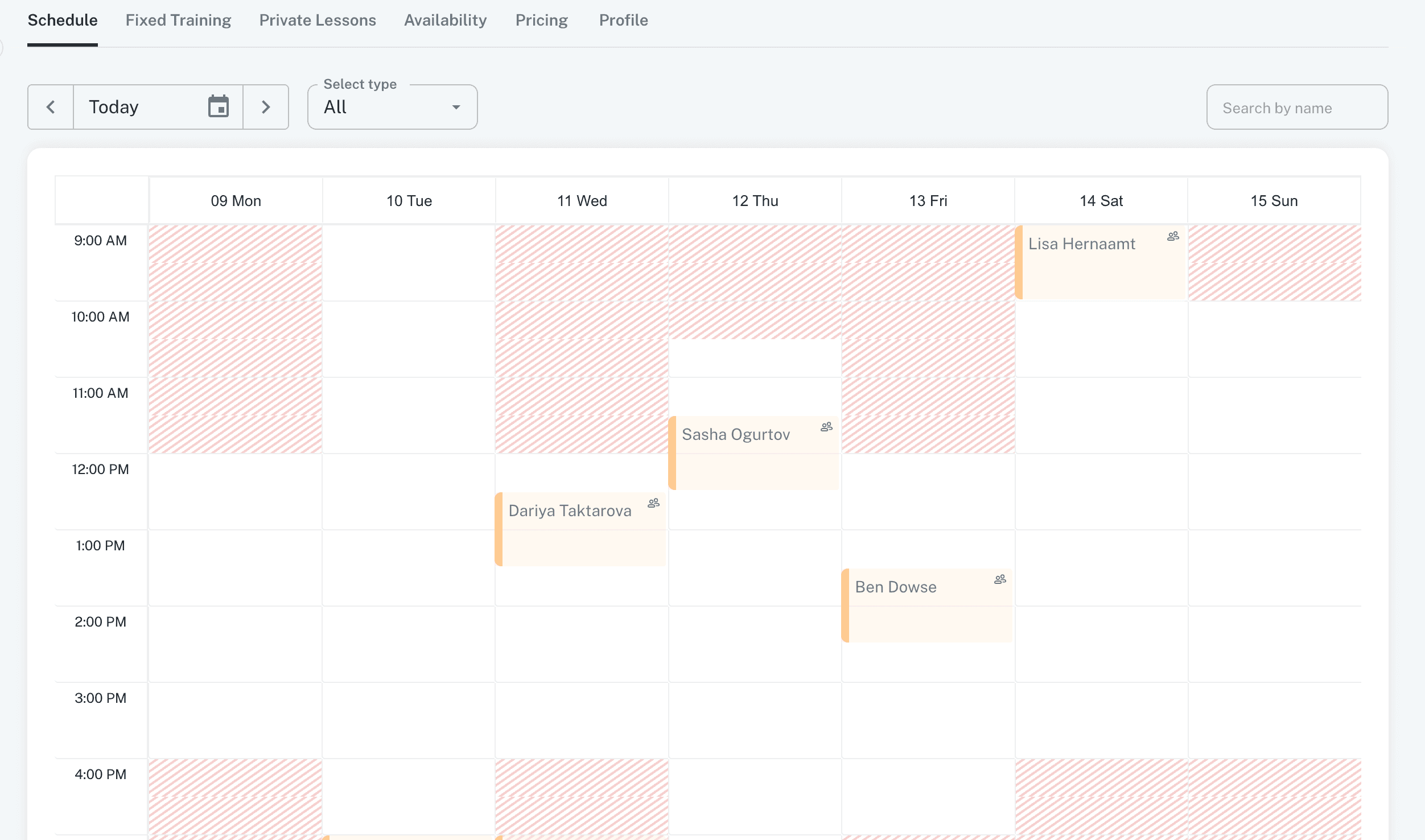
Trainer Availability on Schedule:
Trainer available and unavailable hours are now displayed on the Trainer Schedule.
Availability is shown based on the trainer’s configured availability settings.
Open Format in Tournaments:
A new Open Format option has been introduced in tournament creation.
Clubs can now create and run tournaments in their own format without predefined limitations.
Other Updates:
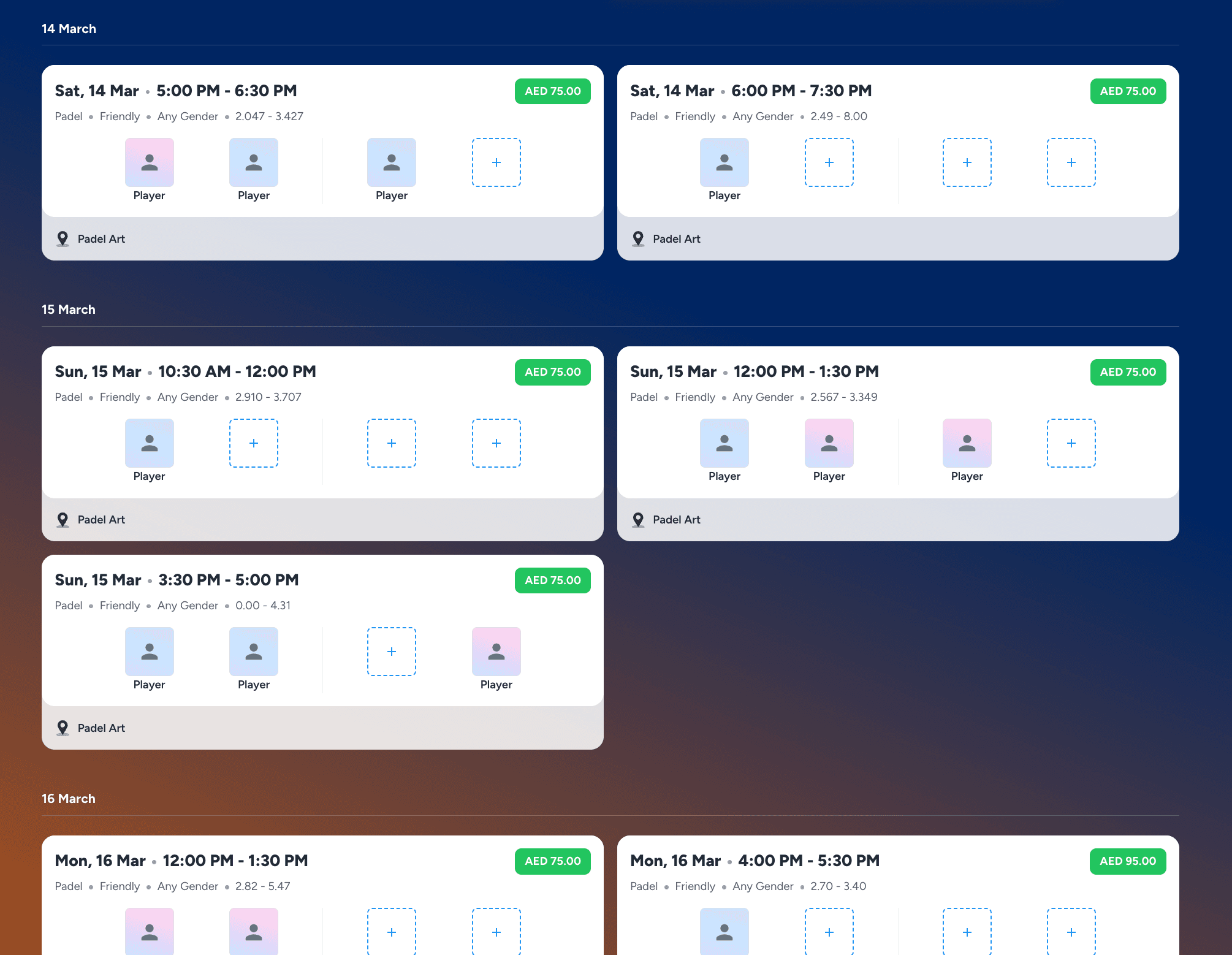
Open Matches listing is now segmented by date on player side for easy tracking and identification of open matches for players.
Minor enhancements and bug fixes have been implemented to improve overall platform performance, stability, and responsiveness.
v2.7
Introducing Labels:
Admins can now add labels to Court Bookings, Recurring Bookings, Open Matches, Events, Trainings, Tournaments, and Memberships.
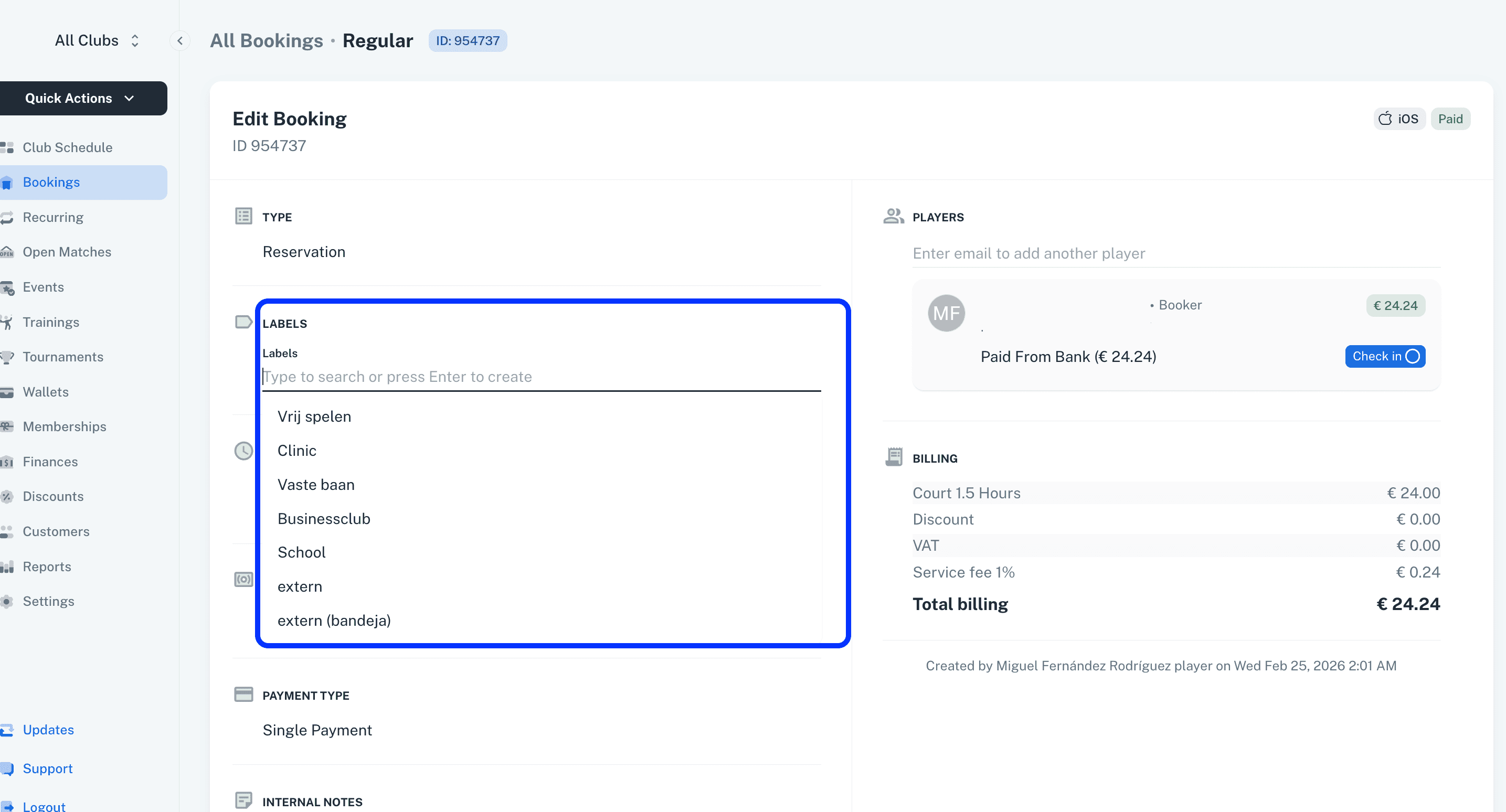
These labels will later be used in reporting and data listings within the respective modules.
Private Open Match:
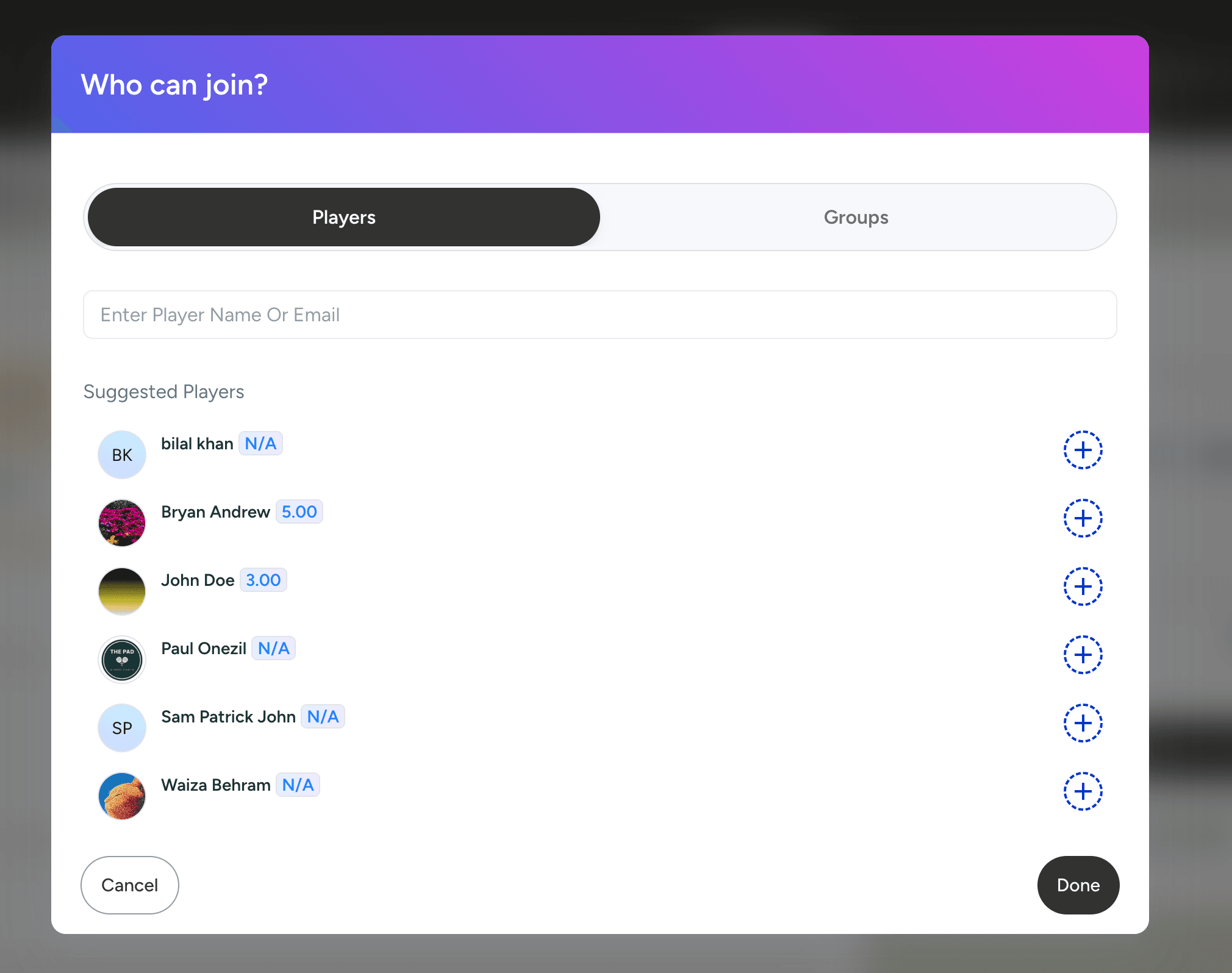
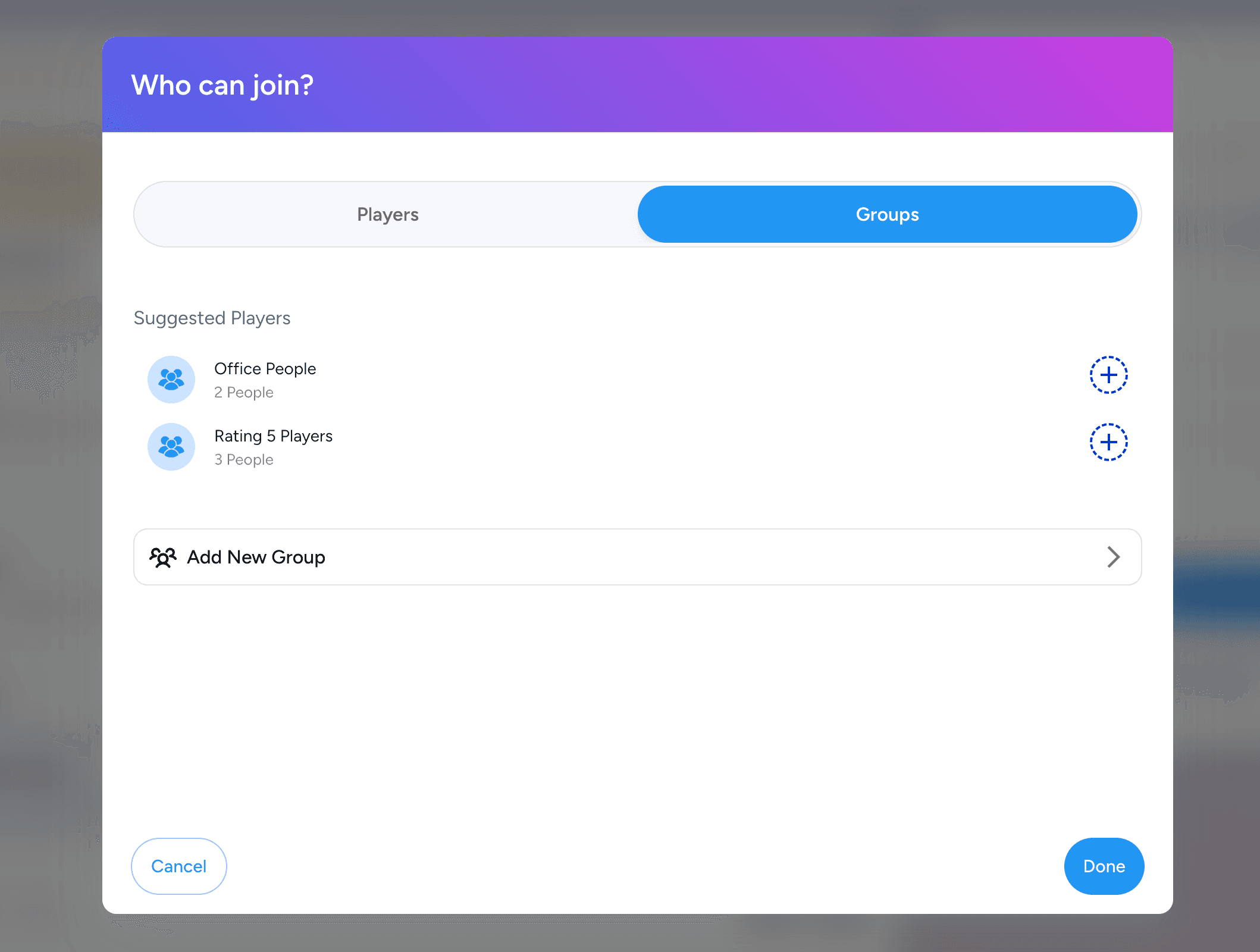
Players can now create private open matches.
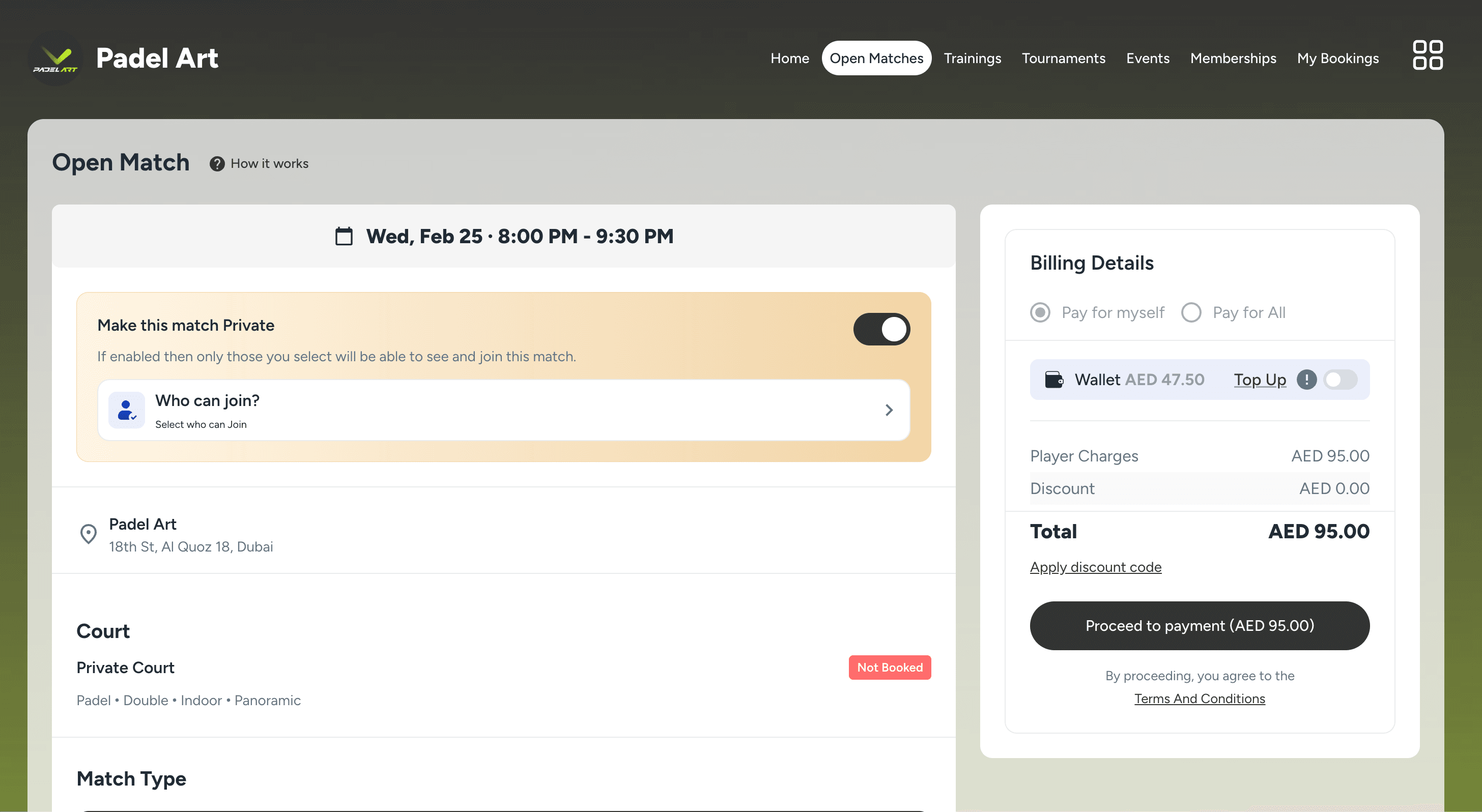
The booker can add individual players to the private match access list.
Players can also create custom groups of players in the groups section in settings and add them to the private match access list.
Phone verification:
Phone verification via WhatsApp has been added to verify user accounts during registration.
This ensures that only genuine players are registered with the club and helps prevent fake or duplicate accounts.
Ratings filter in Open Matches:
A rating filter has been added to the Open Matches listing.
Players can enter their desired rating and view only the matches that match the selected rating criteria.
Waiting list in Tournaments:
Waiting list players are now displayed within tournaments.
Admins can configure in the tournament details whether the waiting list should be visible or hidden.
Email Notifications Settings for Admins:
A Notification Settings tab has been added to the Admin Details view.
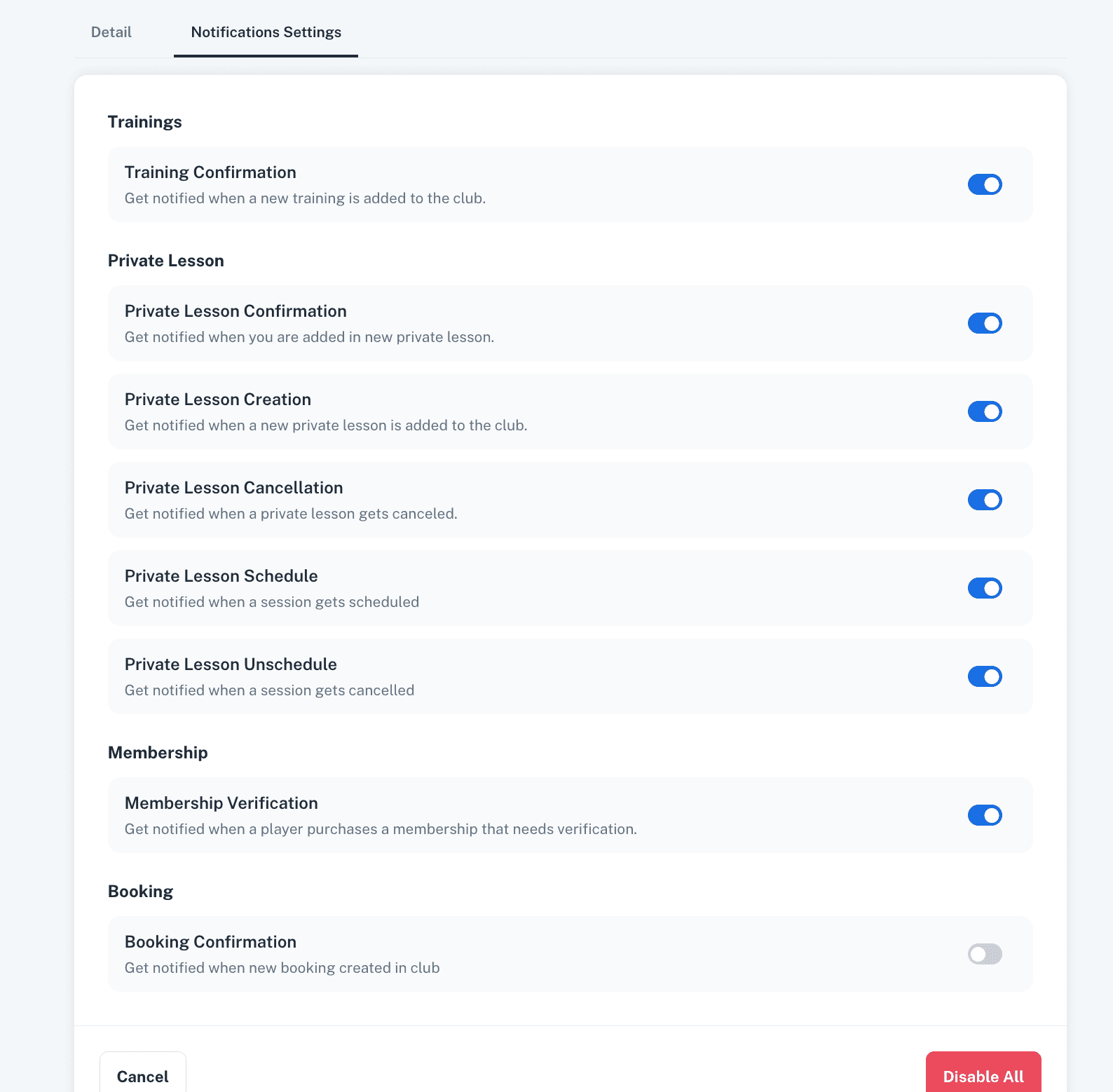
Specific email notifications can now be enabled or disabled individually for each admin.
Memberships visibility:
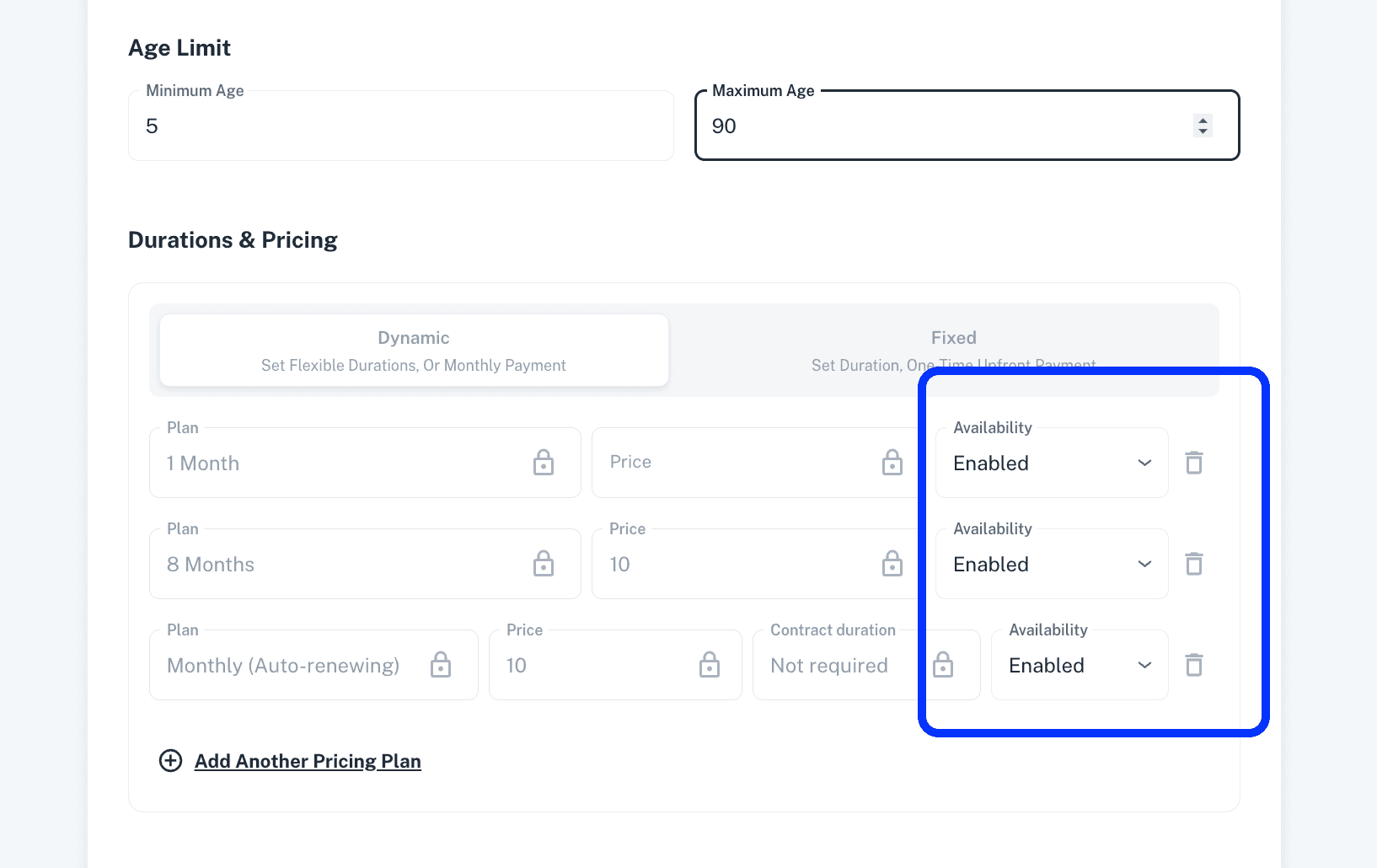
A club page visibility feature has been added to Memberships, allowing admins to show or hide public memberships on the player side.
Each pricing plan within a membership can now be enabled or disabled at any time to control its visibility on the player side.
Hours limits in Membership Bookings Discounts:
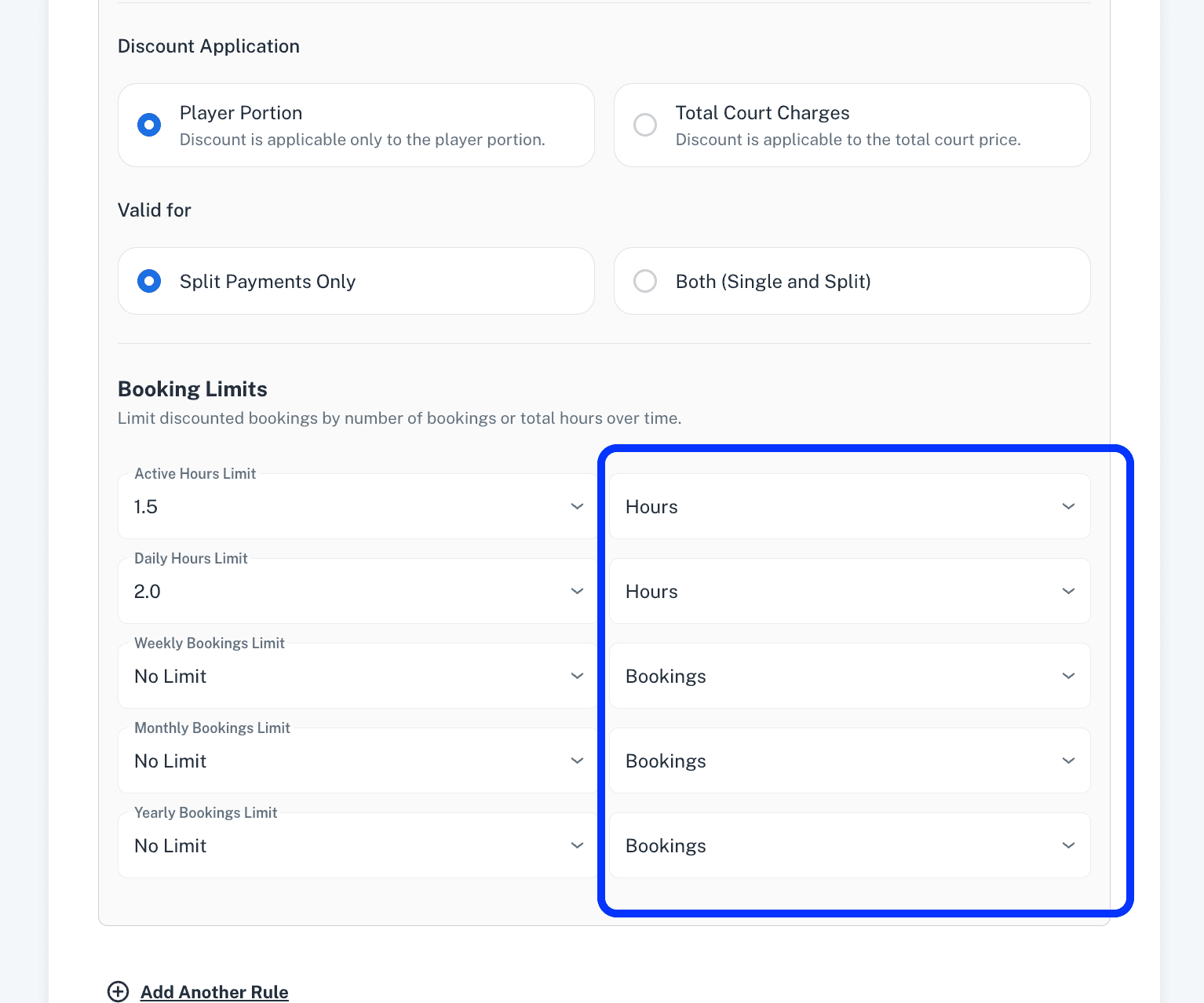
Active, Daily, Weekly, Monthly, and Yearly limits can now also be configured based on the number of hours.
In addition to limits on the number of bookings, admins can now apply discount limits based on the number of booking hours.
Custom refund on recurring cancellation:
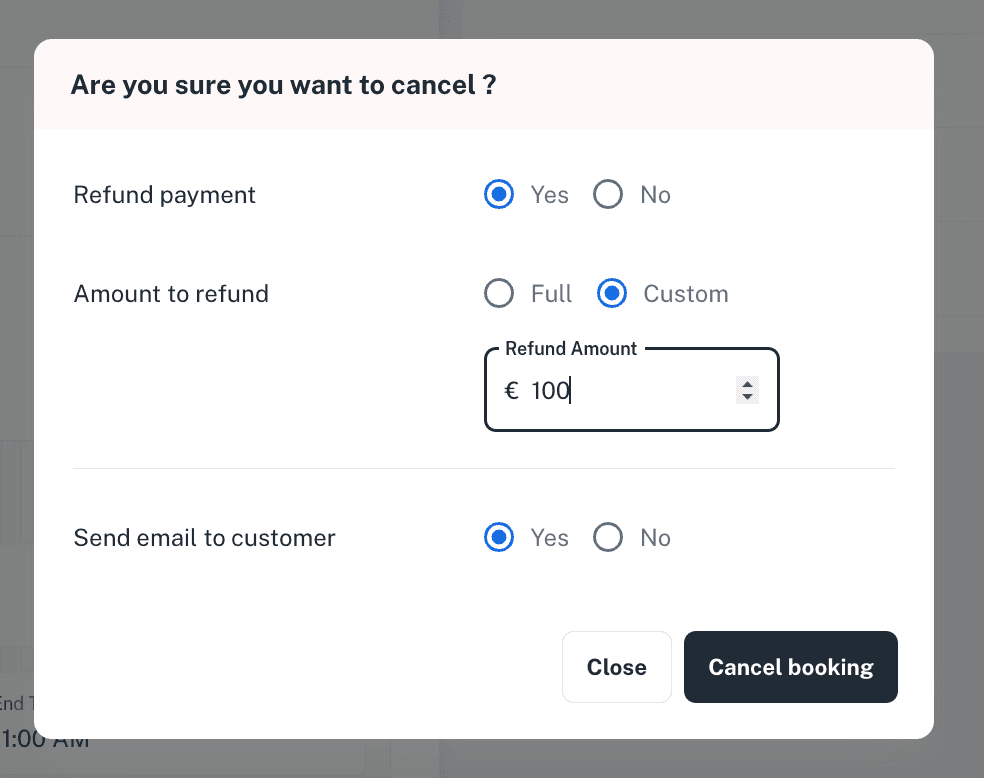
Admins can now define a custom refund amount when cancelling a recurring booking.
Edit bookings in Events, Trainings, Tournaments:
Single bookings within an Event, Training, or Tournament can now be updated to a different date, time and court.
This allows admins to modify individual reservations without affecting the entire activity, providing greater flexibility when handling reschedules or court changes.
Registration deadline in events:
A registration deadline has now been added to Events.
When the registration deadline is enabled, players will not be able to register once the deadline has passed.
Tournament type for king of court:
A new tournament type, “King of Court,” has been added to Tournaments.
In this format, predefined match configuration has been removed, allowing admins to conduct the tournament freely according to their own structure and on-court format.
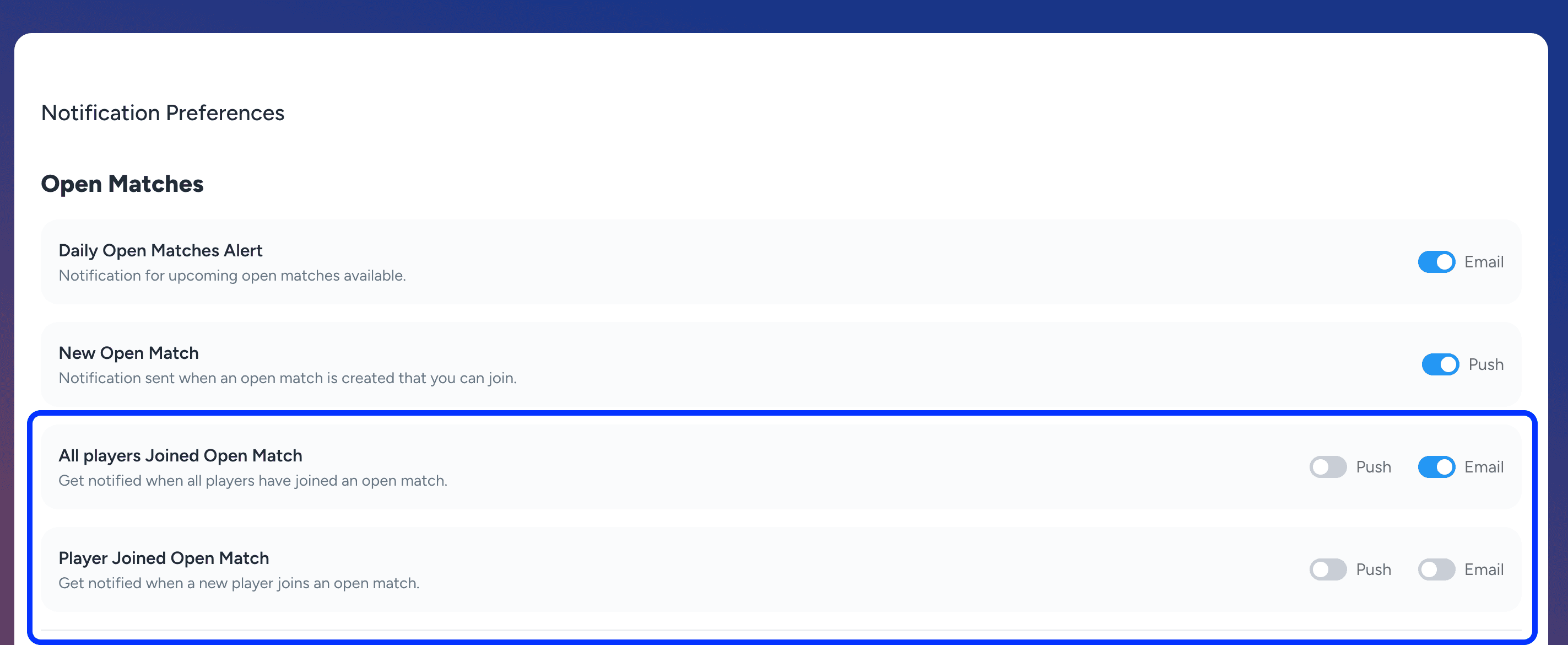
Open match email/push notifications:
New email and push notifications have been added for Open Matches.
“A player has joined the open match” and “All players have joined the open match.”
Players can enable or disable these notifications from their Notification Preferences in settings.
Trainings and Private Lessons:
A Payment Status column has been added to the Private Lessons records view.
A Trainer Weekly Schedule has been added within the Trainer detail view.
An auto-cancel training policy has been introduced to automatically cancel trainings if the minimum number of participants is not reached before the registration deadline.
A “Notify Customer” option has been added when an admin schedules, cancels, or reschedules a session of a private lesson.
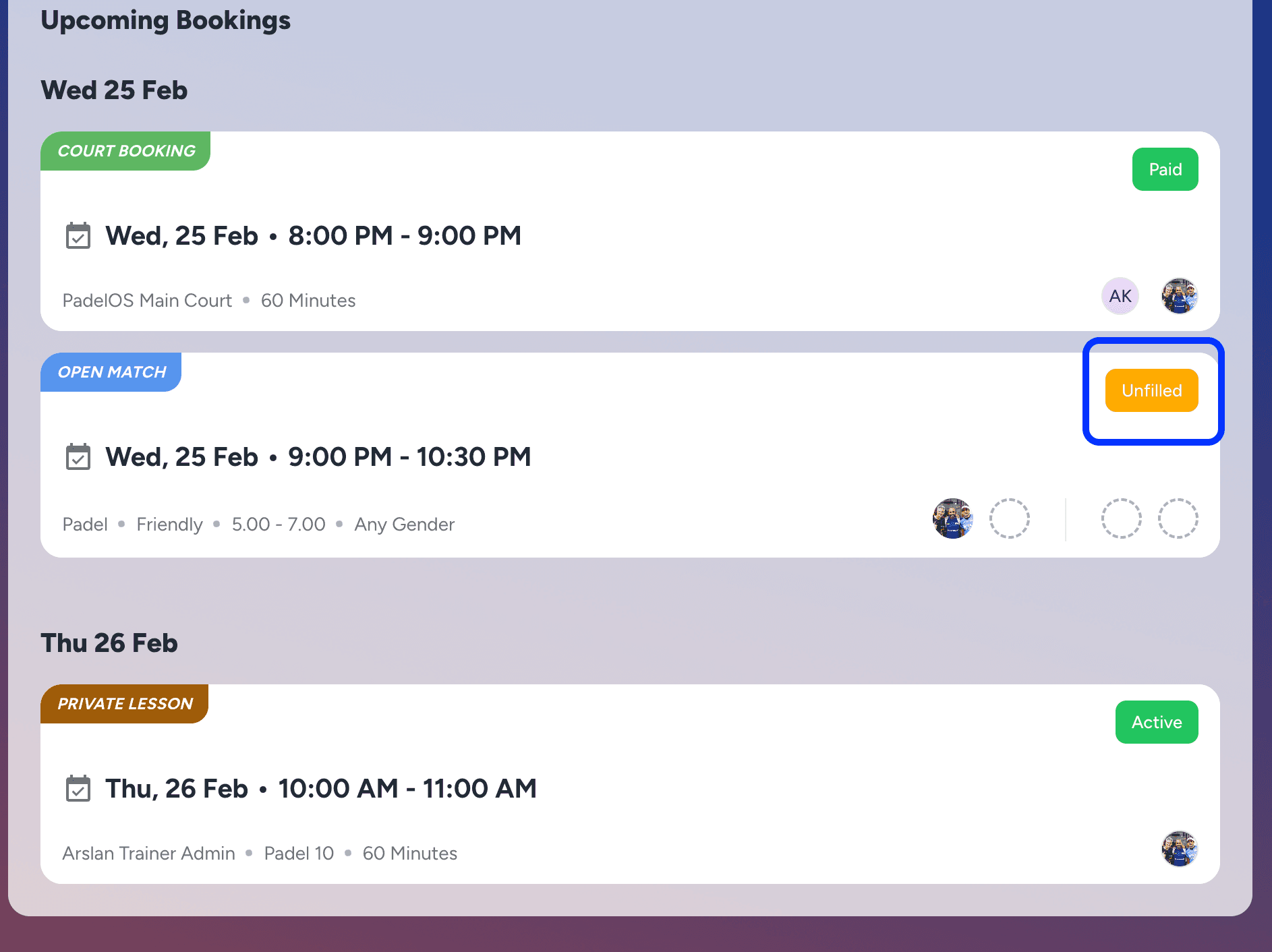
My Bookings:
An Activity Type Filter has been added to the My Bookings section on the player side.
An Unfilled Status indicator has been added for Open Matches in My Bookings, highlighting when all slots in a match have not yet been filled.
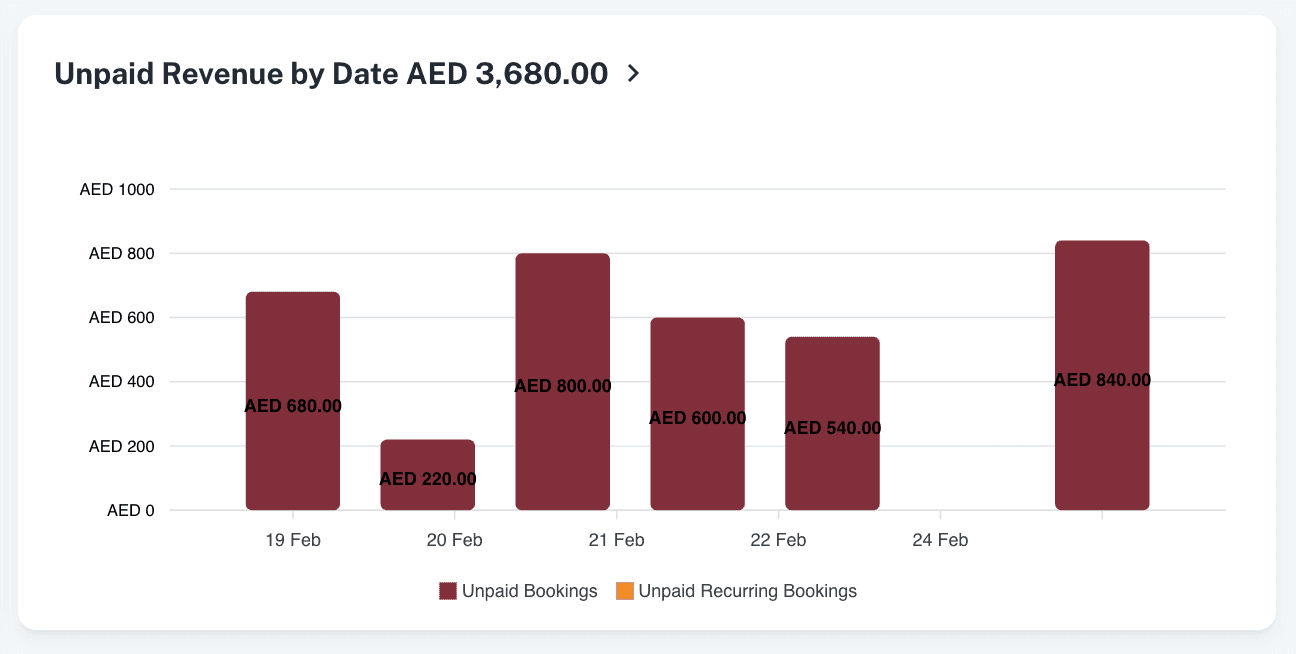
Other Updates:
An Unpaid Revenue Per Day report has been added to the Reports section, which gives the daily breakdown of unpaid revenue.
A Score Pending status for Open Matches has been added in the All Activities section, enabling players to identify matches where the score still needs to be added.
Minor enhancements and bug fixes have been implemented to improve overall platform performance, stability, and responsiveness.
v2.6.4
🎁 New Feature: Wallet Gifting for Players
Players can now receive wallet top-ups as gifts from friends and family
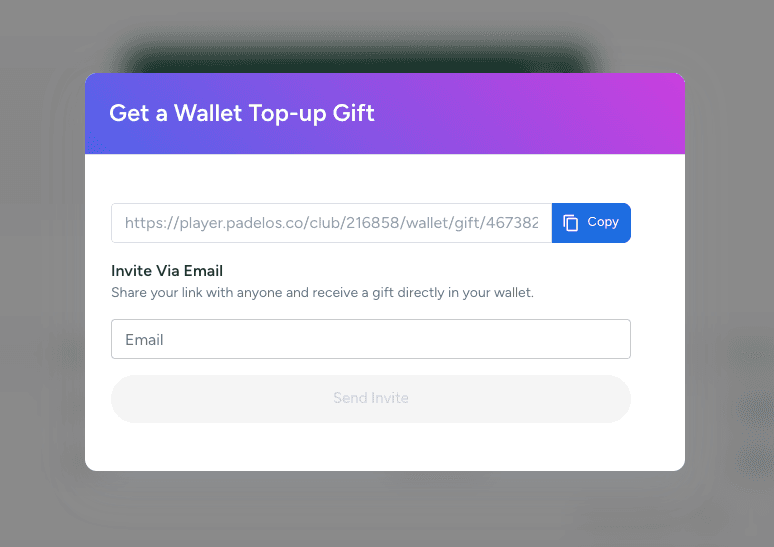
From the Wallet, players tap Get Gift to generate a private, shareable link
Players can share this link directly or send an email invite to friends and family
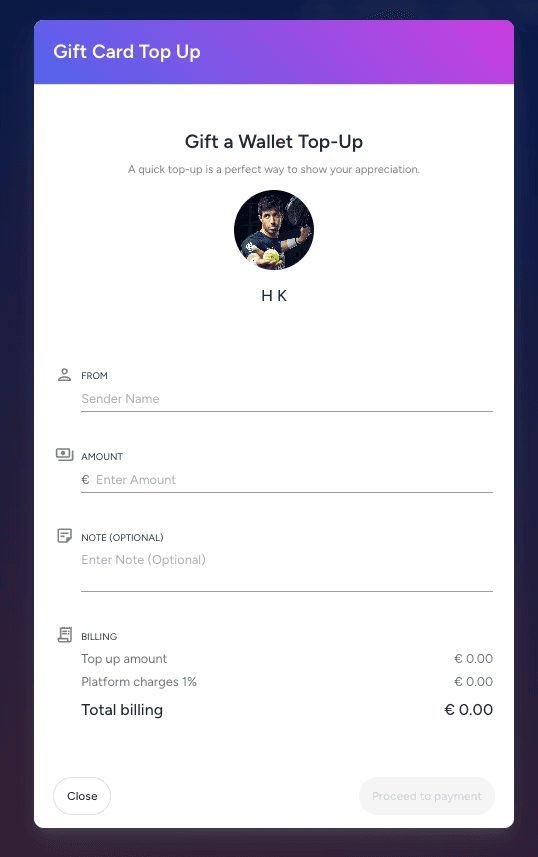
Gift recipients open the link, enter their name, select an amount, and add a personal message
The gifted amount is credited directly to the player’s wallet and can be used for bookings and purchases at your club
No action is required from the club admin — the process is fully self-service for players and gift senders
v2.6.3
Update Profile and Reset Password Notification:
Admins can now send Update Profile email notifications to players directly from the Customers section. This email takes the player to the Profile Update screen.
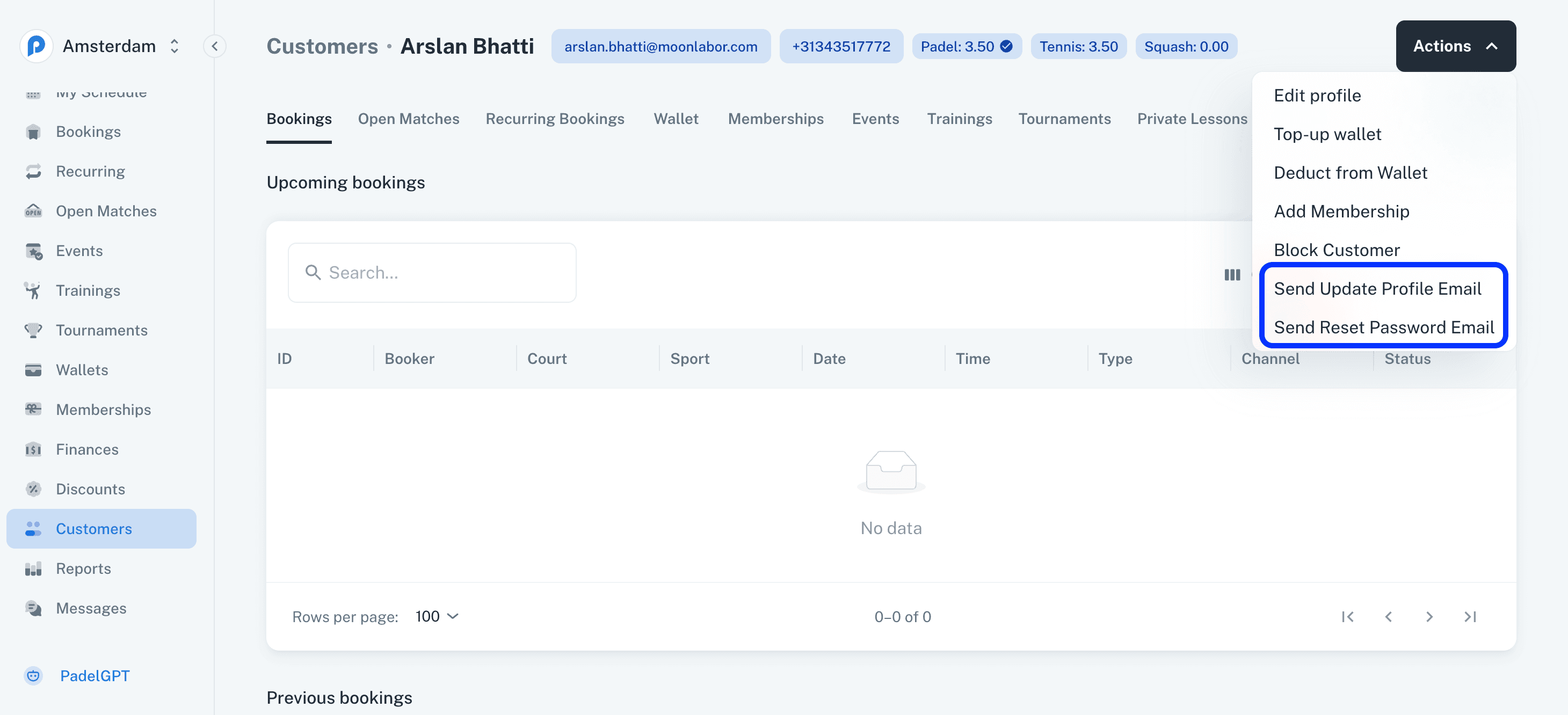
Admins can also send Reset Password email notifications from the Customers section, allowing players to securely reset their password through the Reset Password screen.
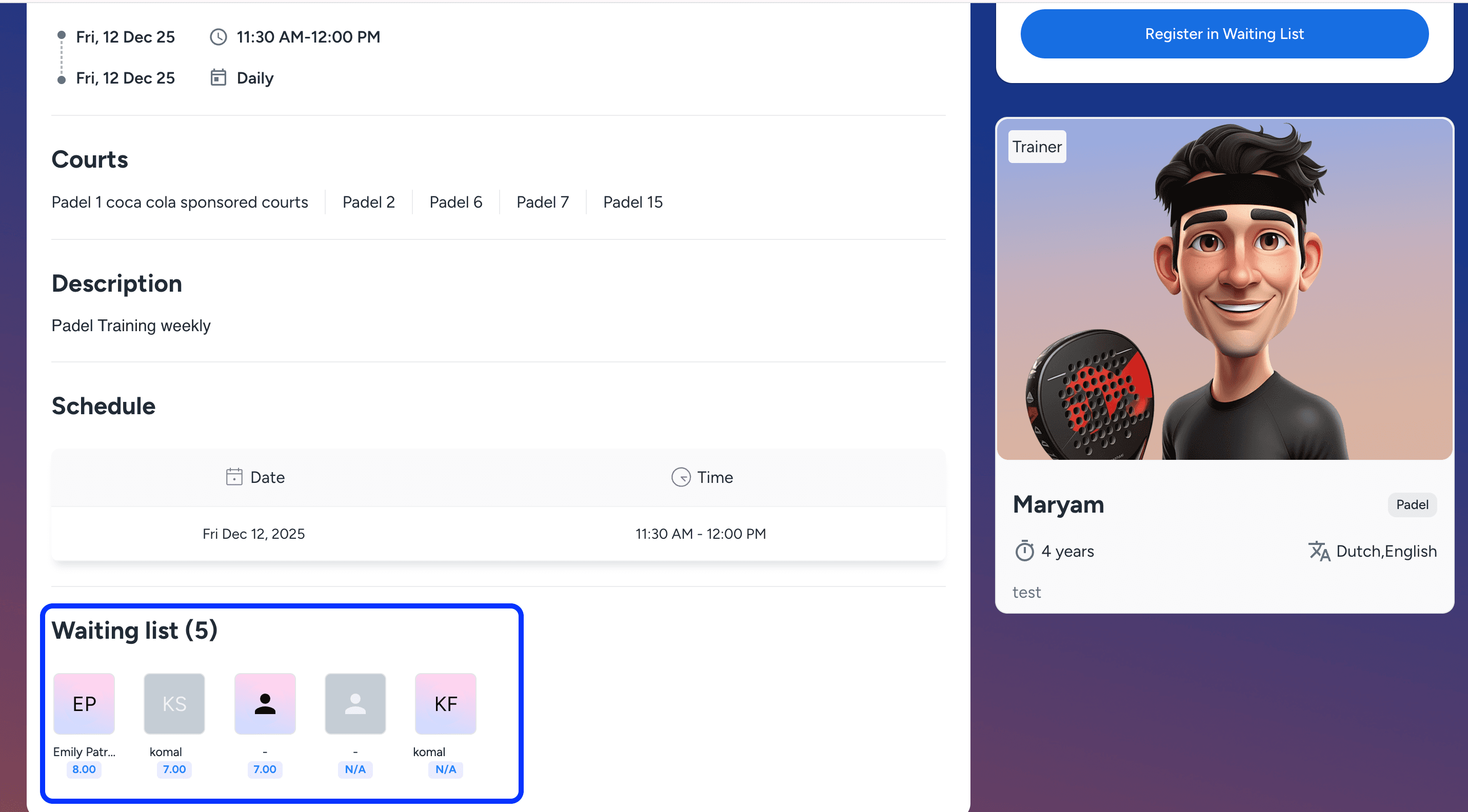
Show Waiting List on Event and Trainings Public Page:
A new setting has been added in the creation forms of Events and Trainings.
Admins can now enable or disable the display of Waiting List players on the public page of the respective activity.
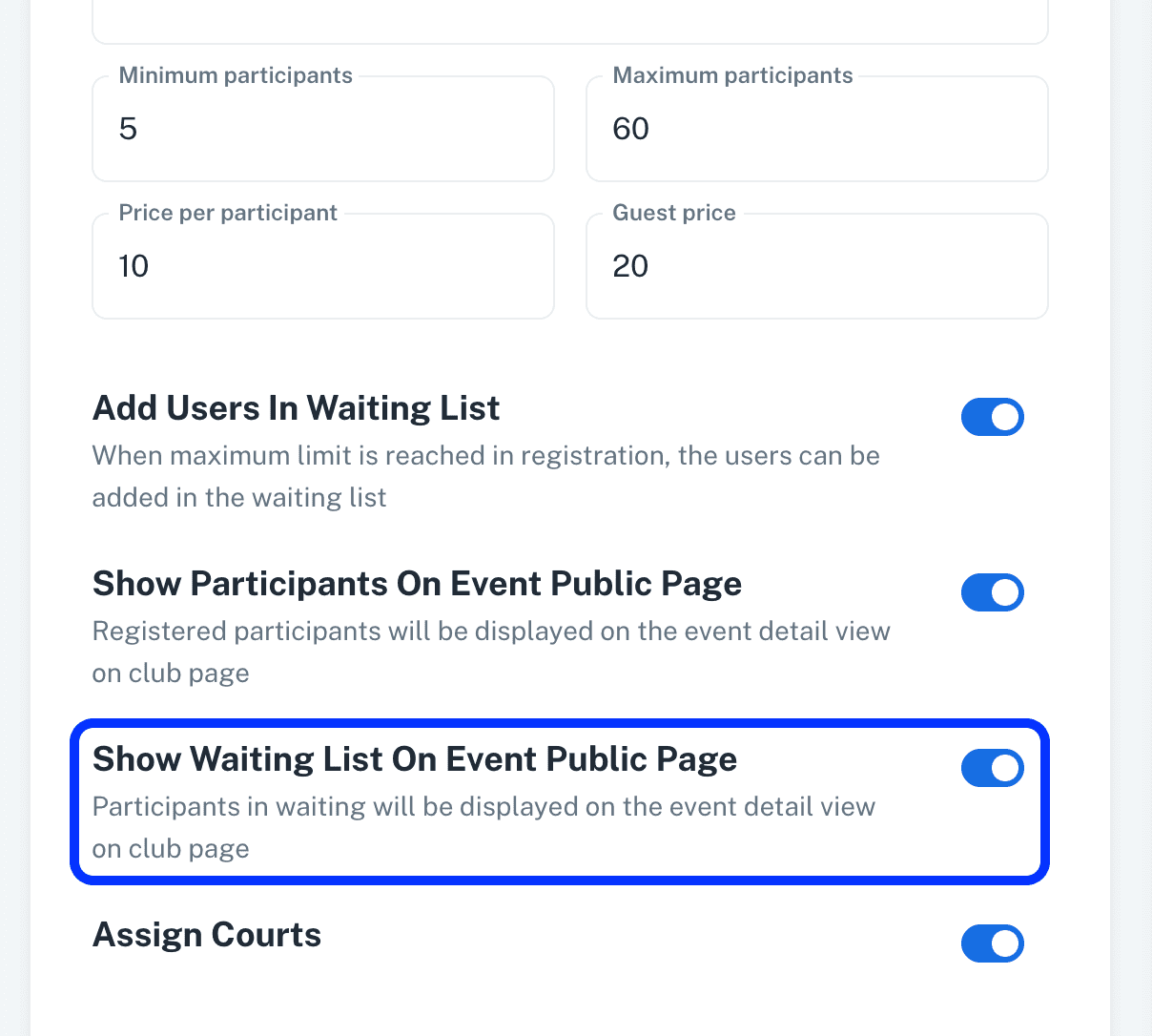
When enabled, the Waiting List for that activity will be shown publicly, allowing players to see the current Waiting List for the event or training.
Discount Codes for Events, Trainings, Private Lessons, Tournaments:
Discount codes can now be applied to Events, Trainings, Private Lessons, and Tournaments.
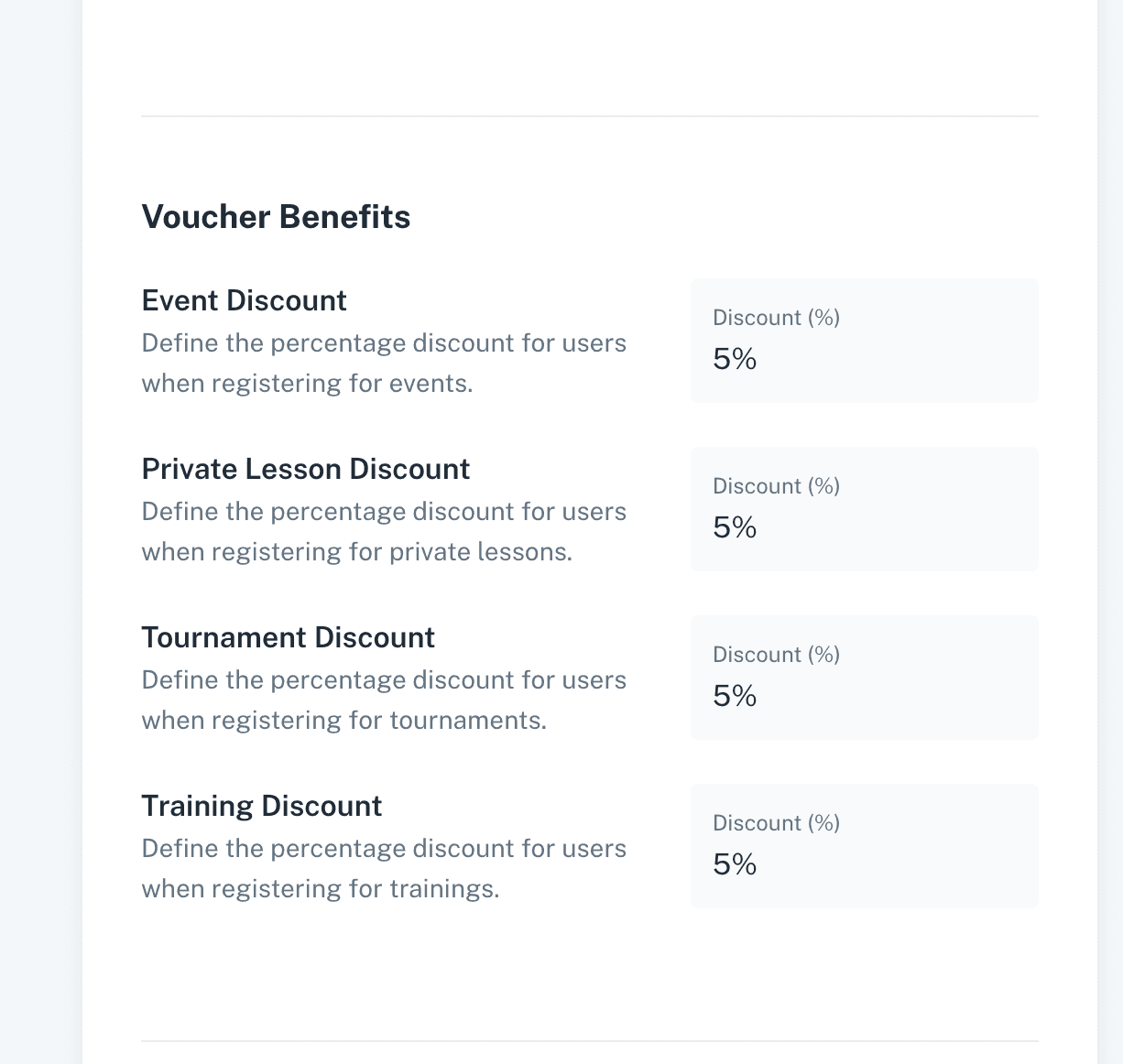
Players can use the configured discount codes during registration to receive the respective discounts on these activities.
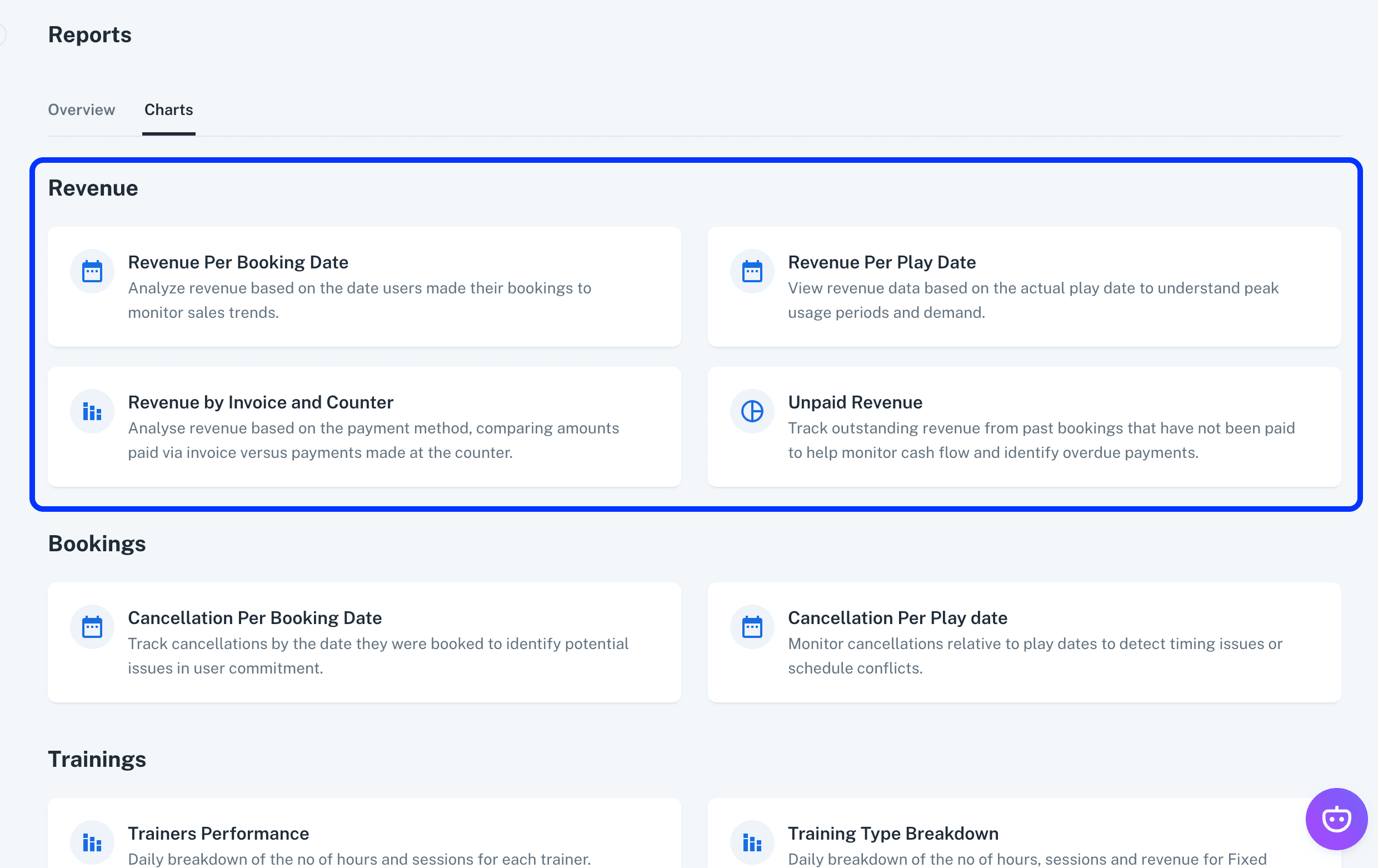
Revenue Section in Charts:
A new Revenue section has been added under Charts to provide a centralized view of all revenue-related reports and visualisations.
Revenue by Invoice and Counter Report:
A new Revenue by Invoice and Counter report has been added.
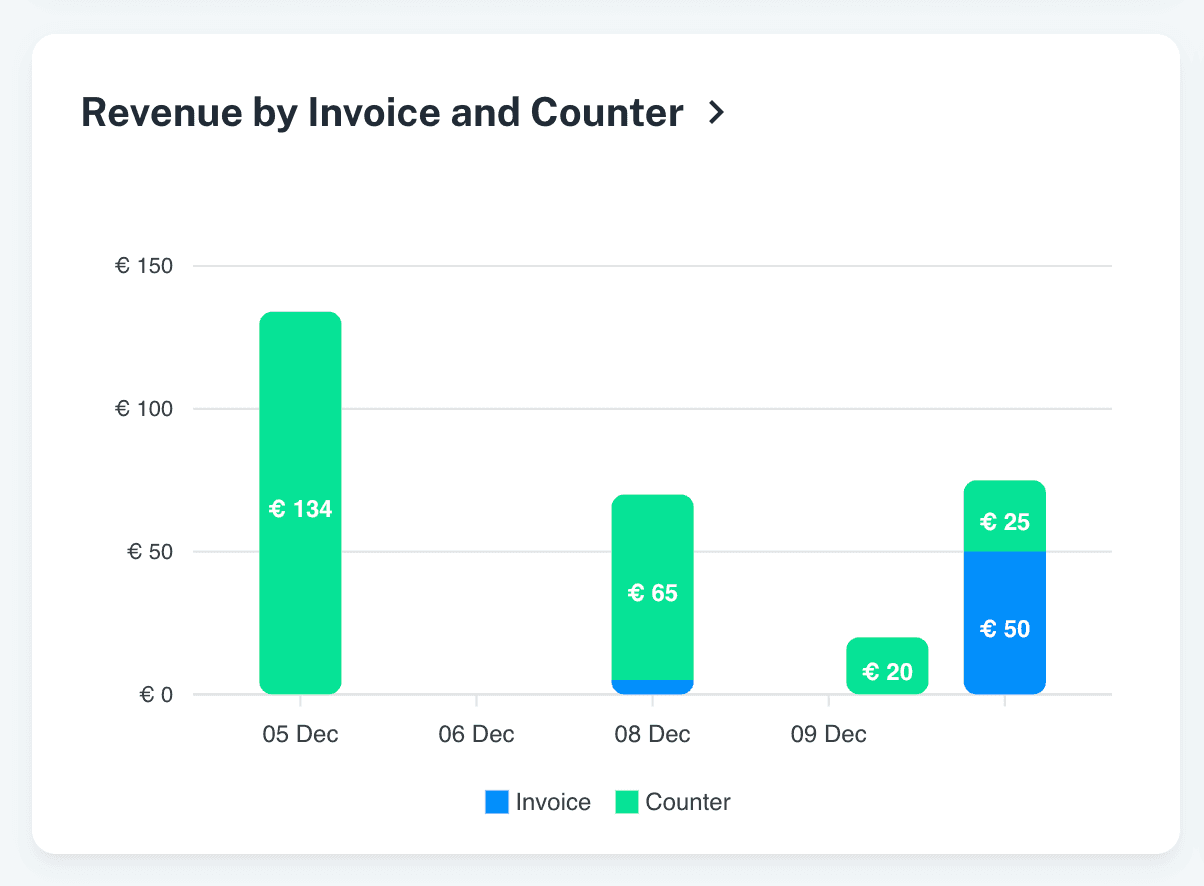
This report provides a daily breakdown of revenue collected through Counter payments and Invoice payments.
Unpaid Amounts Per Activity Report:
An Unpaid Amounts Per Activity report has been introduced to give admins a clear overview of all pending payments for unpaid reservations across different activities.
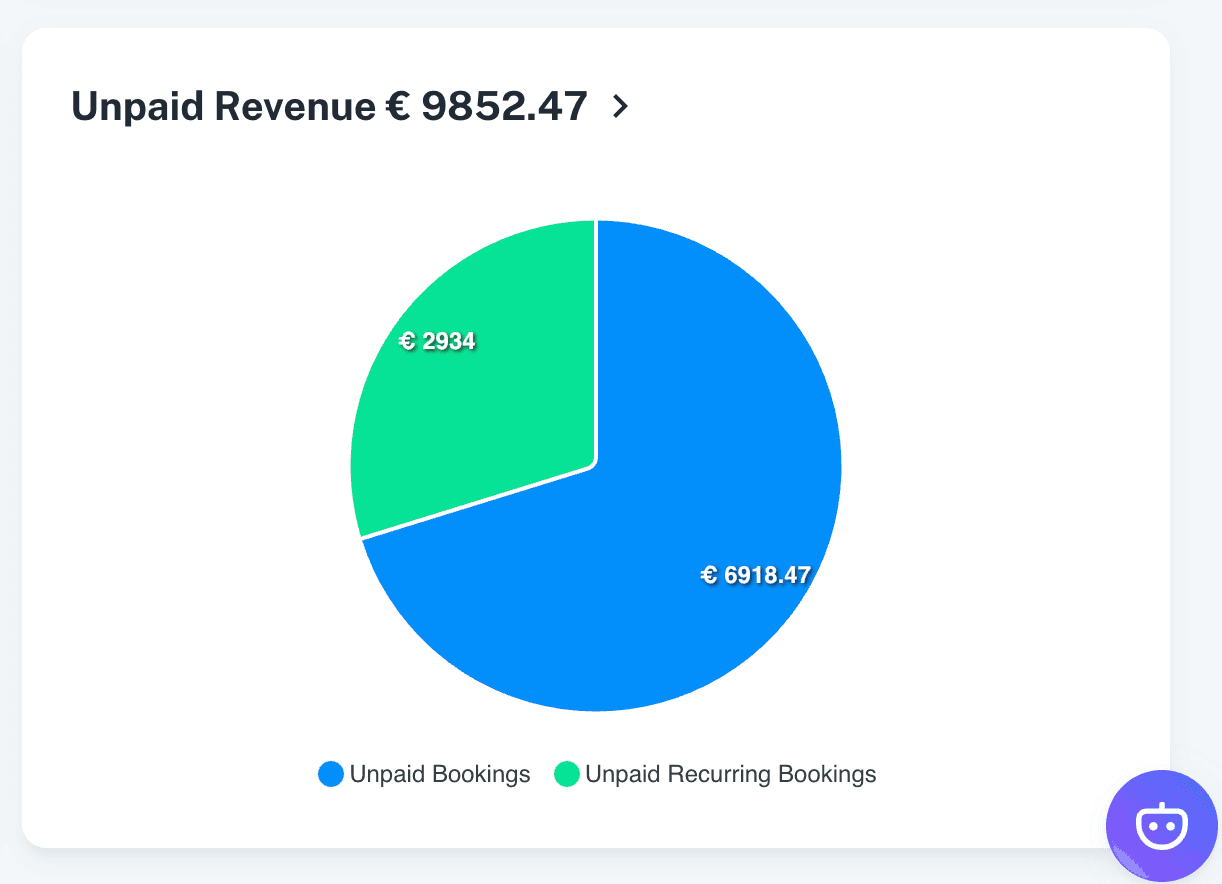
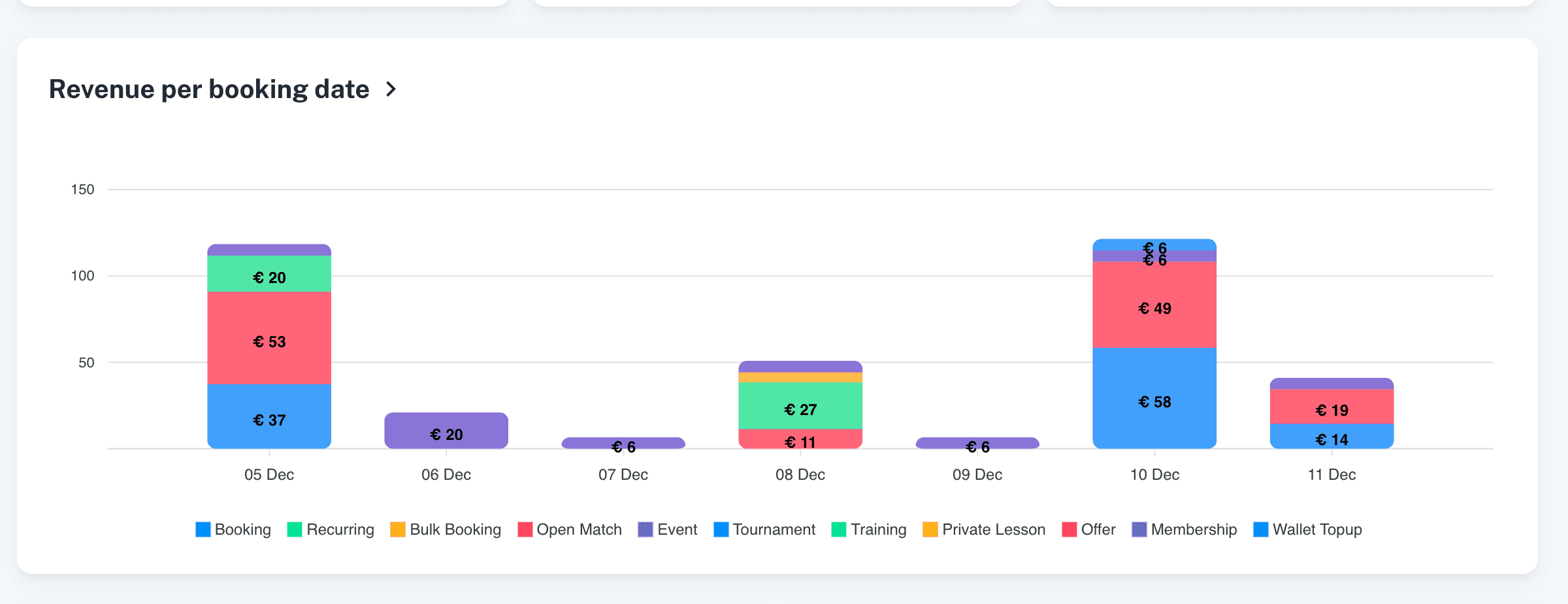
Activity Type Breakdown in Revenue Report
The Revenue report now includes a breakdown by activity type, allowing admins to see revenue contributions for each specific activity i.e. Reservations, Events, Trainings etc.
Other Updates:
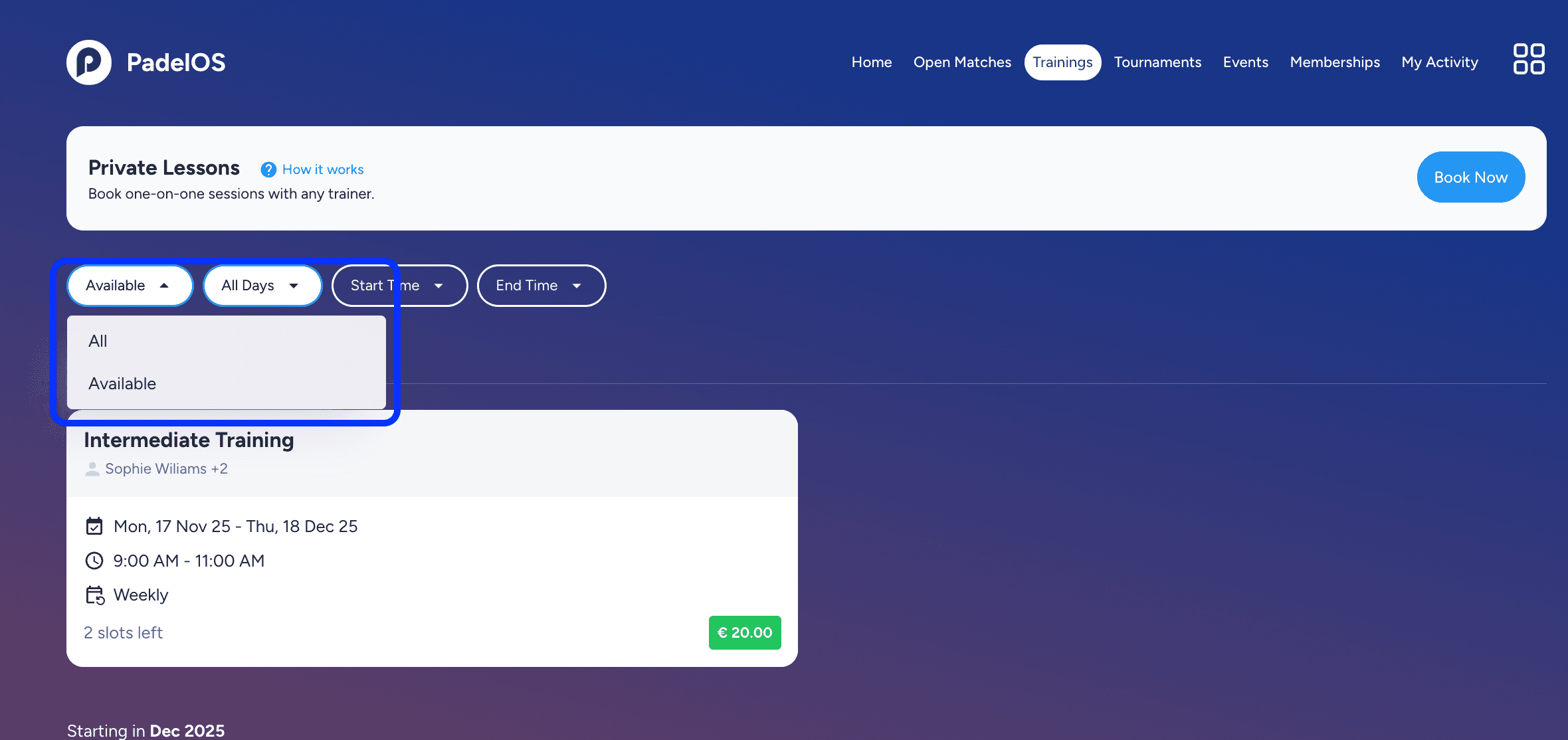
Availability filter added to the Trainings listing page, allowing players to quickly find trainings with open registration slots.
Email notification added for admins when a player purchases a membership that requires verification.
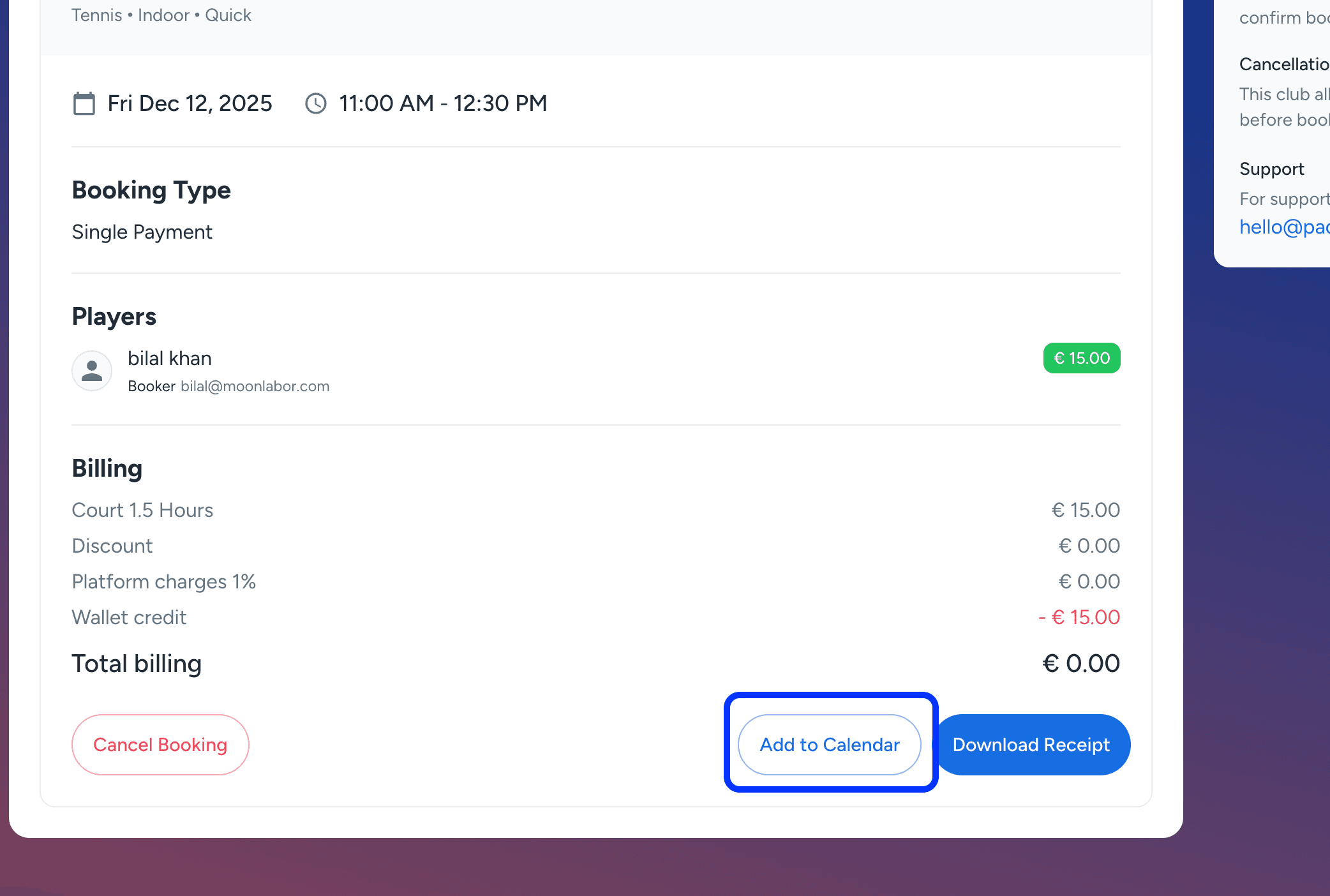
Add to Calendar option added for bookings through downloadable ICS calendar files.
Minor enhancements and bug fixes improve platform performance, stability, and responsiveness.
v2.6.2
Book Ahead Limit Per Sport:
A new policy setting has been added allowing clubs to define separate book ahead limits for each sport.
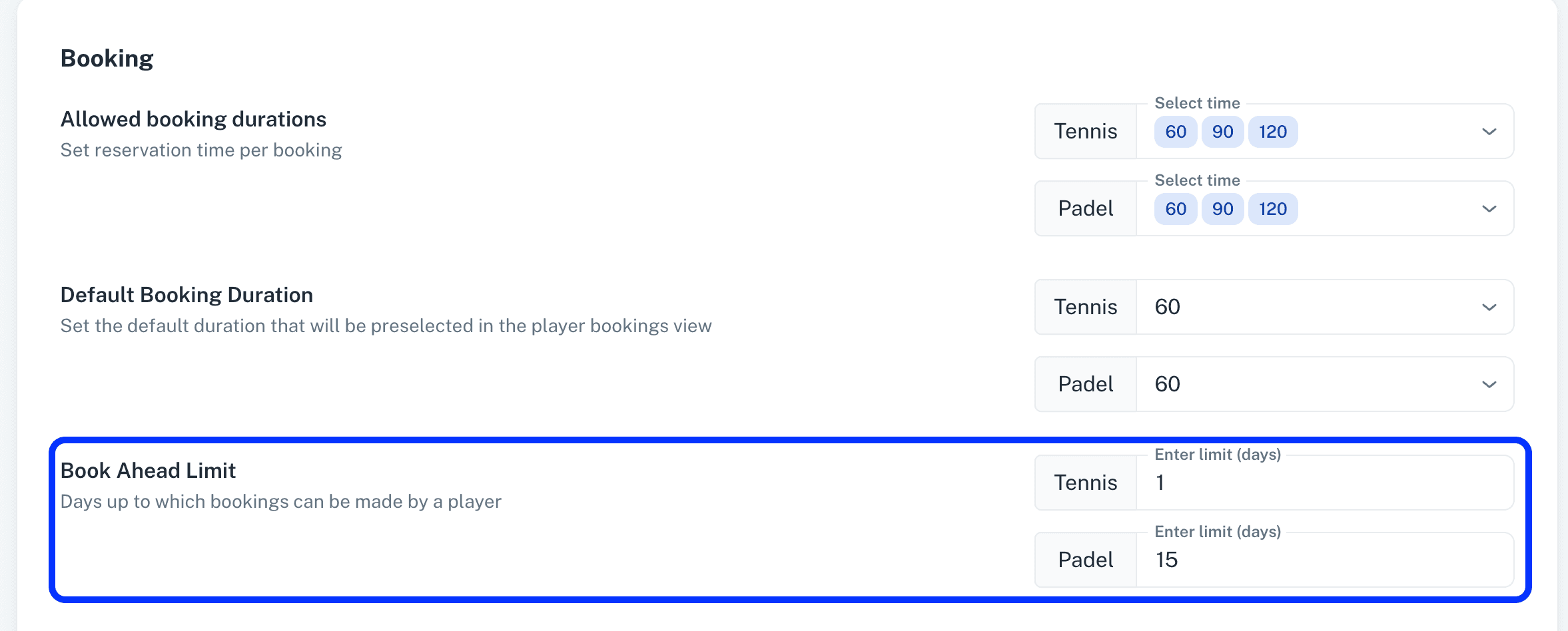
This provides flexible control over how far in advance players can book per sport.
Default Booking Duration Per Sport:
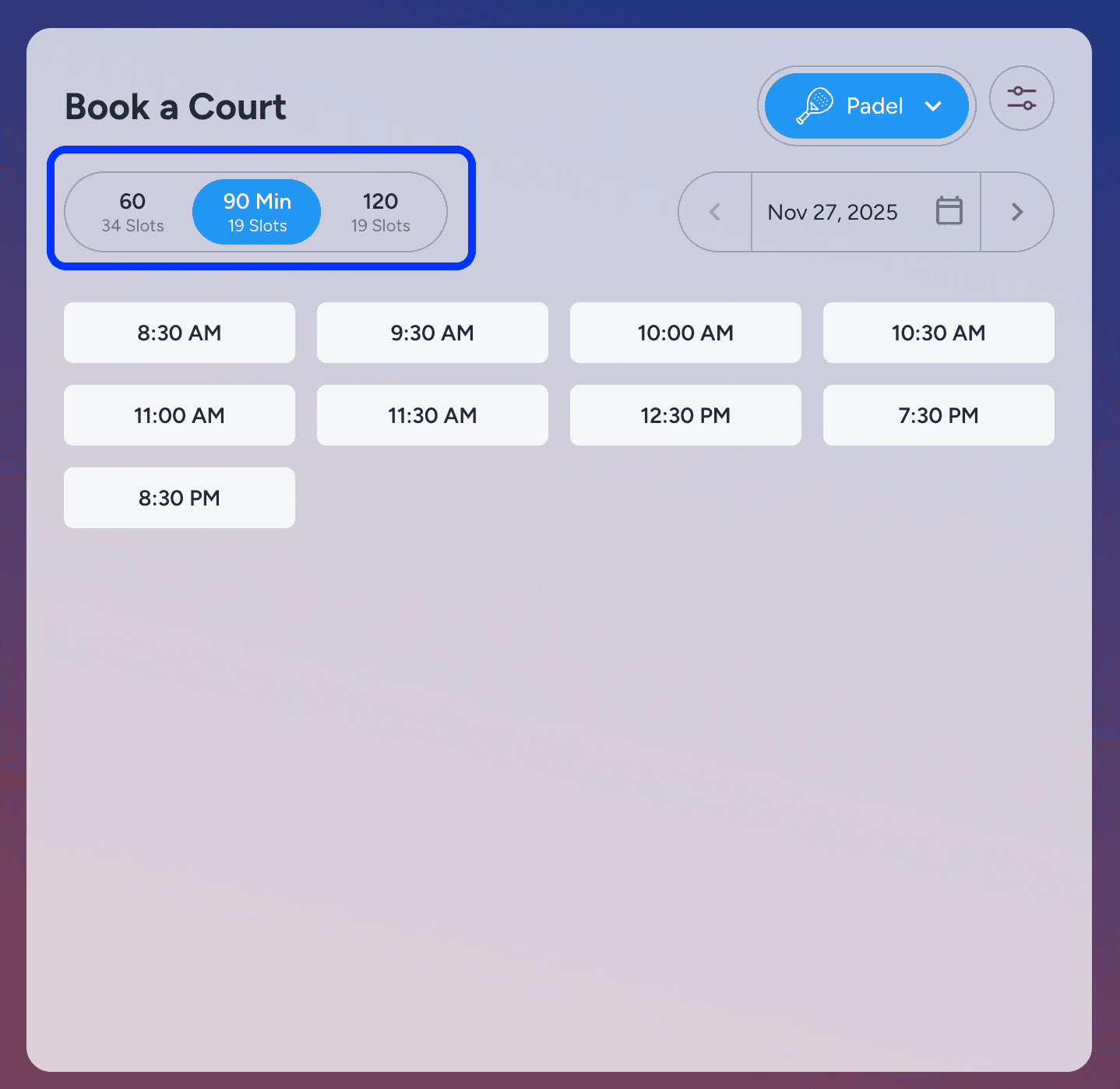
Admins can now configure a default booking duration (e.g., 60/90/120 minutes) for each sport.
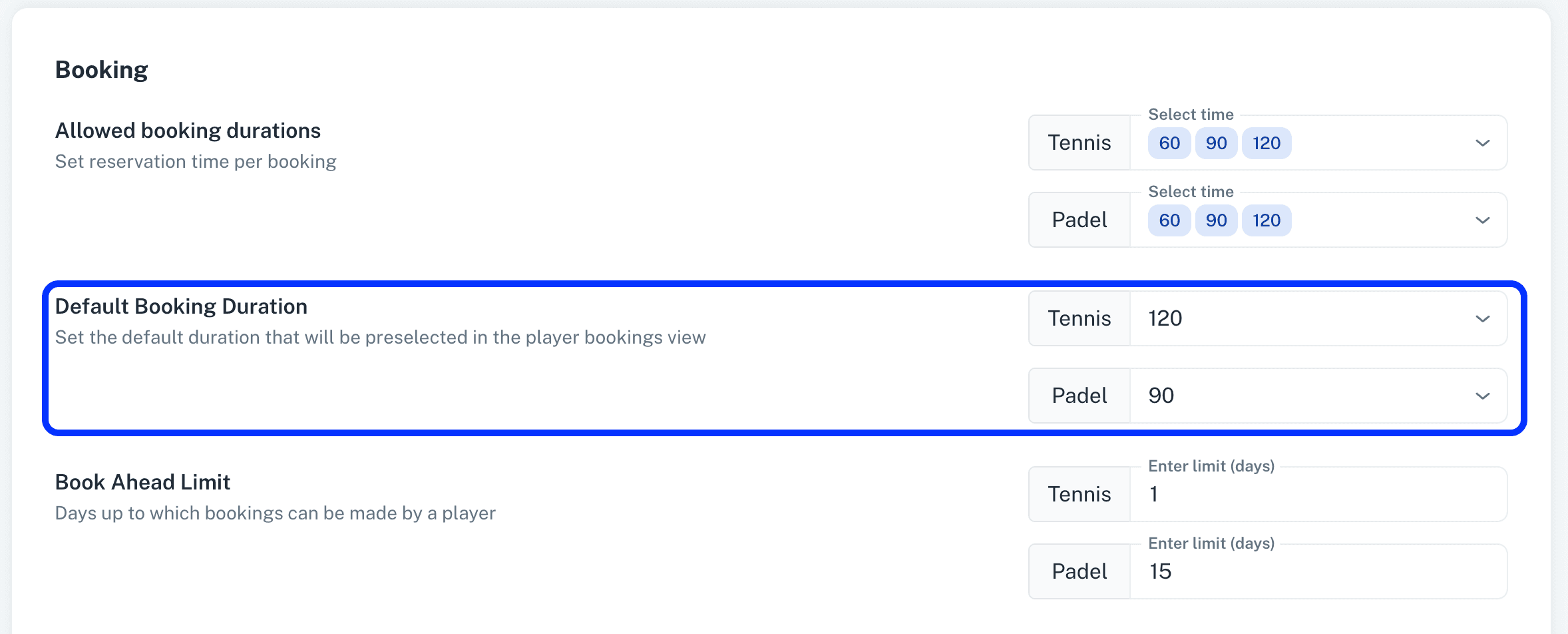
The selected default duration is automatically pre-selected on the club’s booking screen based on the saved policy.
Cancel Booking after Cancellation Time:
A new policy option now allows players to cancel a booking even after the cancellation time has passed.
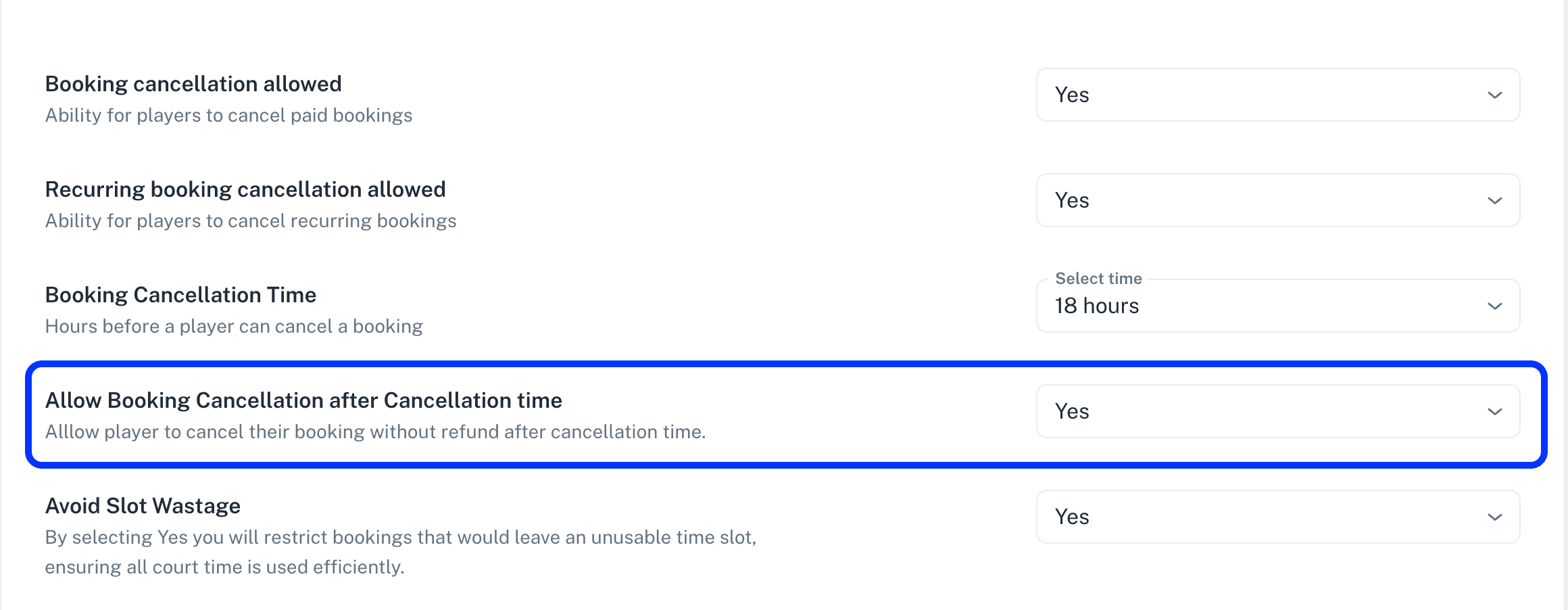
If enabled, players can cancel but will not receive a refund for late cancellations.
Trainers Access to Events/Tournaments:
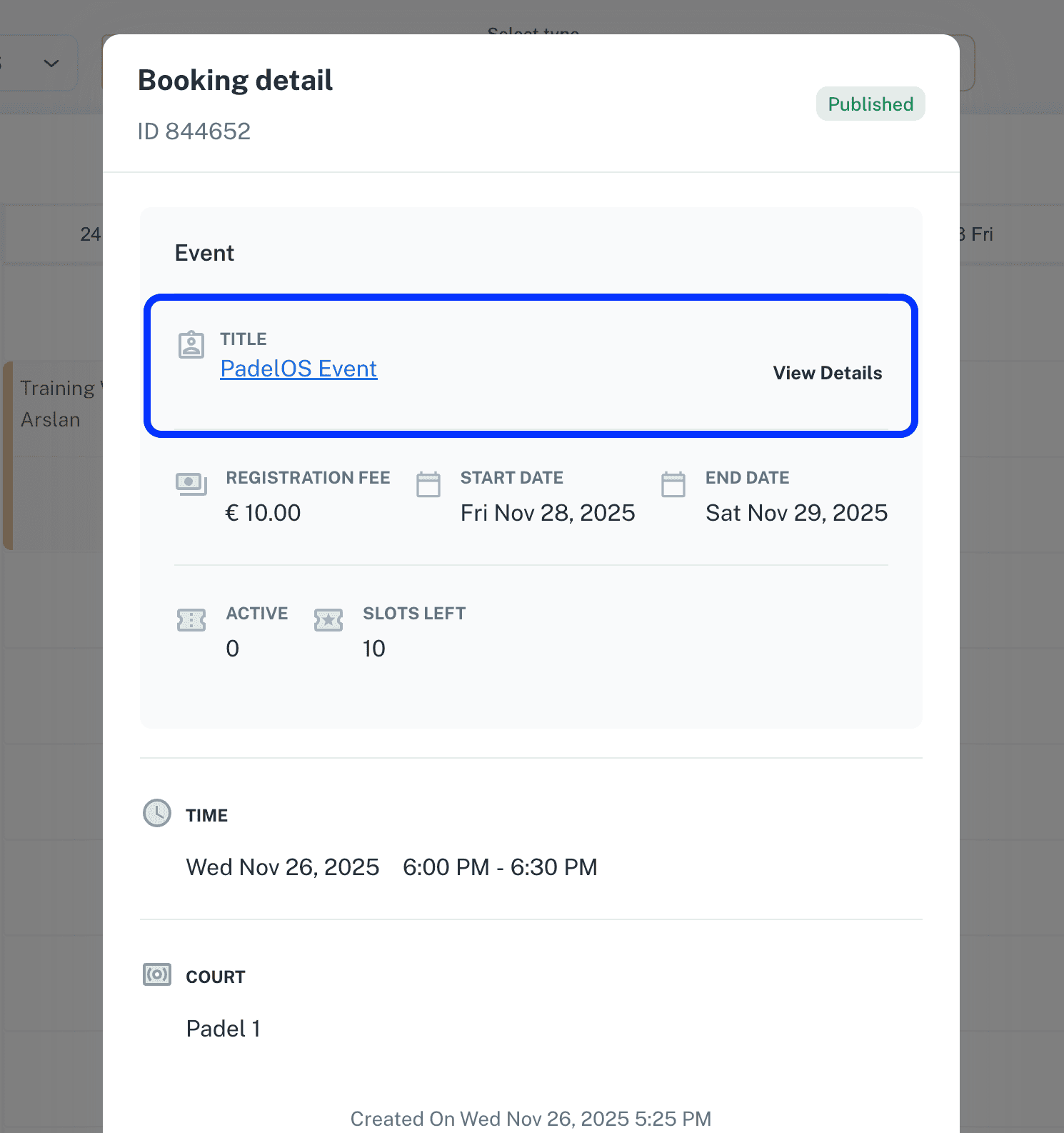
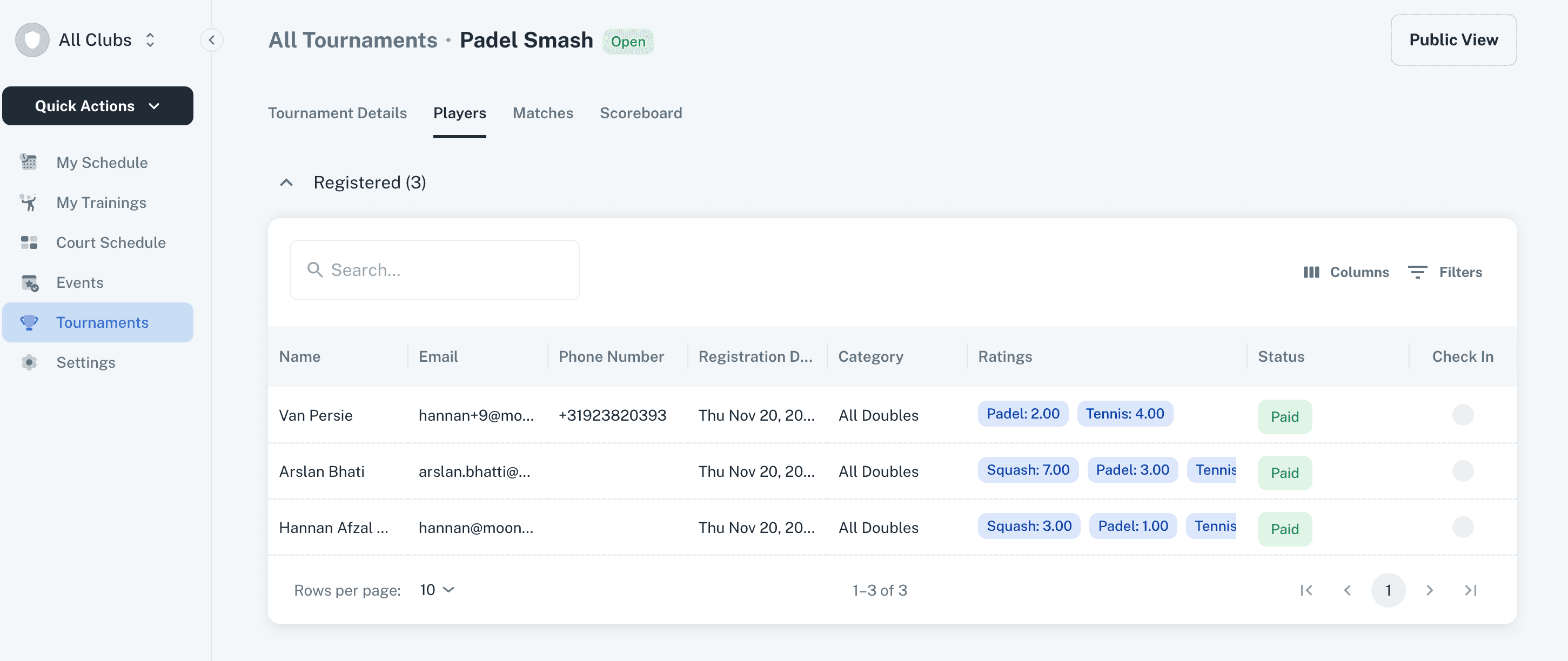
Trainers and Trainer Admins now have access to the details of their associated Events and Tournaments.
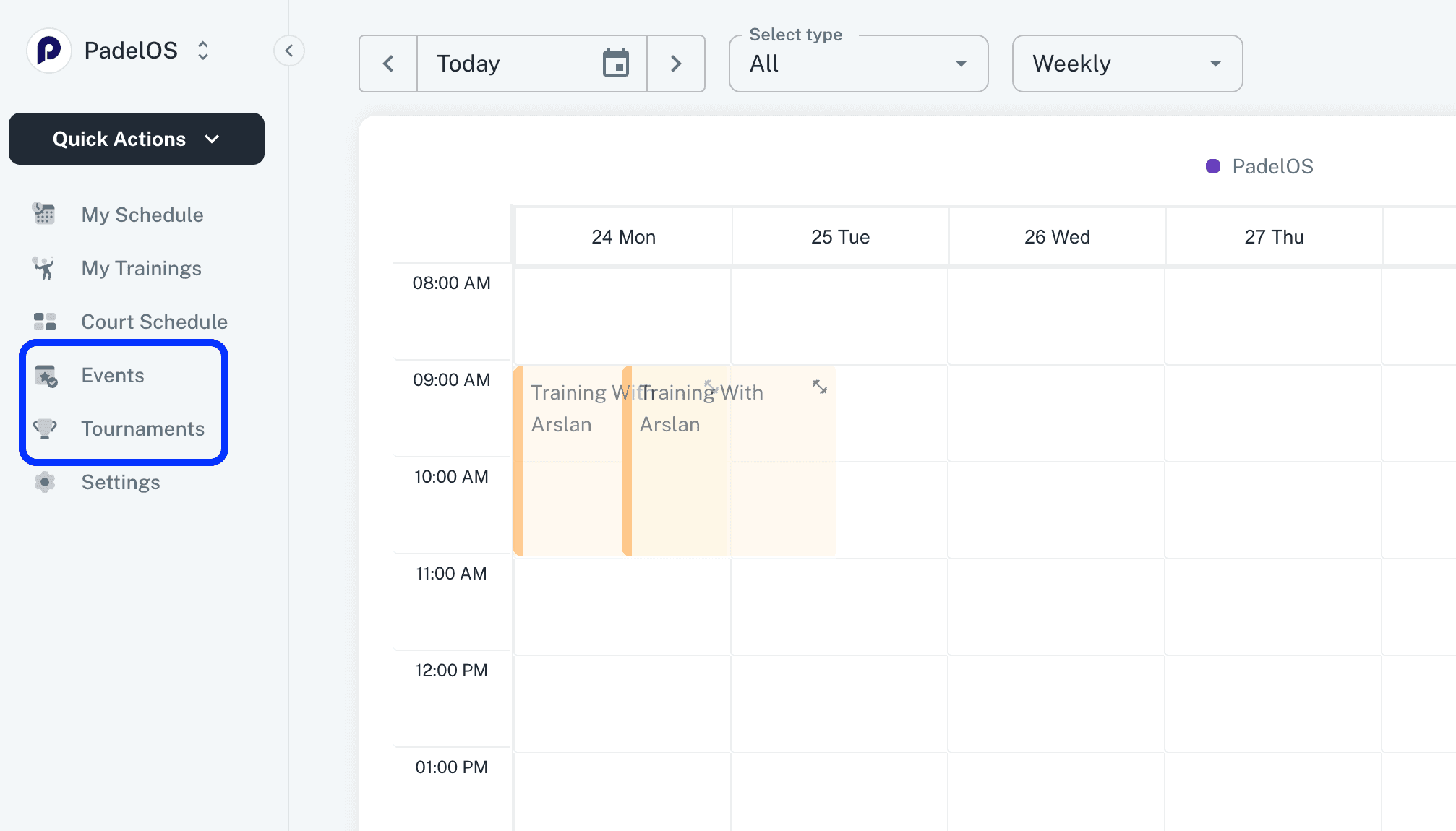
They can open these directly from the Schedule or via the Events/Tournaments modules in the main navigation.
Recurring bookings Cancellation Policy:
A separate policy has been added for Recurring Booking Cancellations.
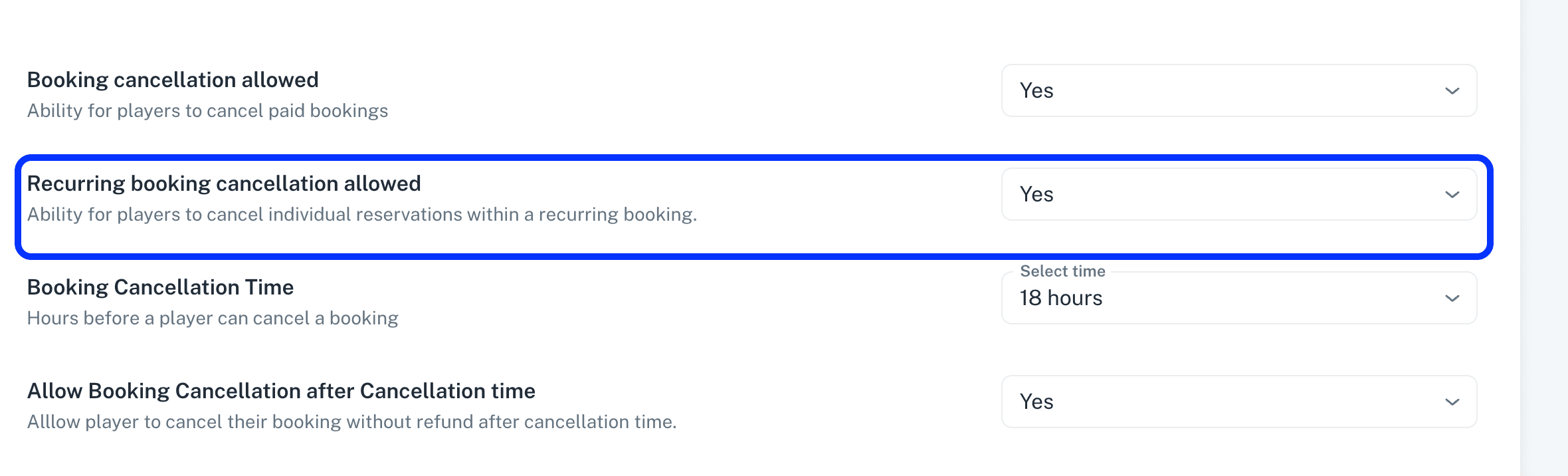
When enabled, players can cancel individual reservations within their recurring bookings from the club page.
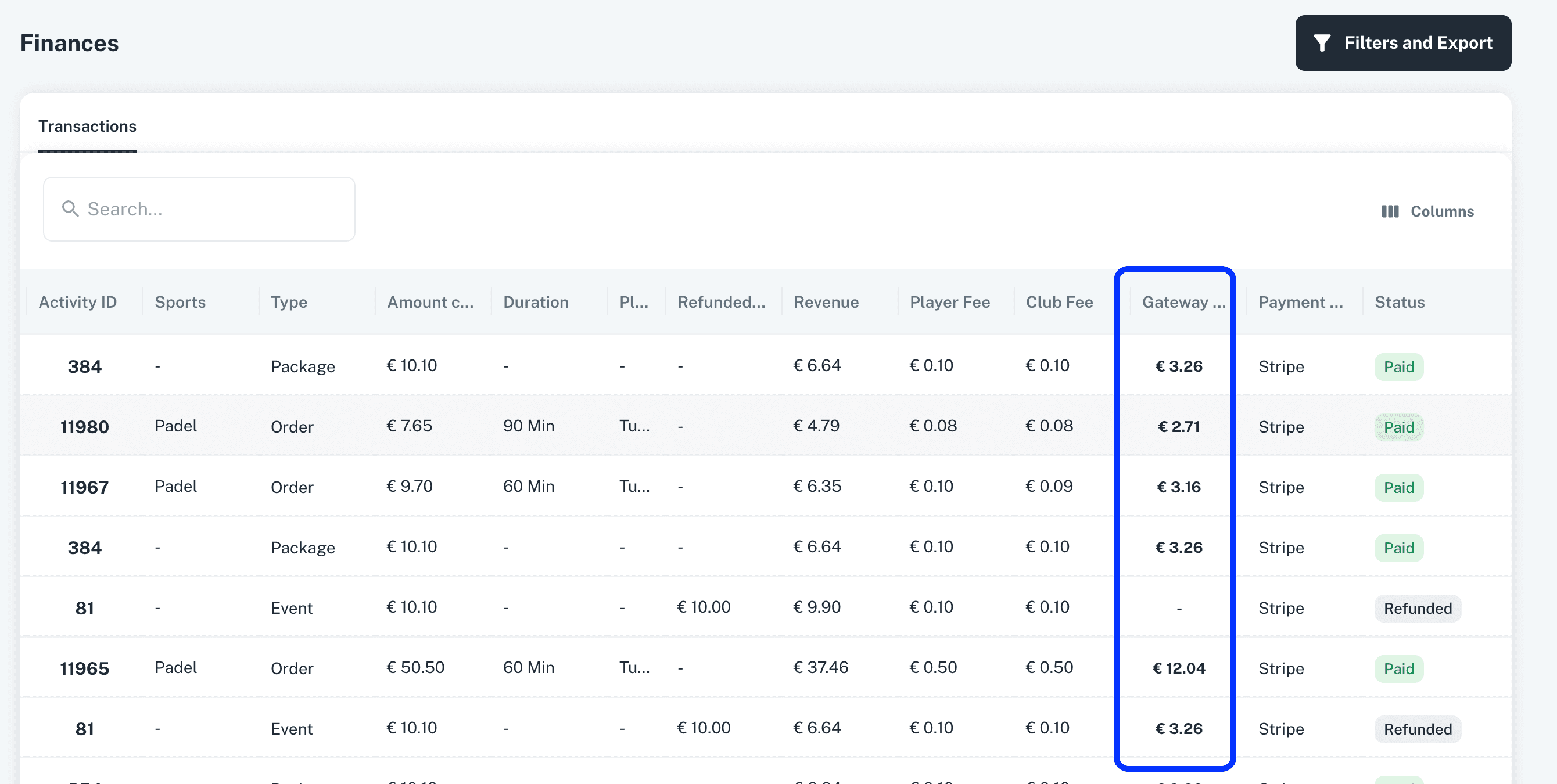
Payment Gateway Fee in Finances View:
A new Payment Gateway Fee column has been added to the Finances grid.
Admins can view the exact fee deducted by the payment gateway and click on the value to see detailed breakdowns.
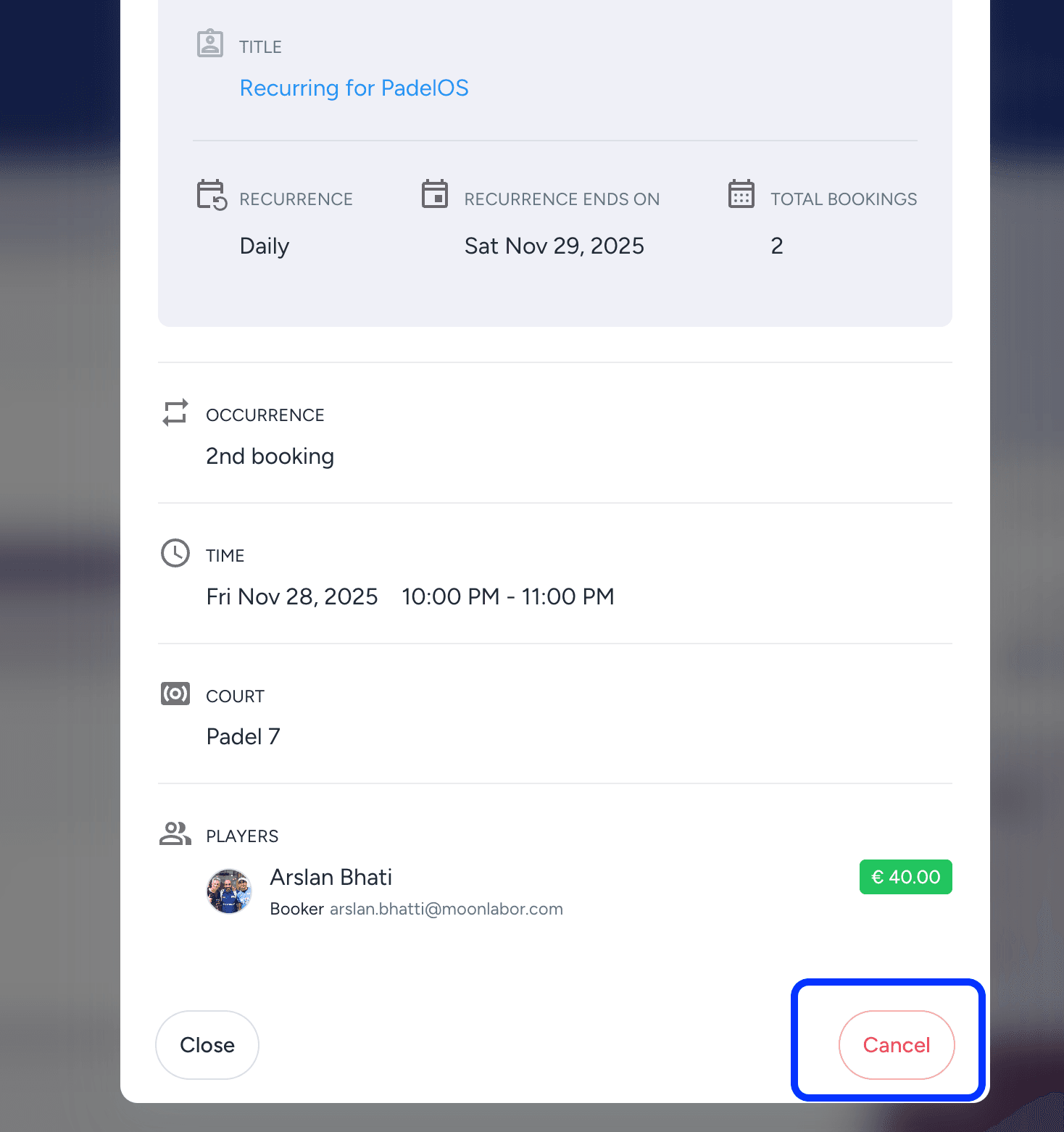
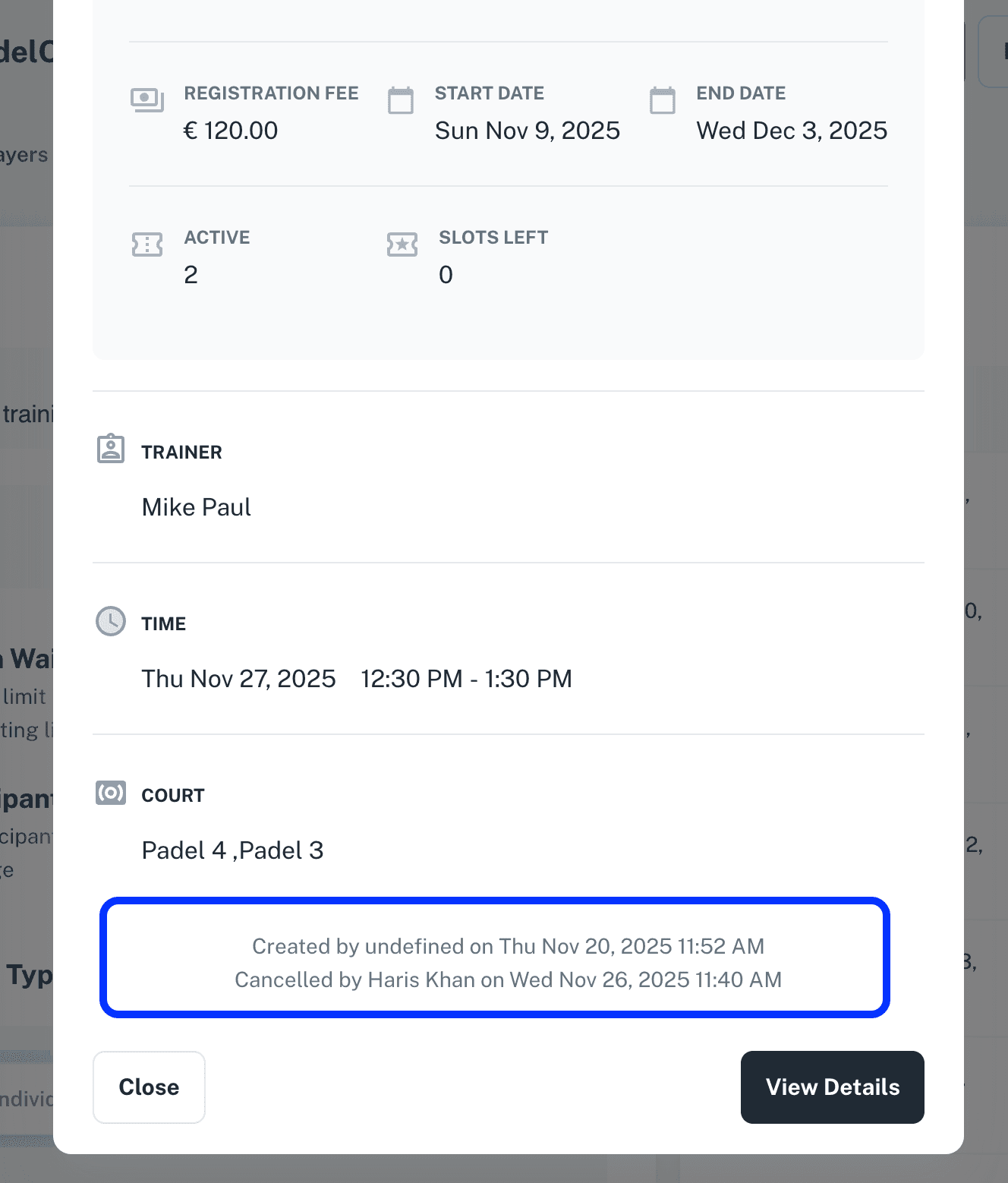
Creation/Cancellation info in Events and Trainings:
Creation and cancellation information for individual bookings is now displayed directly inside the booking details pop-up in Events and Trainings.
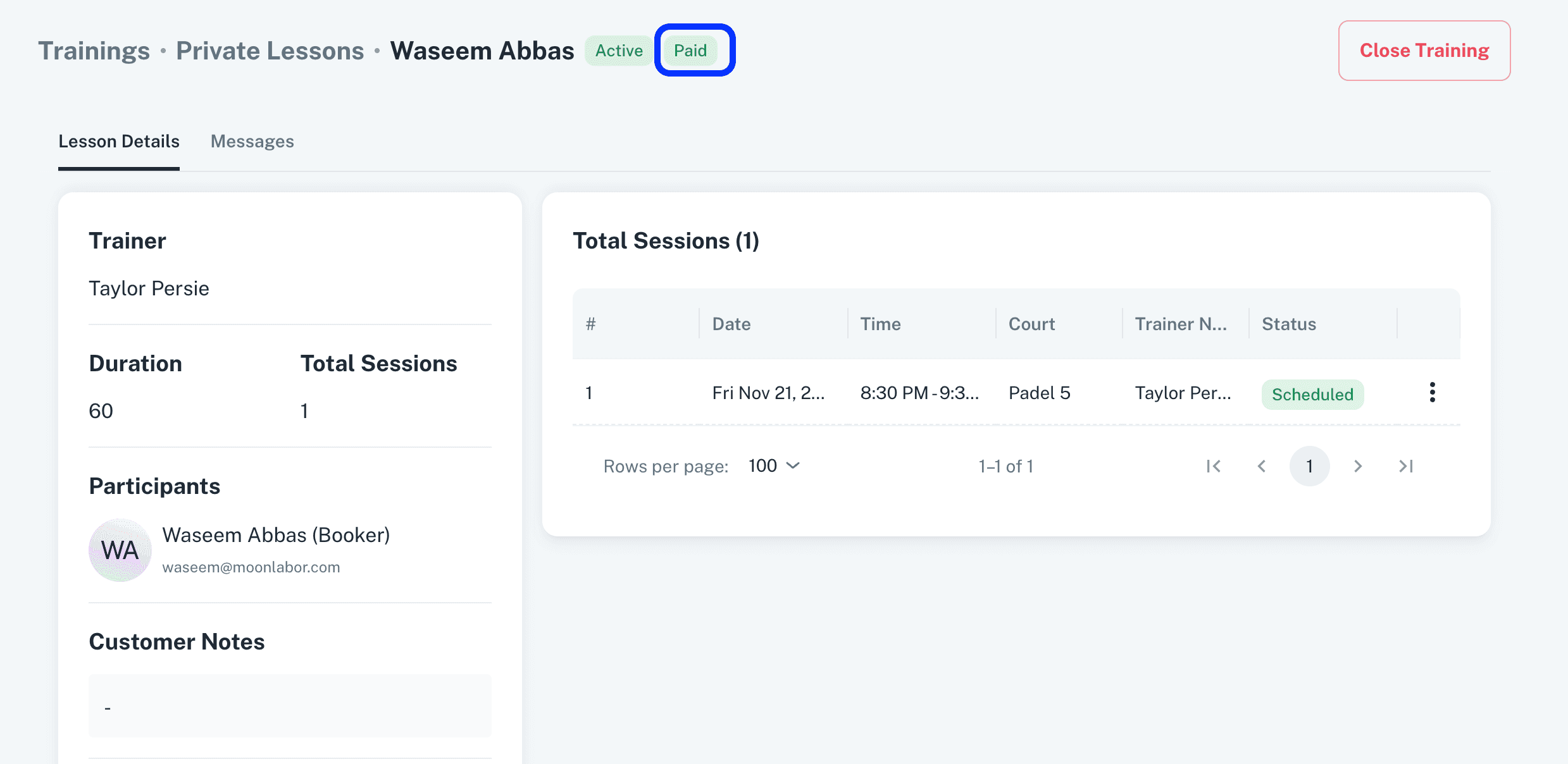
Other Updates:
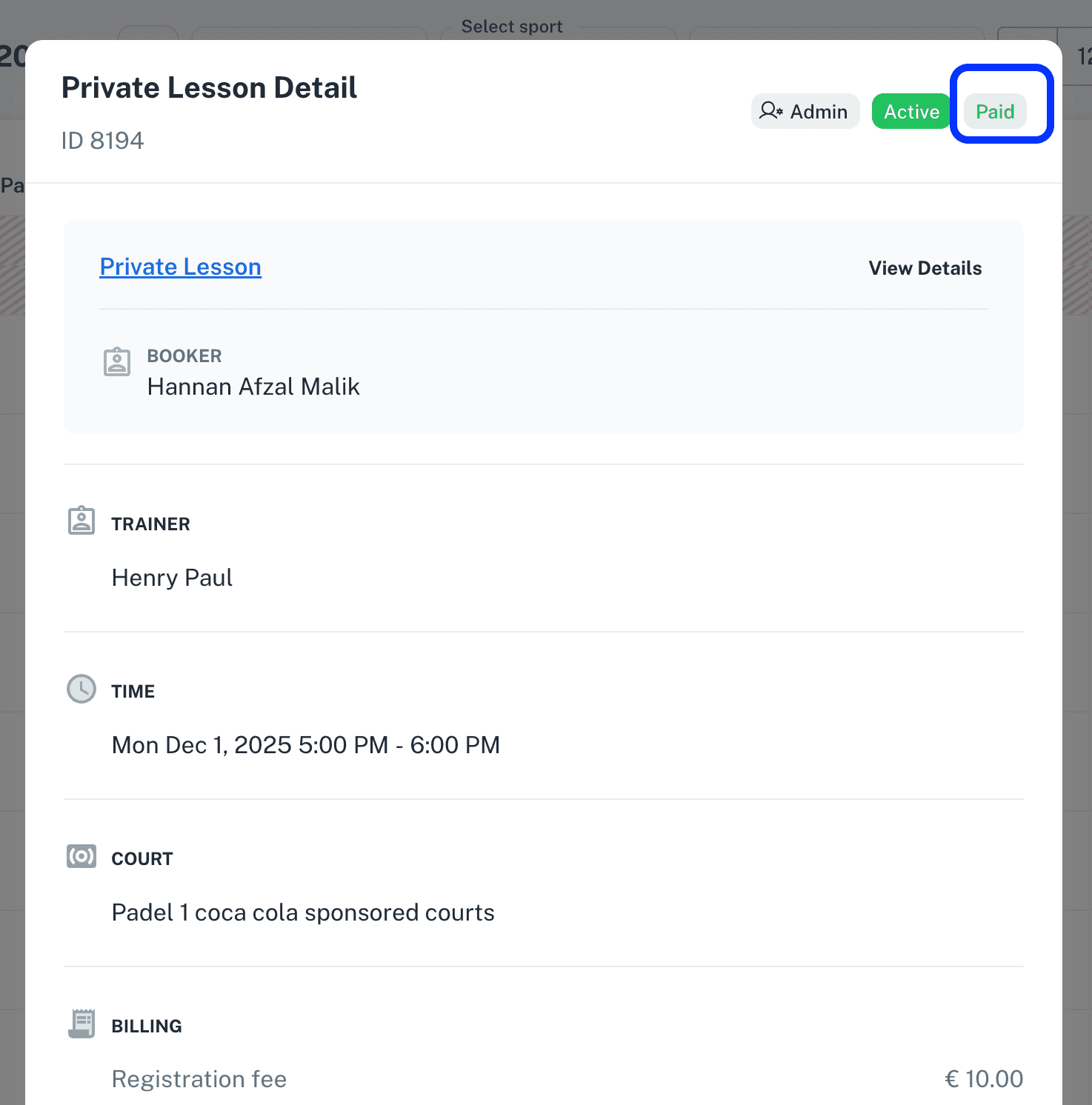
Payment status added to the Private Lesson pop-up and detail view in admin application.
Minor enhancements and bug fixes improve platform performance, stability, and responsiveness.
v2.6.1
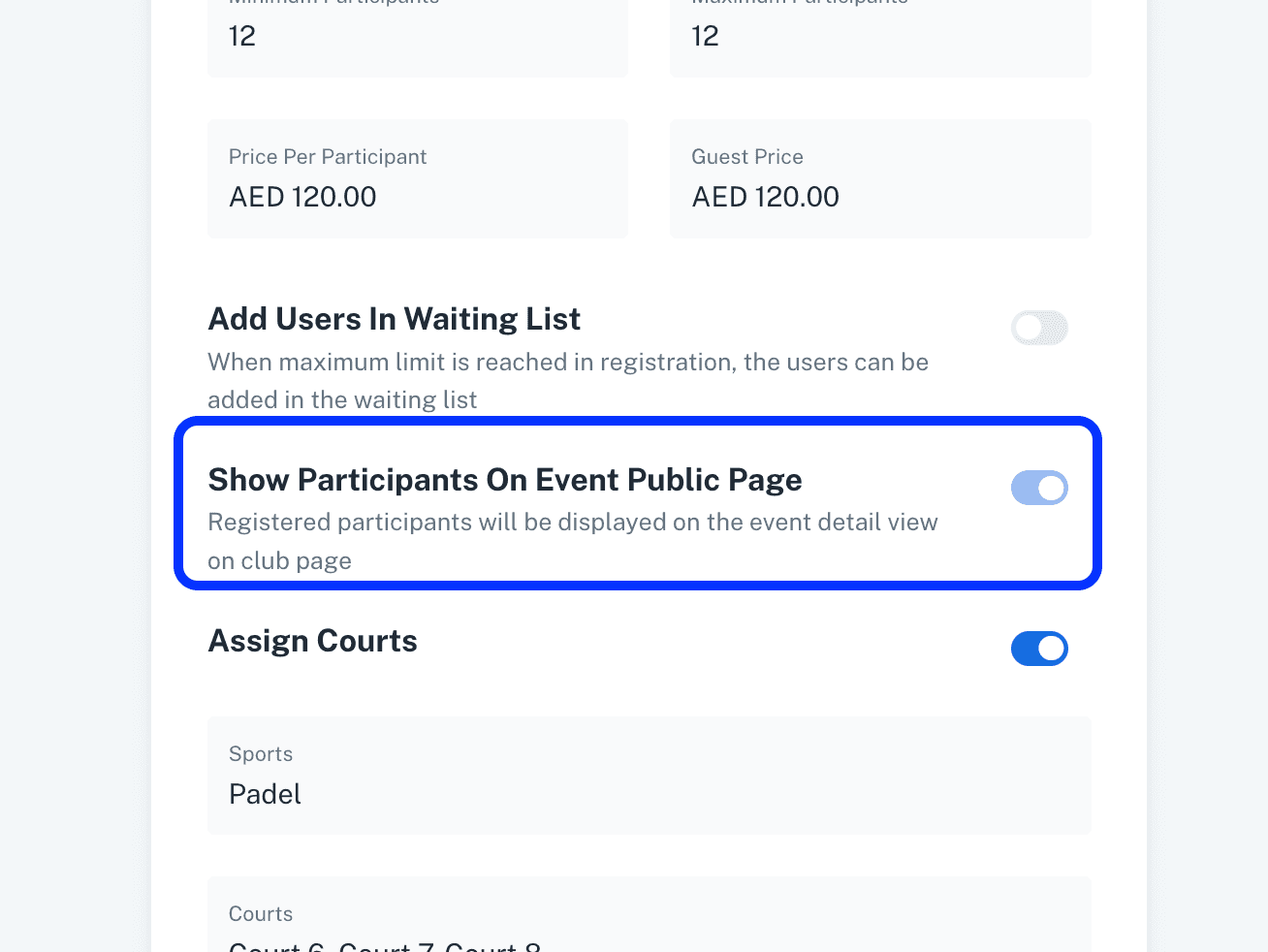
Show Participants on Events, Trainings, Tournaments Public Page:
A new setting added in Events, Trainings and Tournaments.
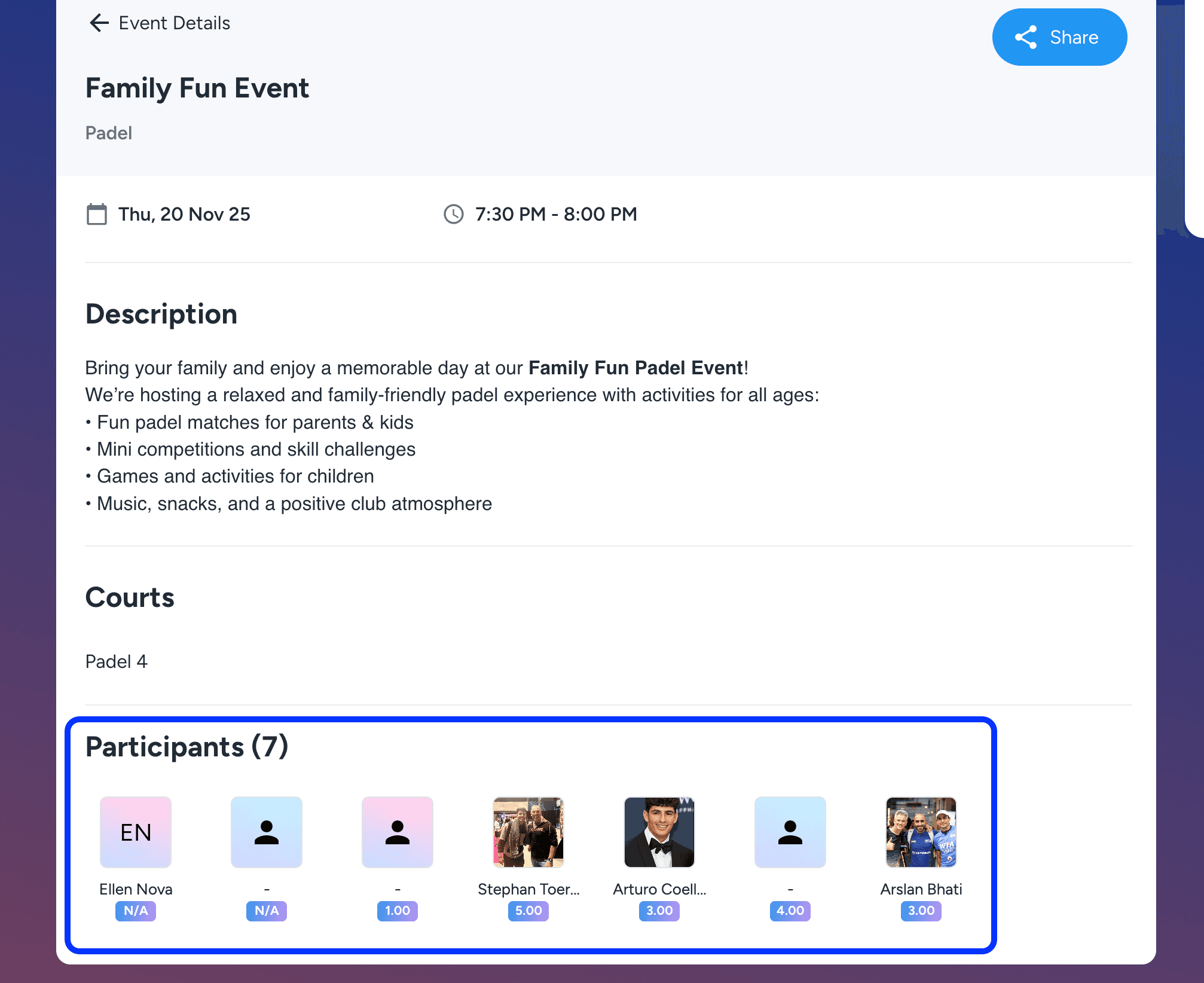
Admin can set Enable/Disable the Display of Participants of Events, Trainings and Tournaments on the public page of the respective activity.
The participants if the activity will be displayed on the public page and other players will be able to see the participants joining the activity.
Other Updates:
Minor enhancements and bug fixes improve platform performance, stability, and responsiveness.
v2.6
Block Users With Pending Payments:
A new policy has been added in Settings to automatically deduct pending booking payments from players’ wallets.
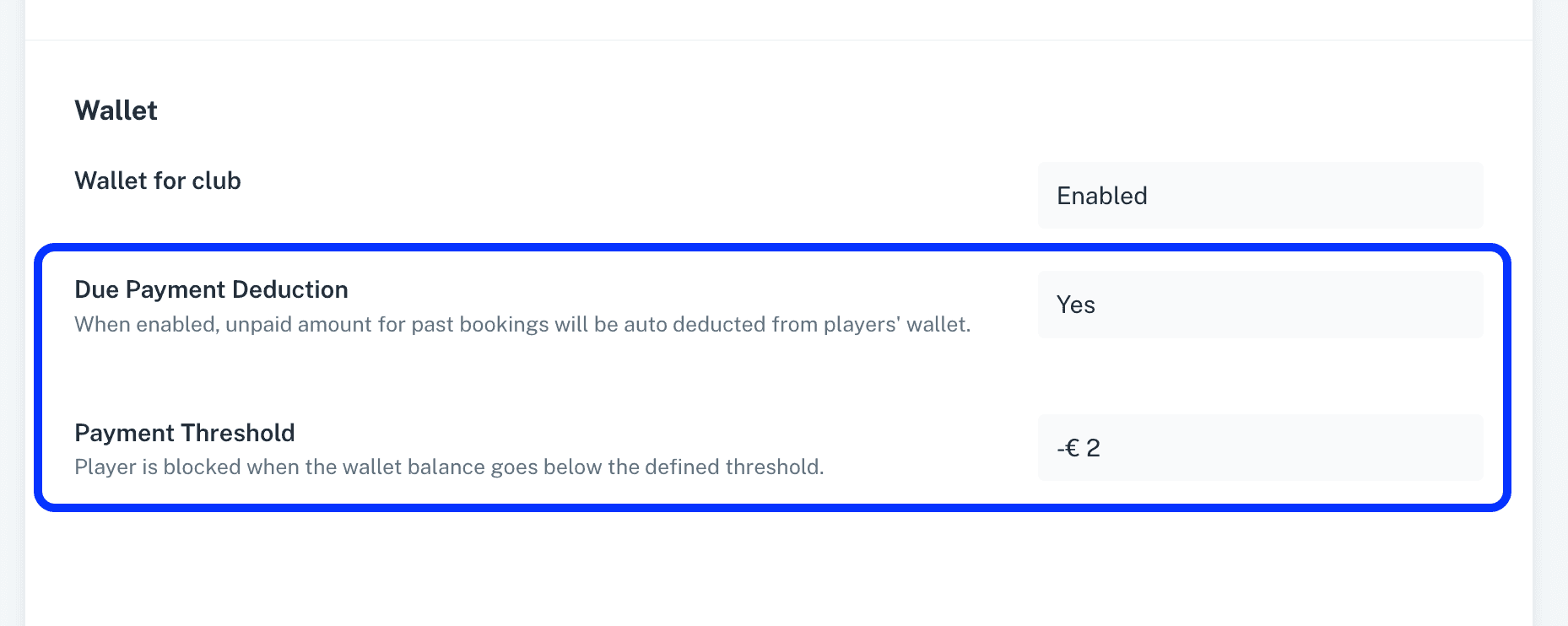
Admins can also enable a policy to block players based on pending amount in wallet balance.
Player with pending wallet balance will not be able to book courts or register for any activities, including events, trainings, and more.
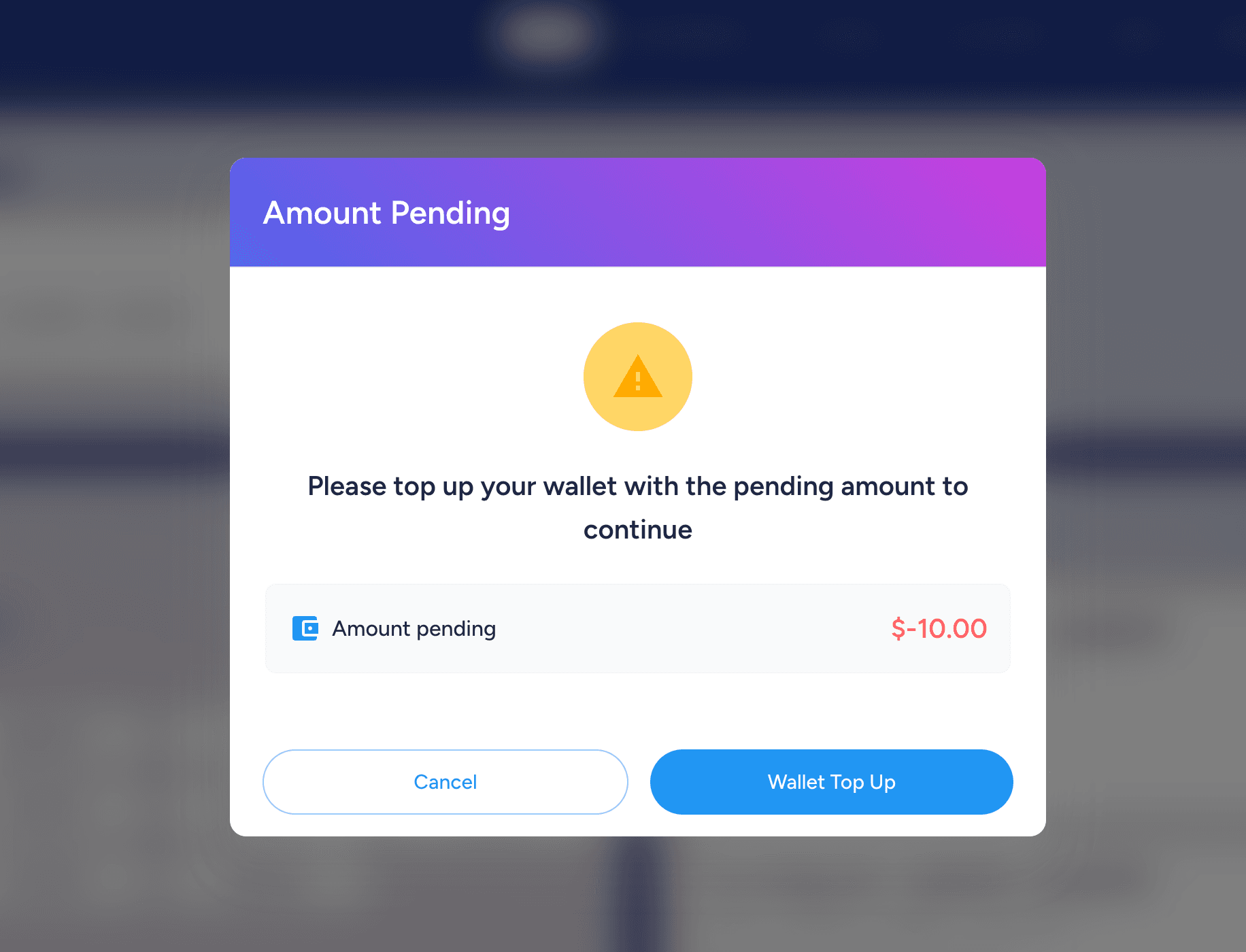
To continue booking, the player must top up their wallet with the pending amount.
Training Invitation with Custom Price:
Added an option for admins to send training invitations to players with a custom registration price set specifically for the invited player.
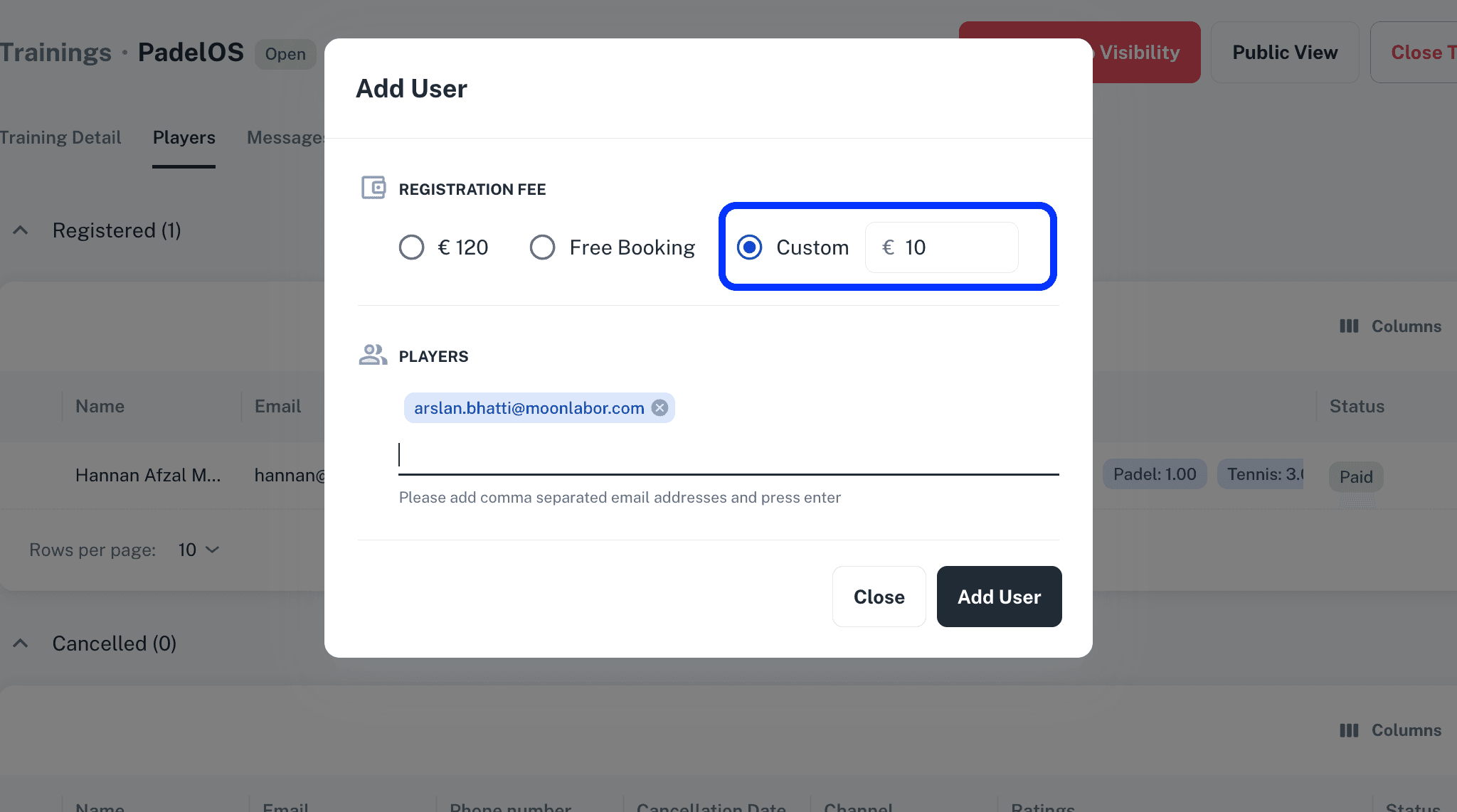
The invited player will pay the custom registration price defined by the admin in the invitation.
Active Player Per Play Date Report:
An Active Players per Play Date report has been added, providing a daily breakdown of how many players visited the club on each specific day.
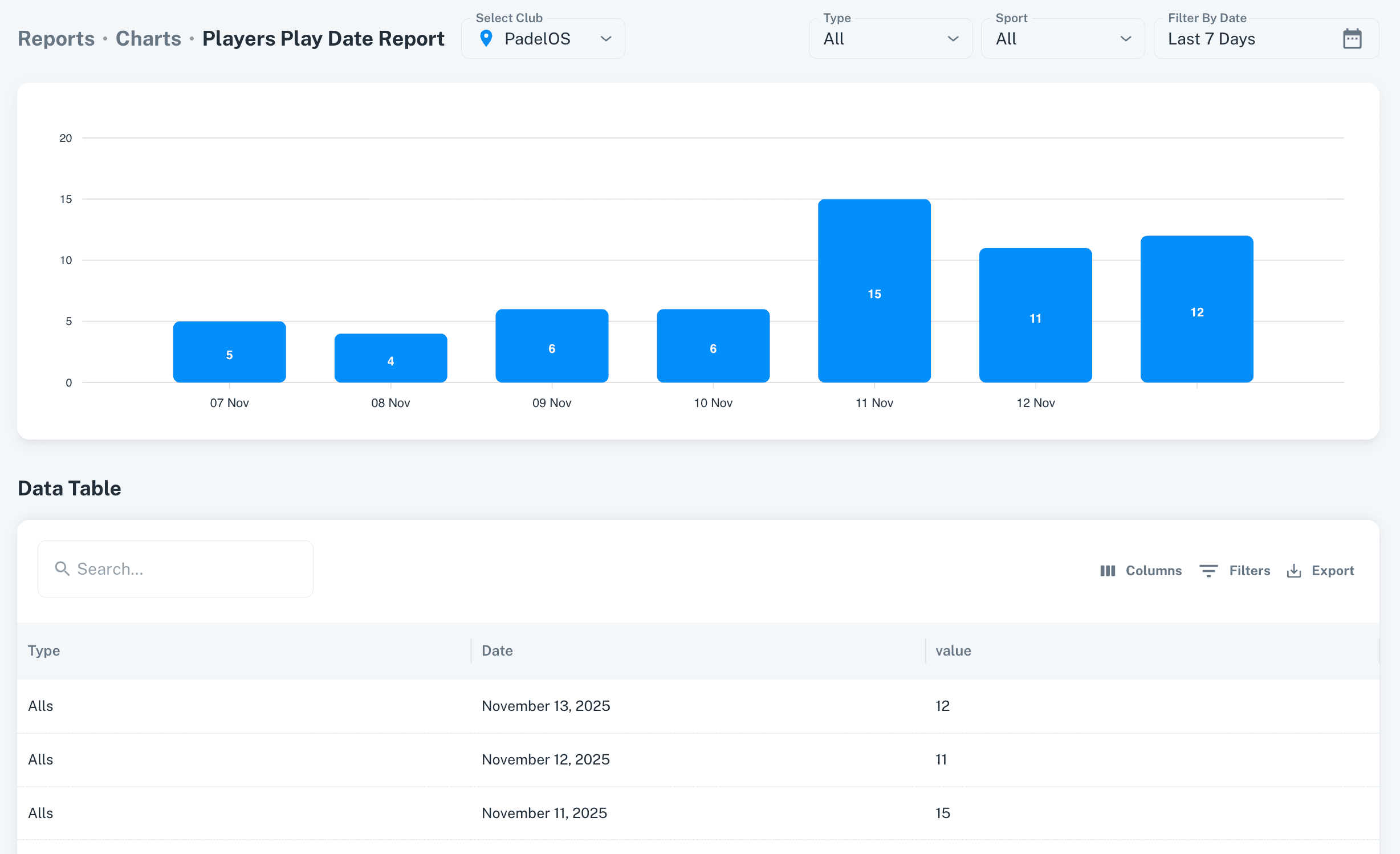
Player counts can be filtered by Activity using Type filter, allowing clubs to view all Active players within the selected activity.
Open Matches:
Creation and cancellation details have been added to the Open Matches detail view on the admin side.
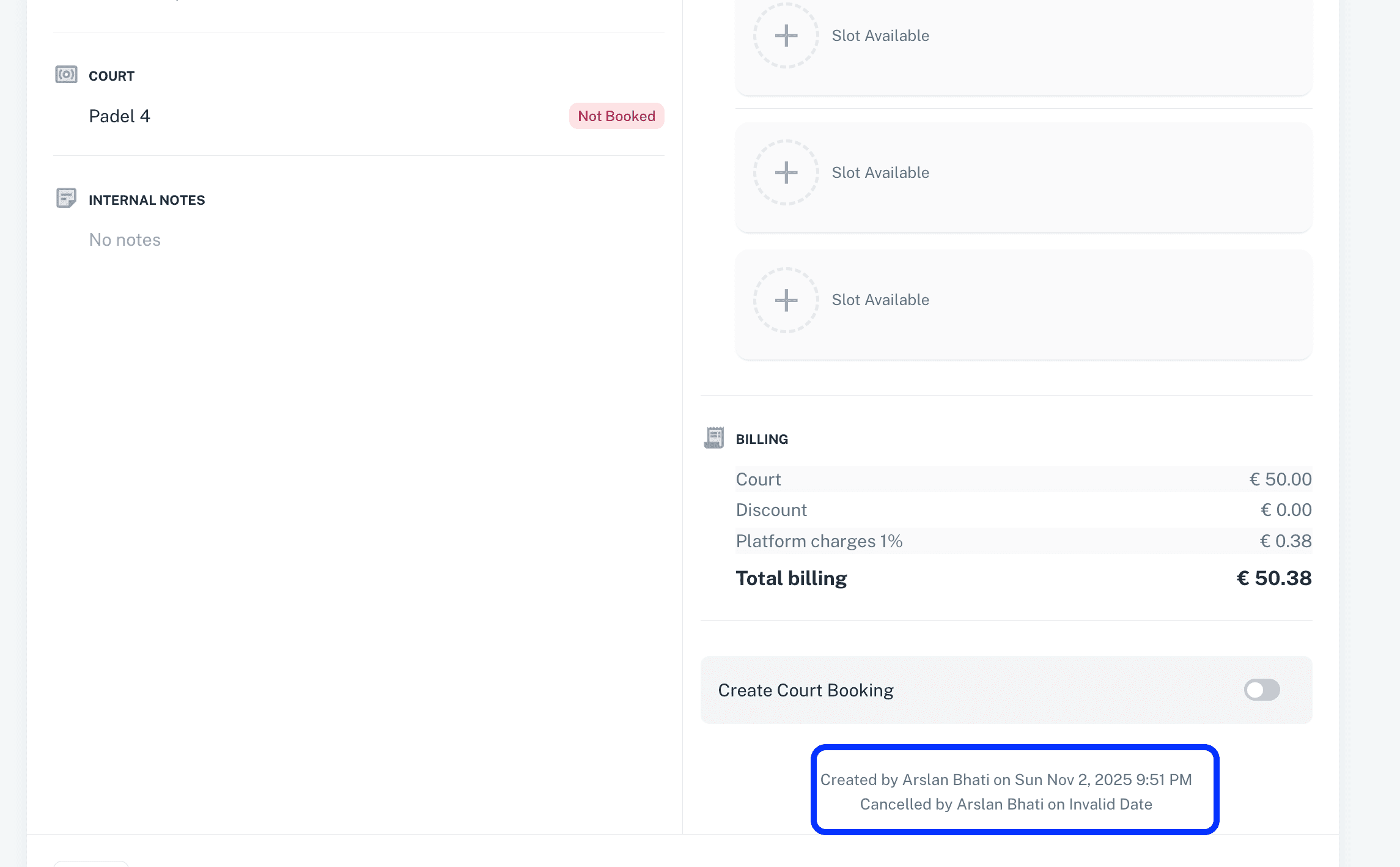
Admins can now see who created a match and the exact date and time it was created.
For cancelled matches, admins can also view who cancelled the match along with the cancellation date and time.
Waiting List in Events and Trainings:
An option has been added for admins to place players on the waiting list for an event or training when all available slots are full.
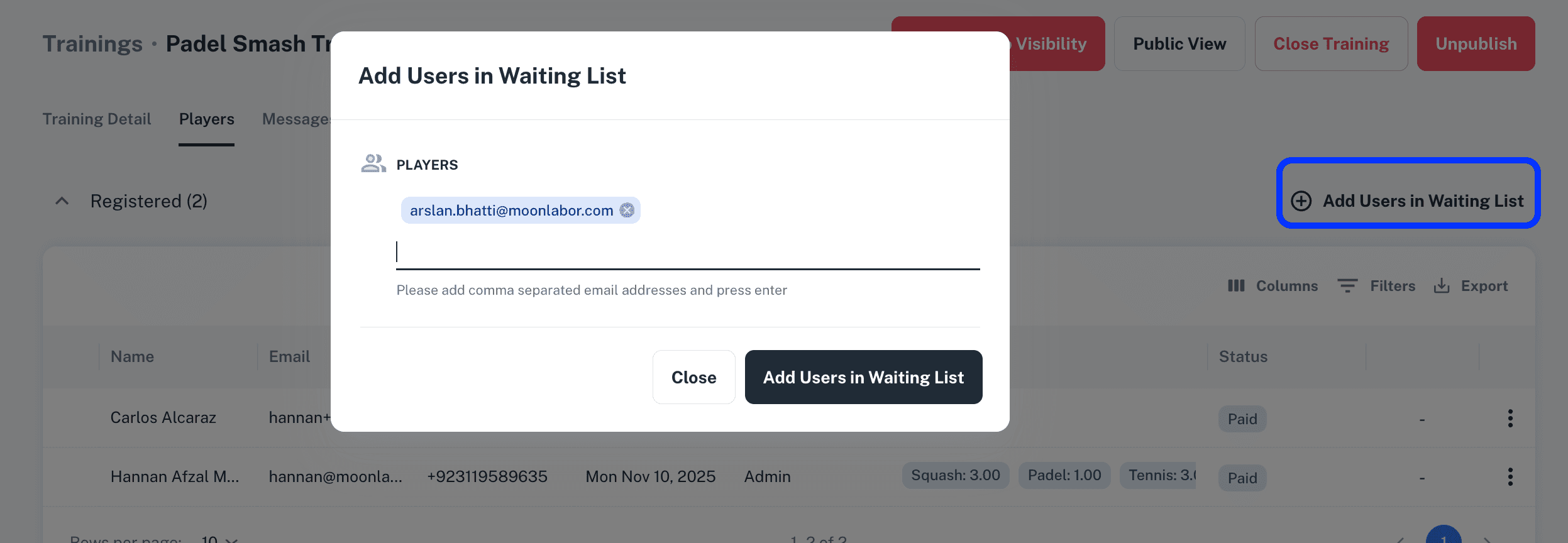
Players on the waiting list will receive an email notification as soon as a slot becomes available.
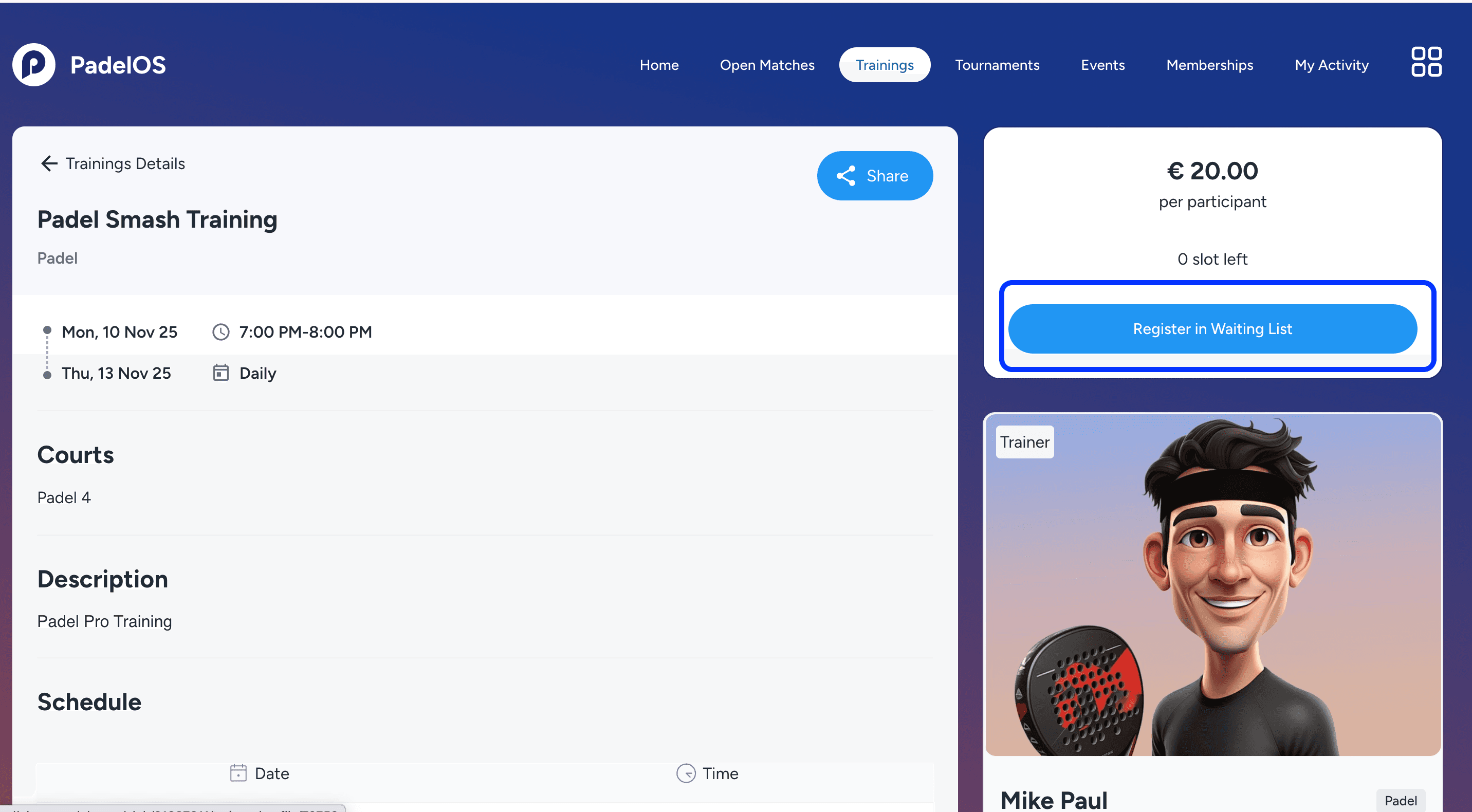
Players can also join the waiting list directly from the player side for sold out trainings and events.
Other Updates:
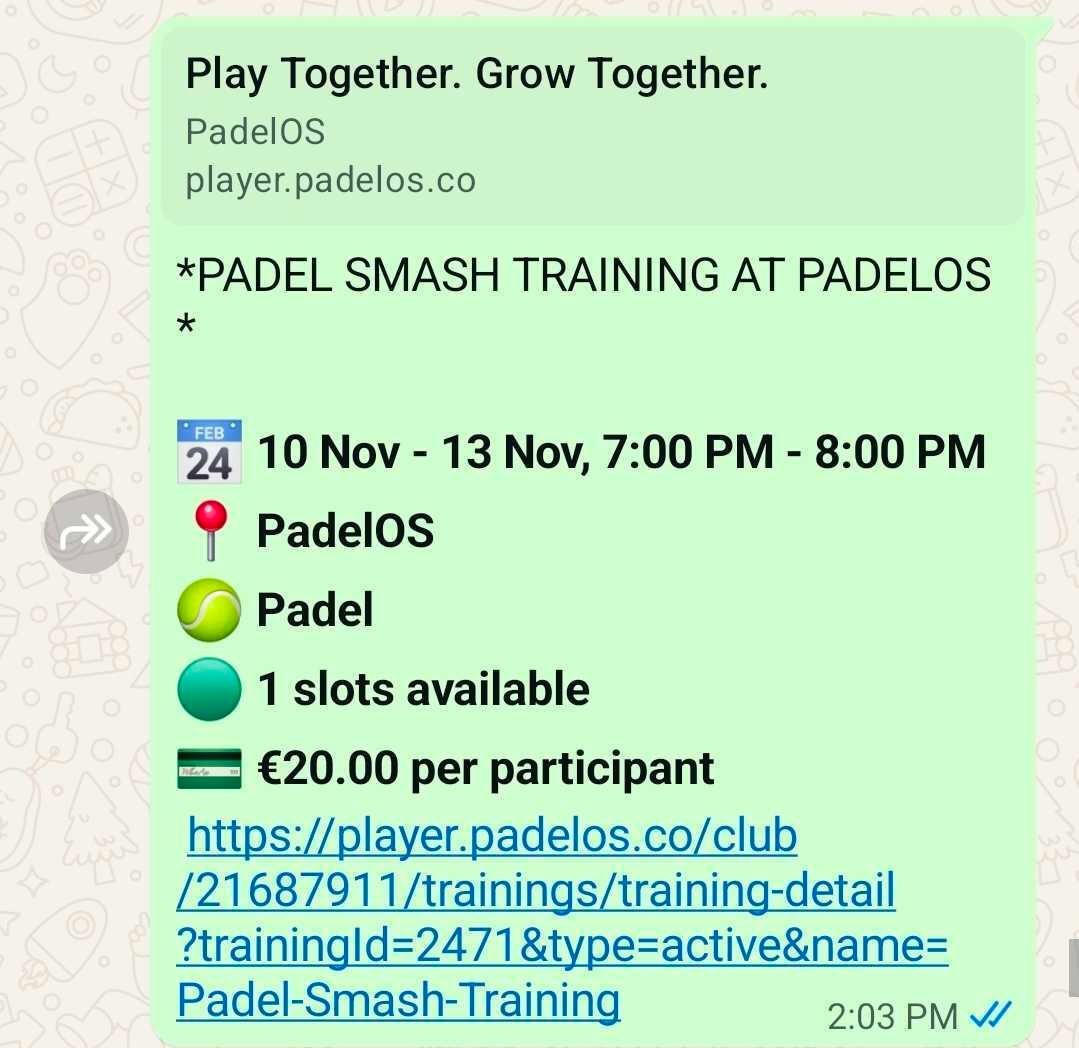
Added Share button to Events and Trainings pages, so that players can share the details of an event or a training with other players via Whatsapp and other methods along with brief information.
Minor enhancements and bug fixes improve platform performance, stability, and responsiveness.
v2.5
Book Ahead Limit Per Sport:
A new policy setting has been added allowing clubs to define separate book ahead limits for each sport.
This provides flexible control over how far in advance players can book per sport.
Default Booking Duration Per Sport:
Admins can now configure a default booking duration (e.g., 60/90/120 minutes) for each sport.
The selected default duration is automatically pre-selected on the club’s booking screen based on the saved policy.
Cancel Booking after Cancellation Time:
A new policy option now allows players to cancel a booking even after the cancellation time has passed.
If enabled, players can cancel but will not receive a refund for late cancellations.
Trainers Access to Events/Tournaments:
Trainers and Trainer Admins now have access to the details of their associated Events and Tournaments.
They can open these directly from the Schedule or via the Events/Tournaments modules in the main navigation.
Recurring bookings Cancellation Policy:
A separate policy has been added for Recurring Booking Cancellations.
When enabled, players can cancel individual reservations within their recurring bookings from the club page.
Payment Gateway Fee in Finances View:
A new Payment Gateway Fee column has been added to the Finances grid.
Admins can view the exact fee deducted by the payment gateway and click on the value to see detailed breakdowns.
Creation/Cancellation info in Events and Trainings:
Creation and cancellation information for individual bookings is now displayed directly inside the booking details pop-up in Events and Trainings.
Other Updates:
Payment status added to the Private Lesson pop-up and detail view in admin application.
Minor enhancements and bug fixes improve platform performance, stability, and responsiveness.
v2.1
Recurring Bookings
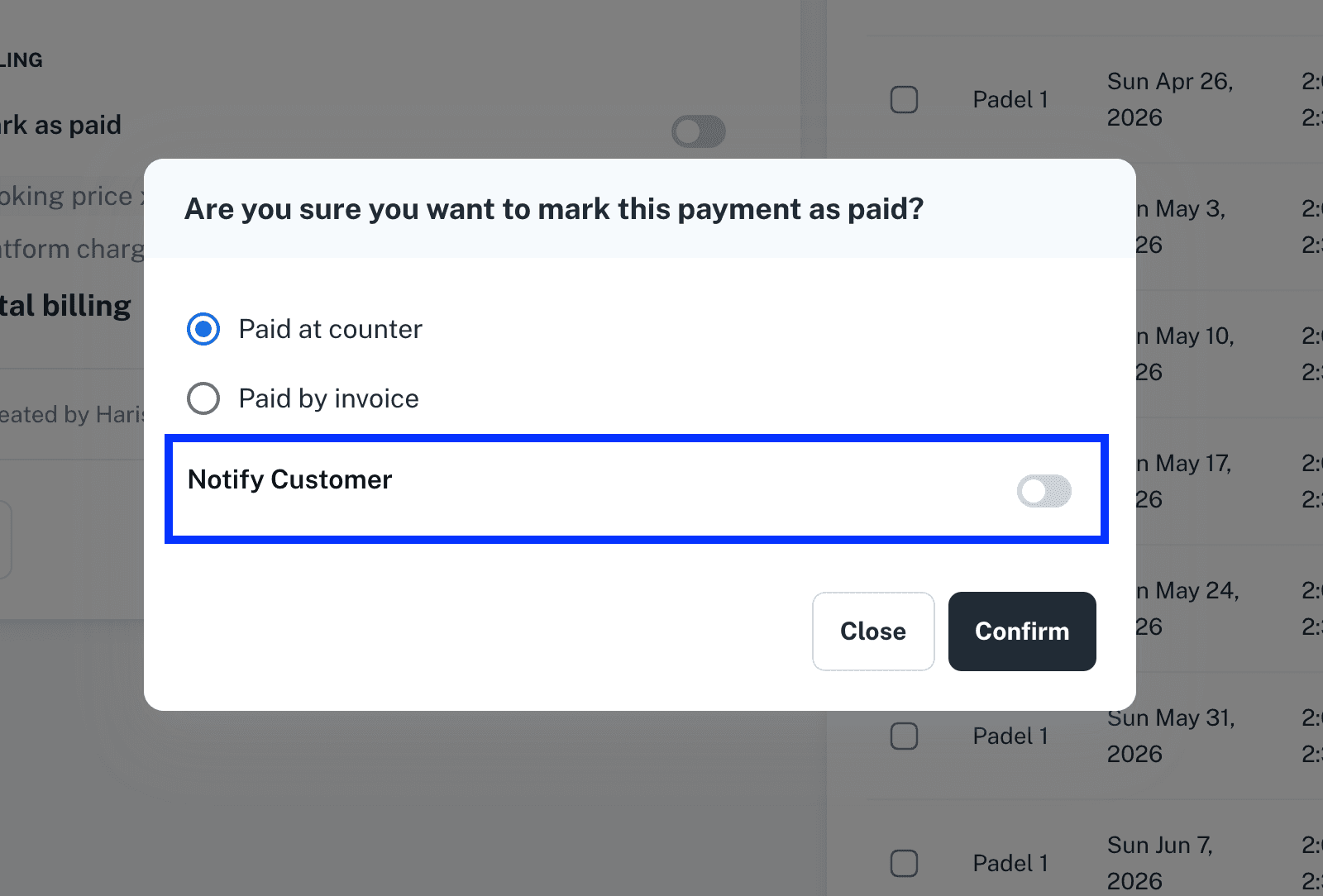
Notify Customer option added when a recurring booking is marked as paid, allowing admins to choose whether to send a payment confirmation email to the customer.
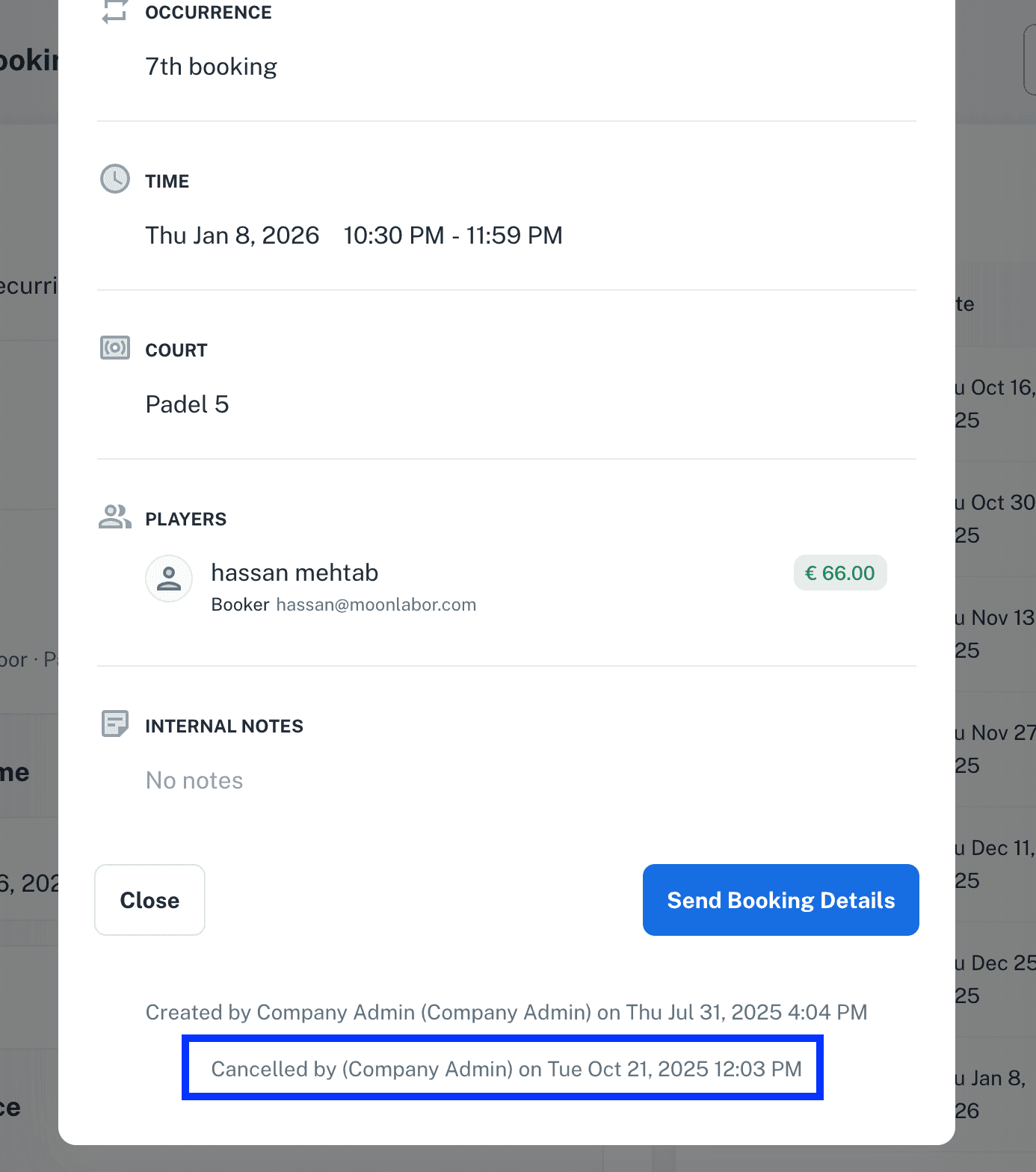
Cancellation details (Cancelled by and Cancelled on) are now displayed when an individual reservation within a recurring booking is cancelled.
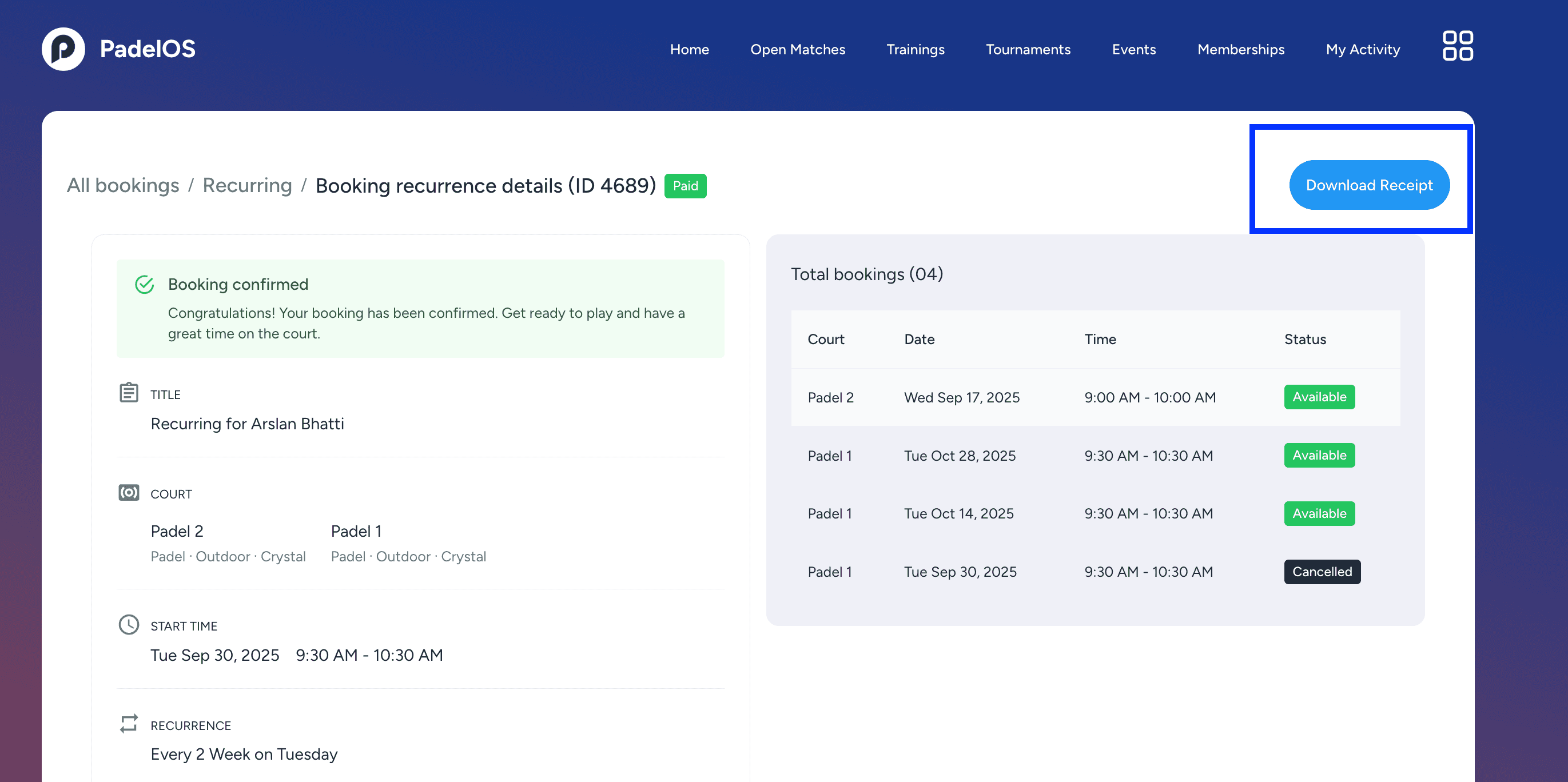
Download Receipt feature added, allowing players to download the payment receipt for a recurring booking directly from the recurring booking details view.
Trainings
Date and time updates are now allowed for Fixed Trainings even when the training is open and players are already registered.
Club Staff (View Only) Role
New role: Club Staff (View Only) added.
This role has view-only access to the following sections: Schedule, Bookings, Recurring Bookings, Events, Trainings, Tournaments, Wallets, and Club Settings.
The role cannot access Memberships, Finances, Customers, Reports, or Company Settings.
Wallets
Activity ID column added to the wallet transactions grid view, allowing admins to easily identify the purpose of each transaction.
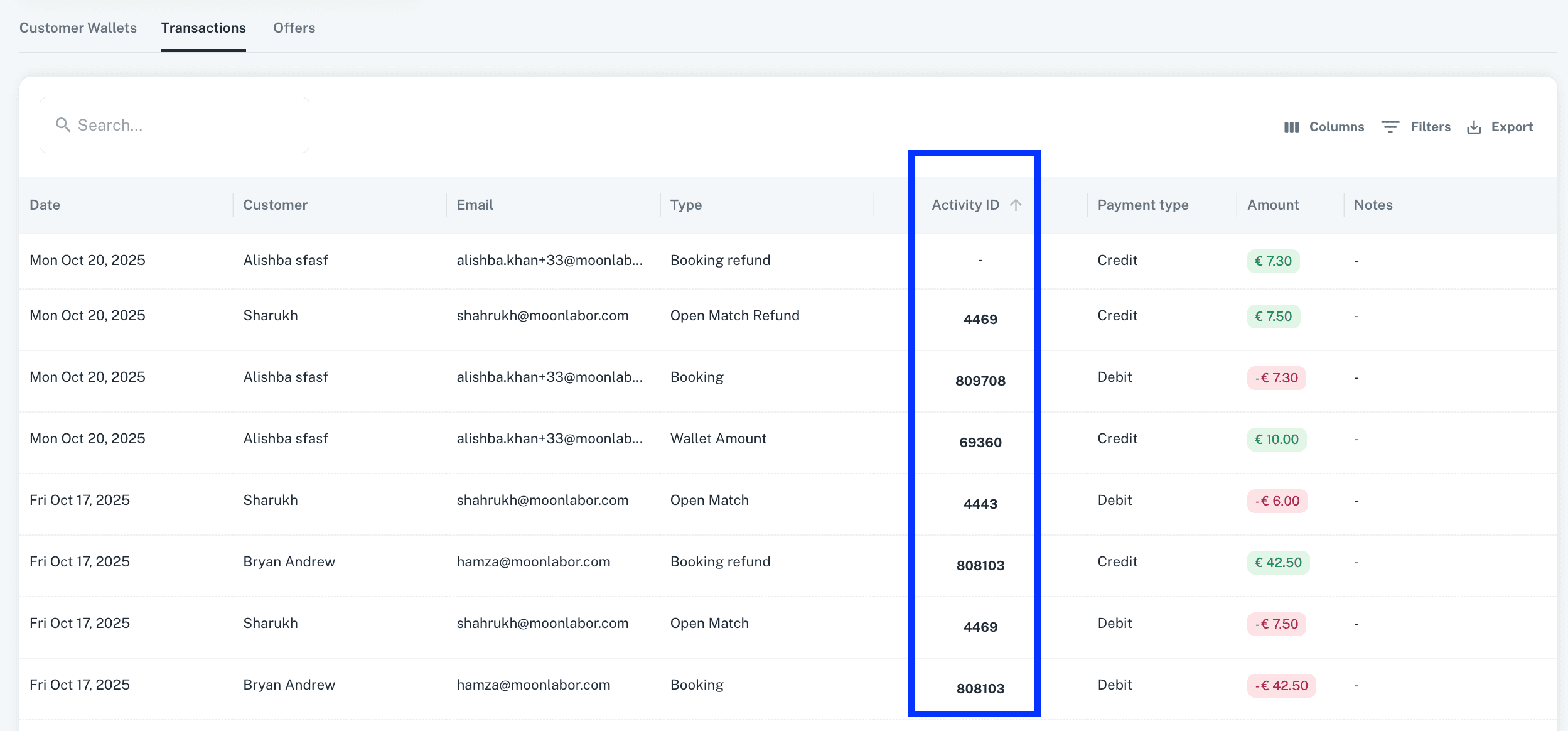
The Activity ID is clickable and opens the respective activity’s detail view for quick access.
Email Notifications
Court booking email templates updated to the new design, featuring improved club branding, layout, and color scheme.
Other Updates:
Club Staff access updated — club staff can now verify customers in the Memberships module.
Minor enhancements and bug fixes implemented to improve overall platform performance, stability, and responsiveness.
v2.0
Ability to Create Bulk Bookings
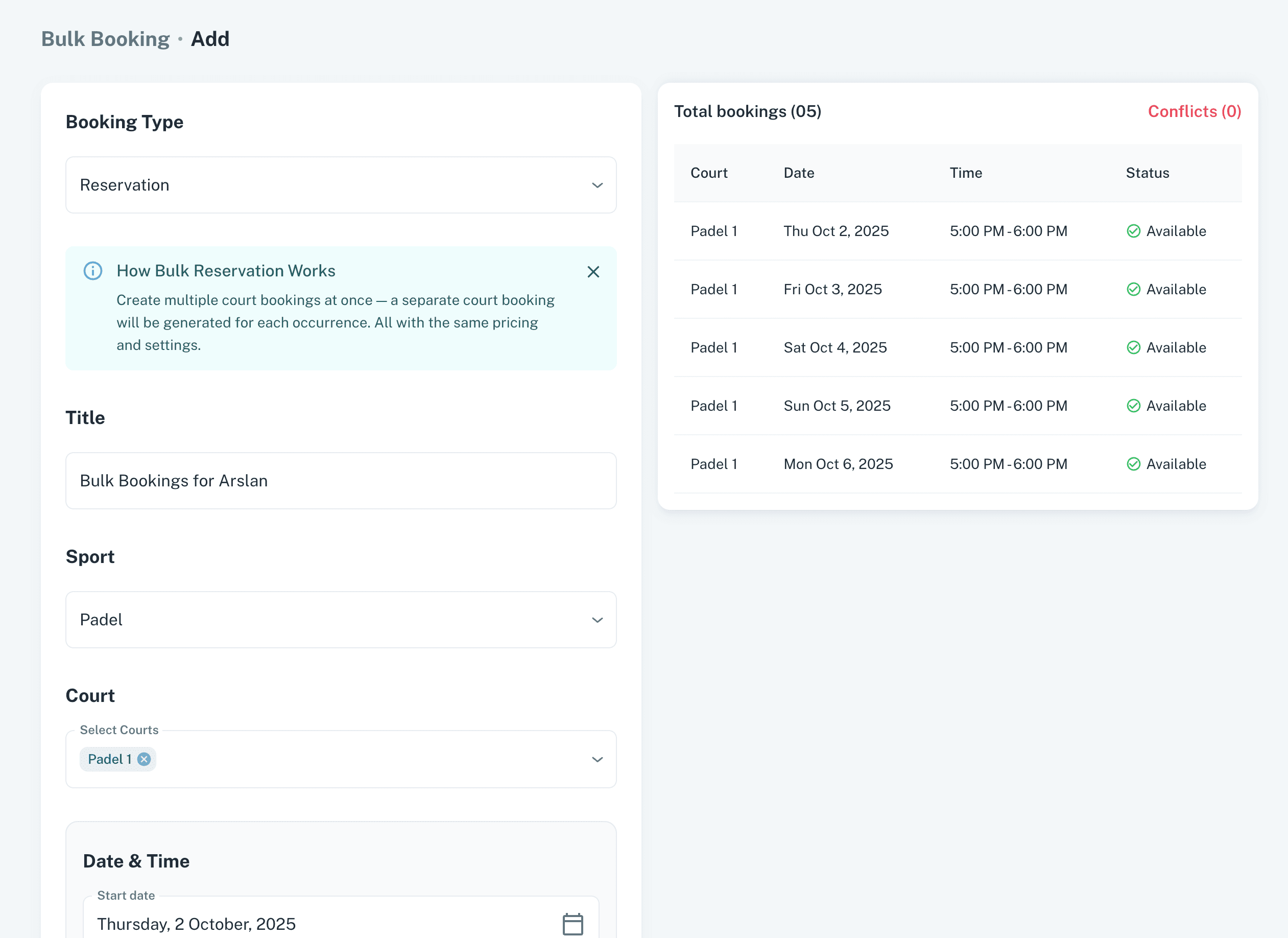
Admin can create multiple court bookings at once using bulk creation, with similar participants and properties.
Customer details can be accessed directly from the booking detail by clicking the customer name.
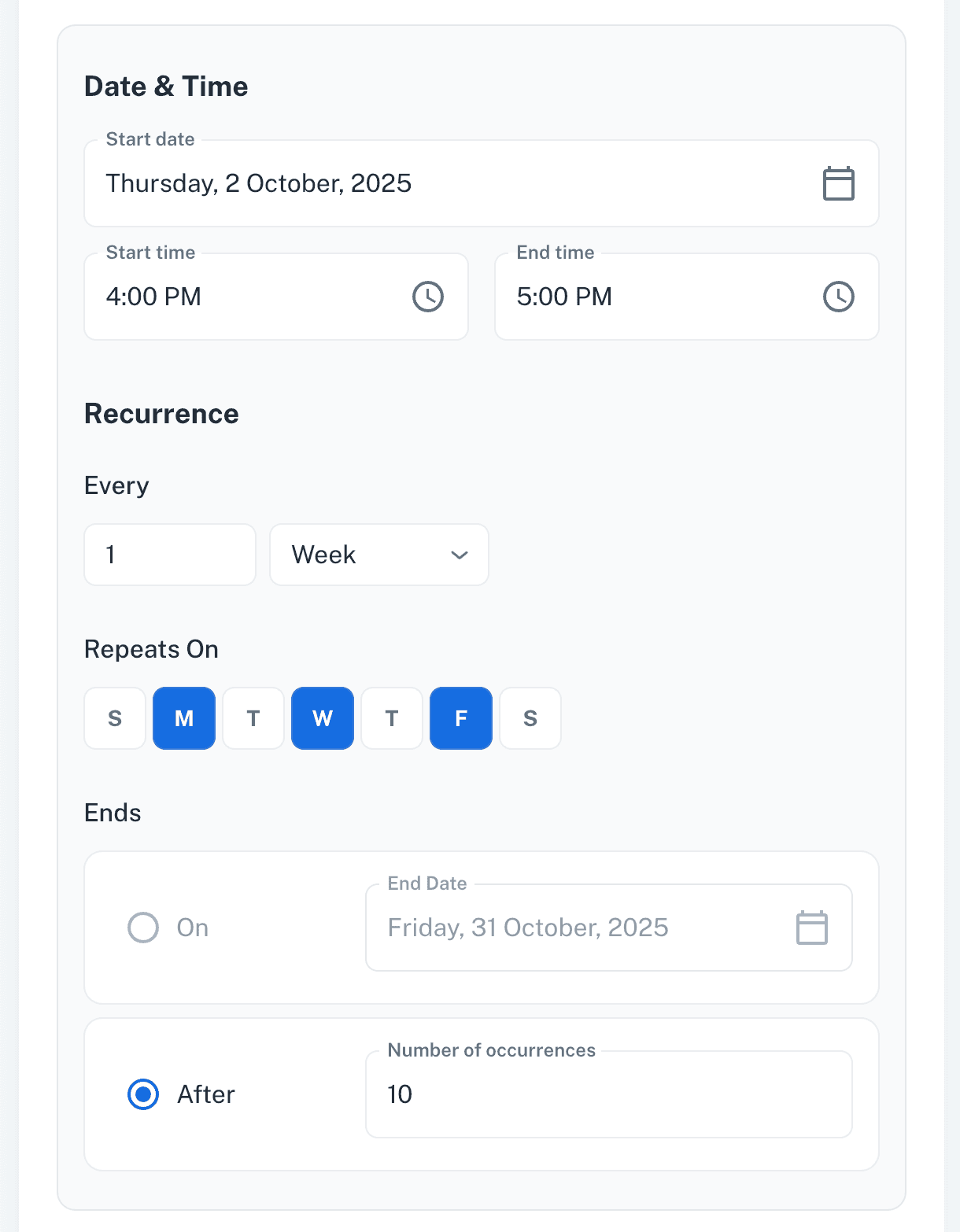
New Recurring Creation Tool
New recurrence UI added to the recurring booking form for better control over booking repetition patterns.
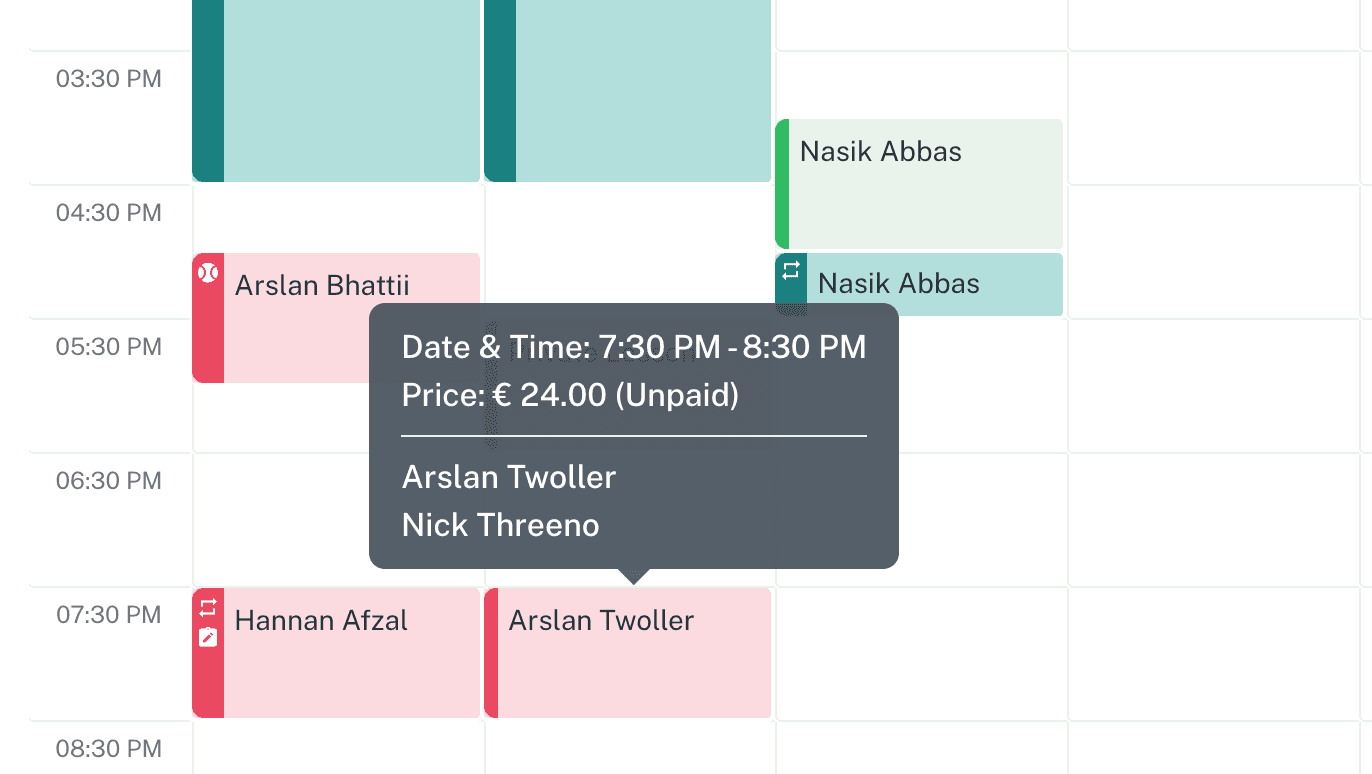
Scheduler Updates
Booking tooltip on the court schedule now shows billing and participant details.
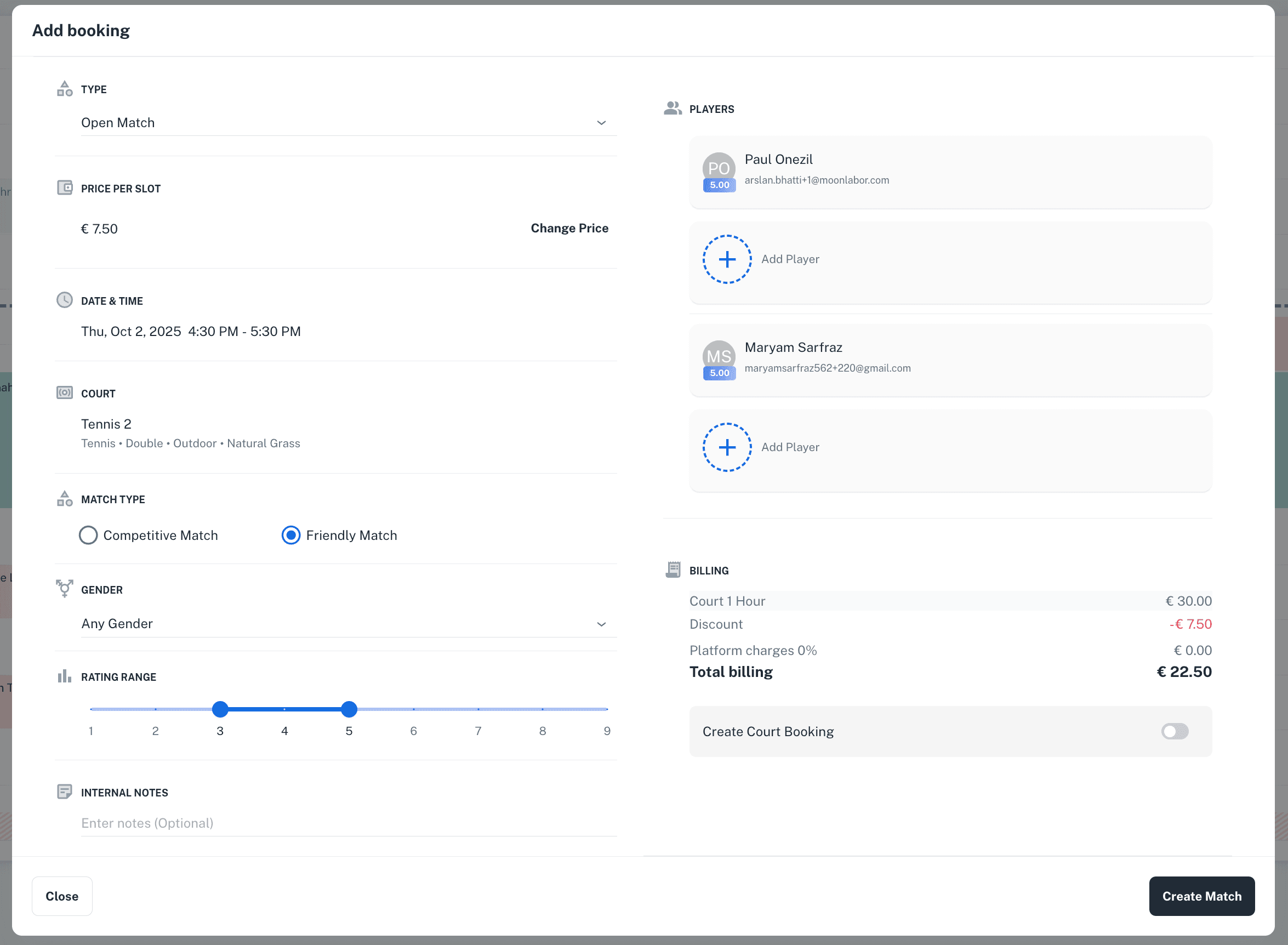
Billing details added to the private lesson pop-up accessed from the schedular.
Create an Open Match directly from the Court Schedule by clicking an available slot.
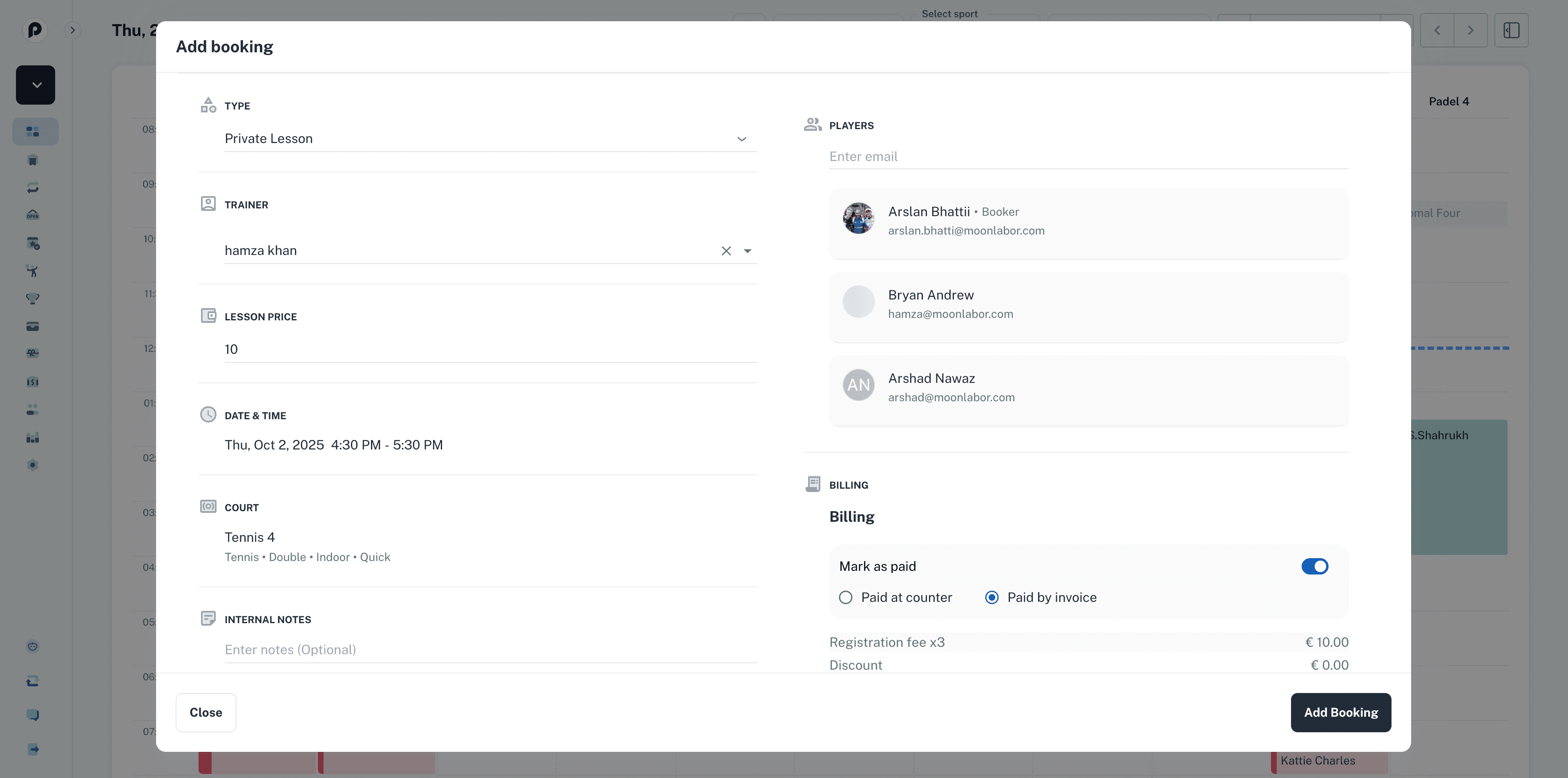
Create Private Lessons from Admin
Create a single-session private lesson directly from the Court Schedule by clicking an available slot.
Bulk Trainings Creation
Admin can create multiple individual Trainings at once using bulk creation, with similar price and properties.
Add rating range restrictions to Trainings to allow only players with specific ratings to register.
Associate multiple trainers with a Training.
New recurrence UI added to the training form for better control over training session repetition.
Bulk Event Creation and New Updates
Admin can create multiple individual Events at once using bulk creation, with similar price and properties.
Add rating range restrictions to Events to allow only players with specific ratings to register.
Associate multiple trainers or organizers with an Event as organizers.
New recurrence UI added to the event form for better control over event repetition.
Tournaments
Associate multiple trainers or organizers with a Tournament as organizers.
v1.6.3
Home/Schedule
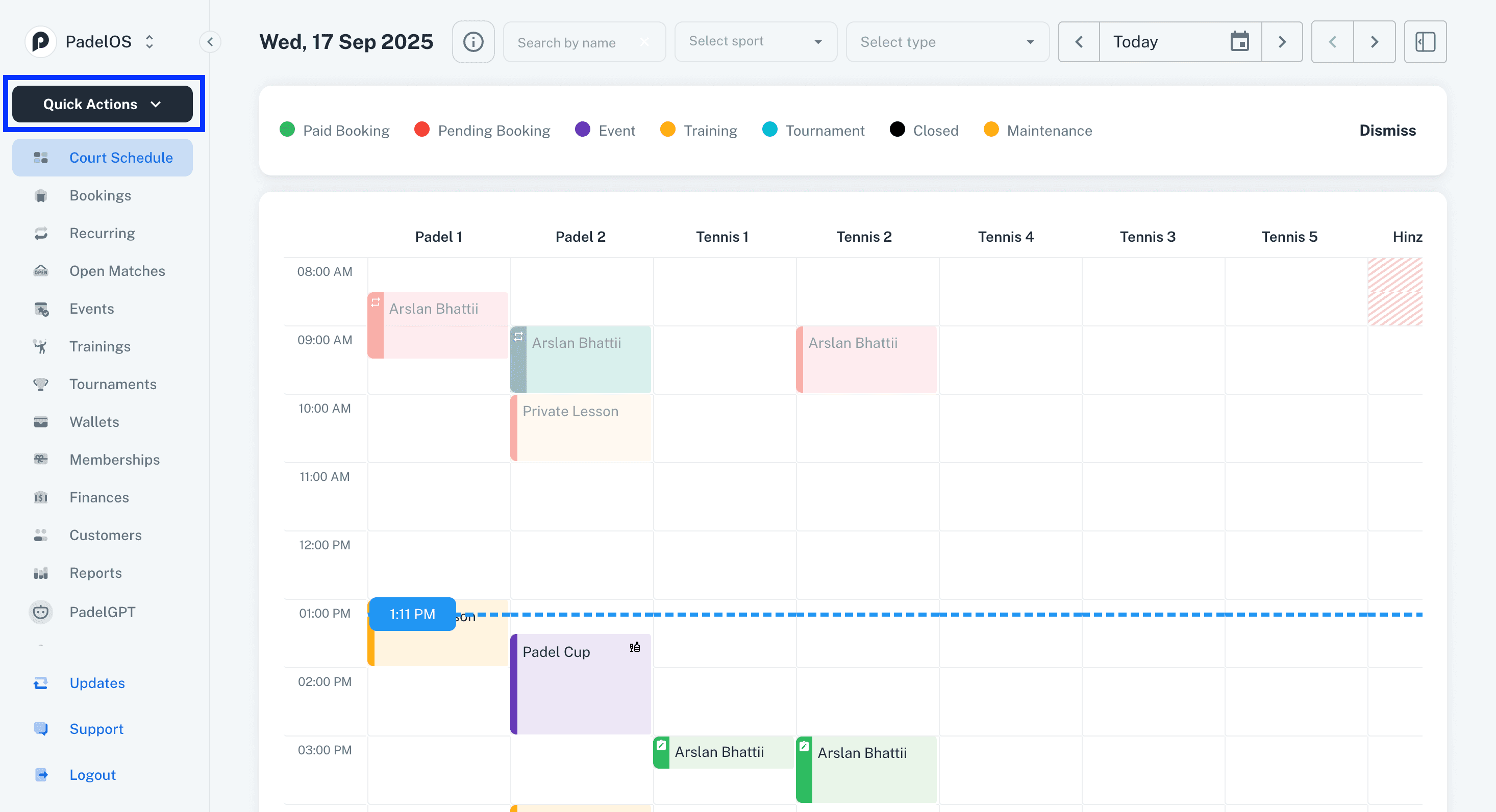
Quick Actions button added in the main navigation for admins to quickly access frequently used actions.
Trainings/Private Lessons
Email notification added for customers when a private lesson session is marked as completed by the Trainer or Admin.
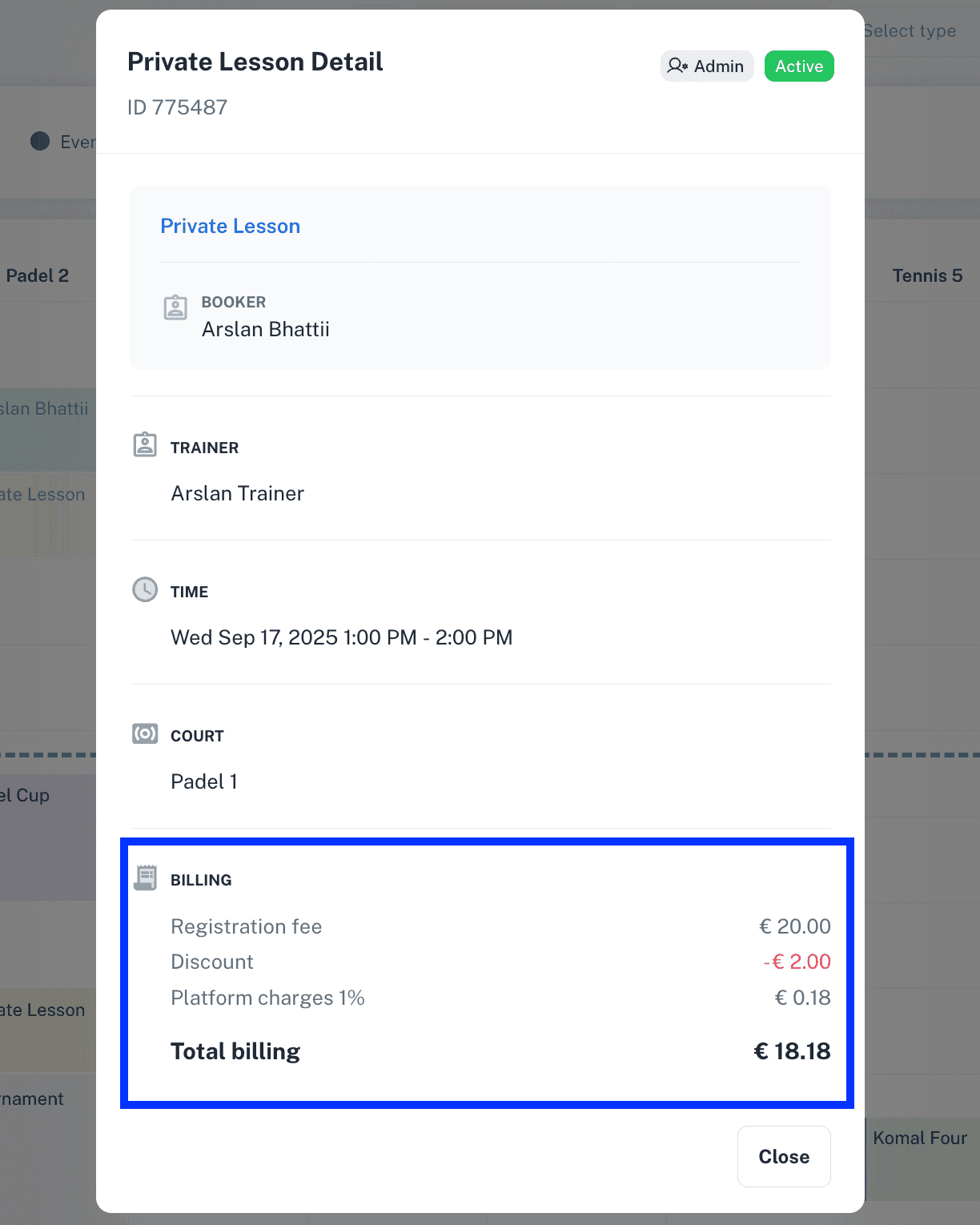
Billing details have been added to the private lesson pop-up opened from the schedular.
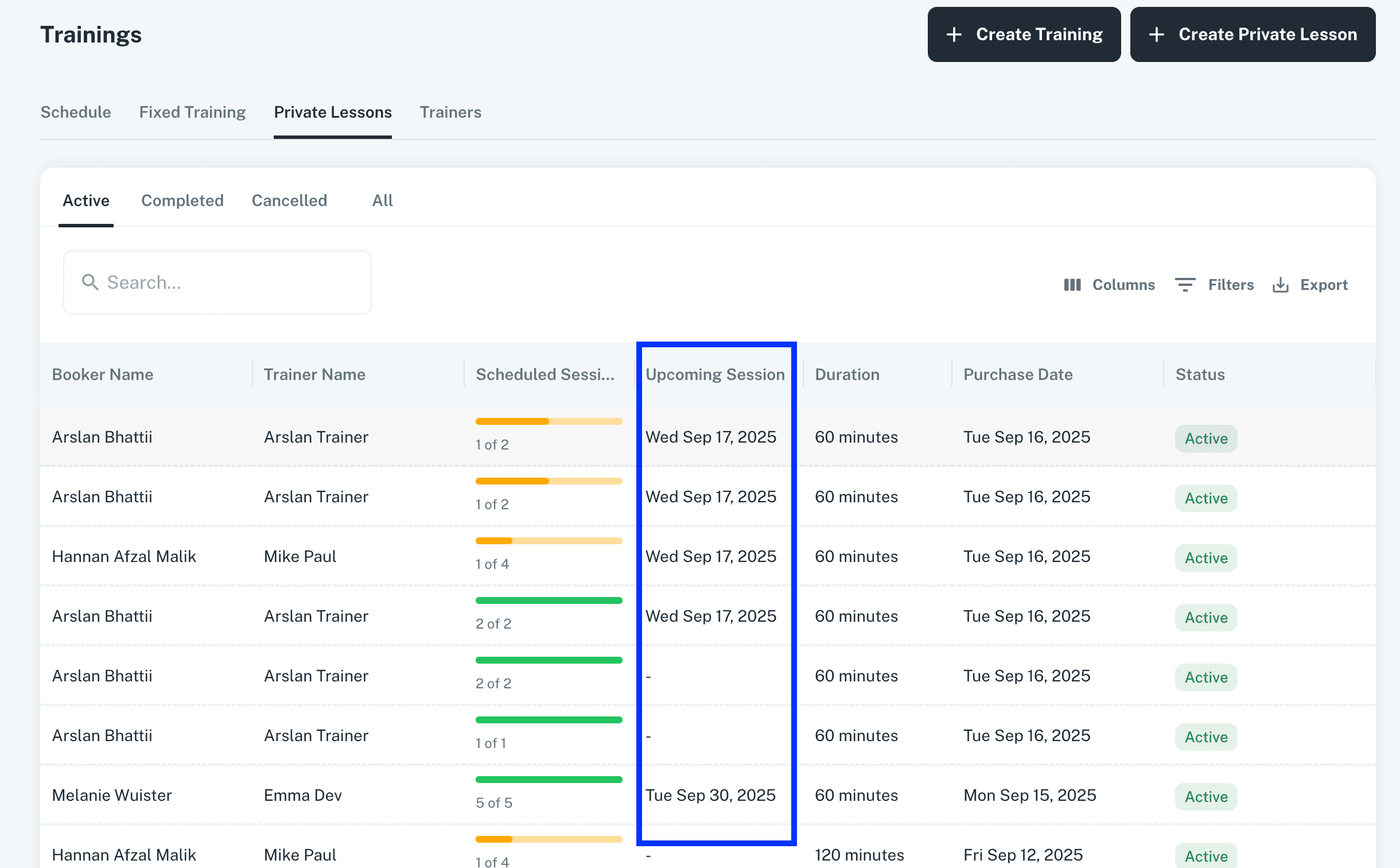
Upcoming Session Date added to the Private lessons grid view.
Memberships
Membership discount percentages can be added up to two decimal places.
Open Matches
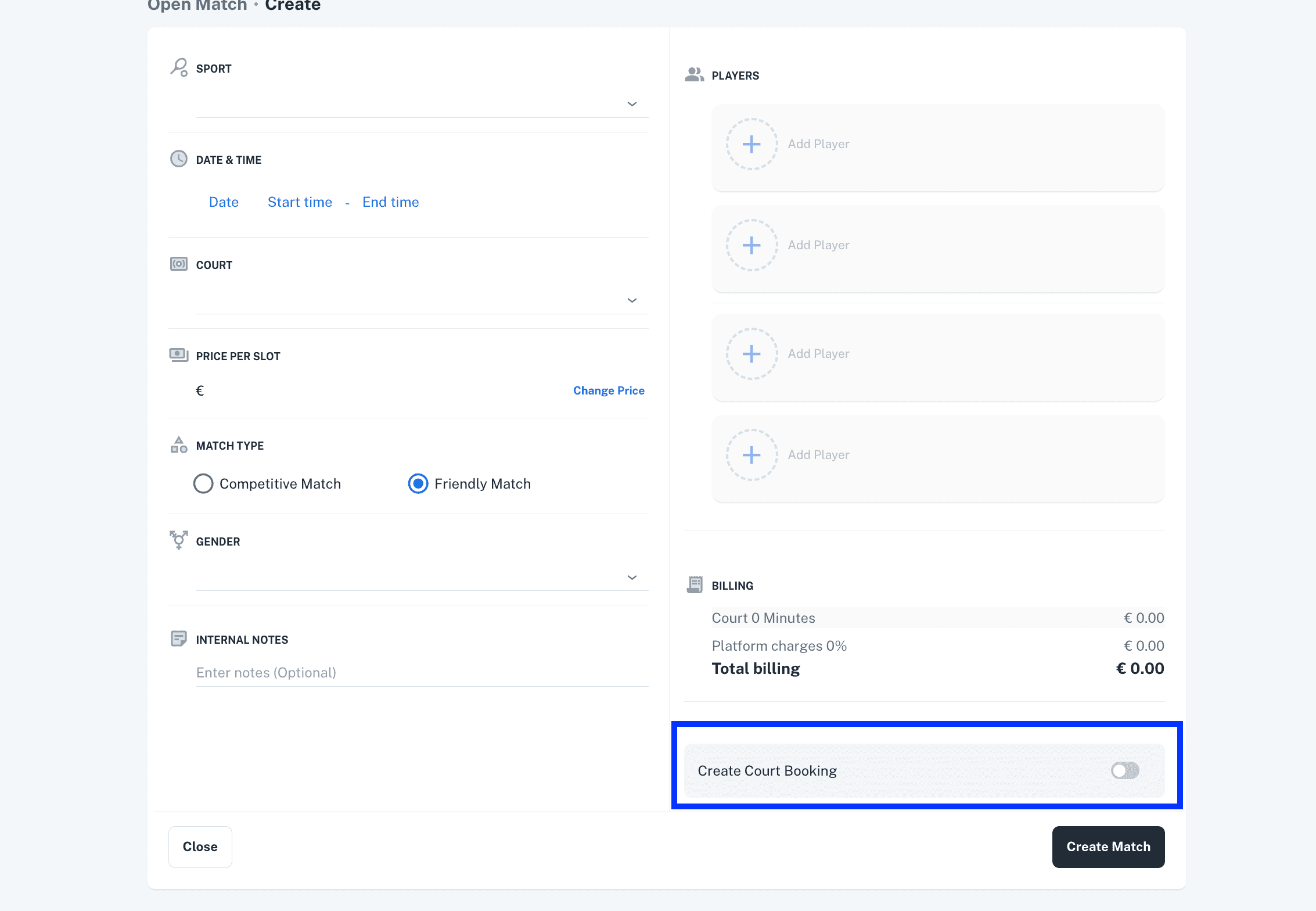
Court booking for open match can now be created by admin while creating the open match and also from Open match details view of an existing match.
Other Updates:
Privacy Permissions pop-up added on user sign up/First login.
Entering the Phone number is now mandatory for customer to register account.
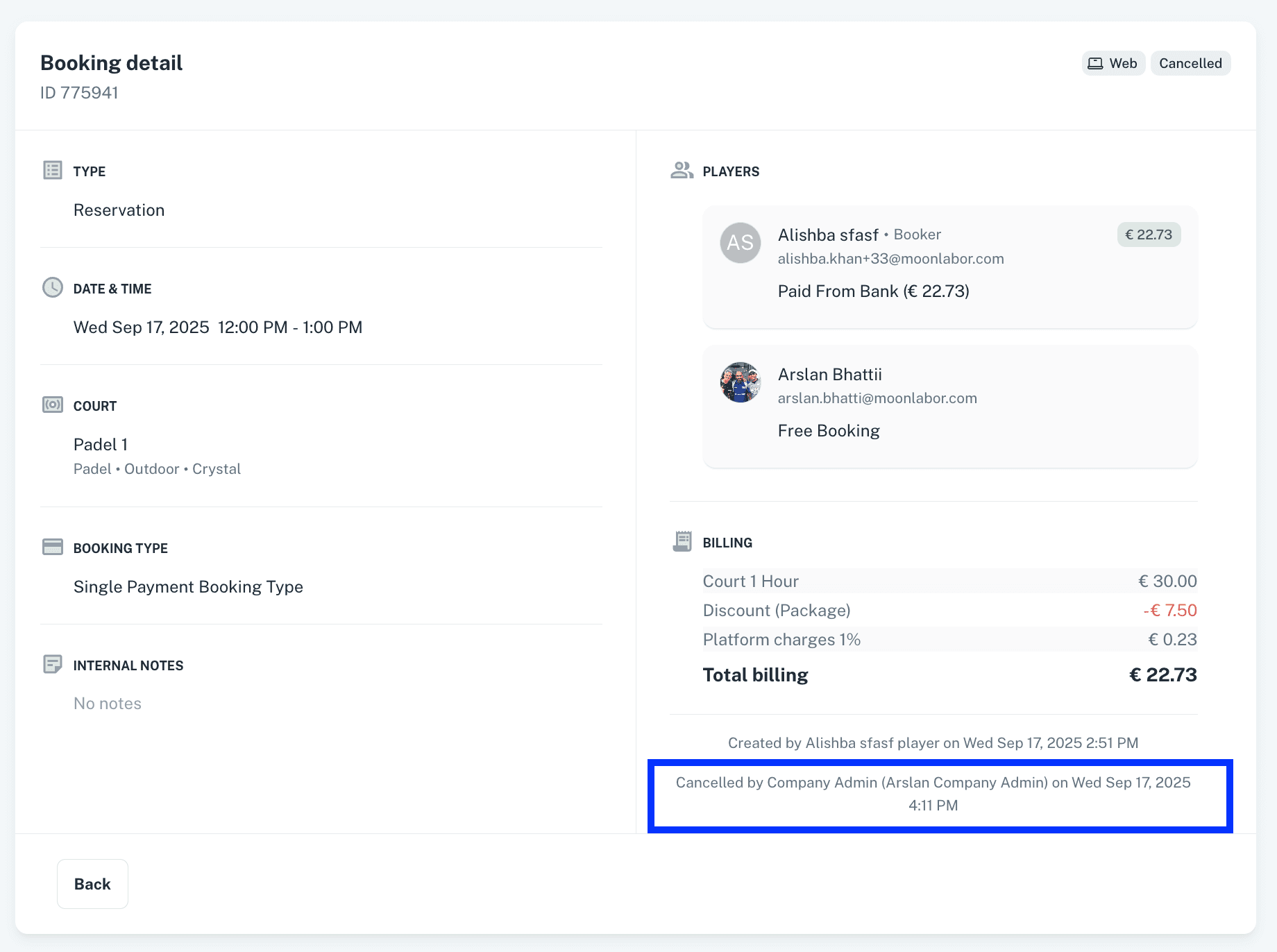
Cancelled Date and Cancelled by added to booking details of all types of bookings.
Minor enhancements and bug fixes have been implemented to improve overall performance, stability, and responsiveness of the platform.